Computers / Laptops
Quick Guide for Acer Aspire 1820PT / 1420P Series Notebook PC
A quick guide for the Acer Aspire 1820PT / 1420P series, covering device layout, hotkey functions, port descriptions, and technical specifications.
Table of contents
Manual images
Jump to the sectionQuick guide from the manual
This document provides a basic overview of the Acer Aspire 1820PT / 1420P series notebook. It is intended to help users identify key features, ports, and controls. For detailed information on system utilities, data recovery, and troubleshooting, please refer to the preloaded AcerSystem User Guide, which can be accessed via the Start menu under All Programs.
Device tour
The notebook features a variety of indicators and controls:
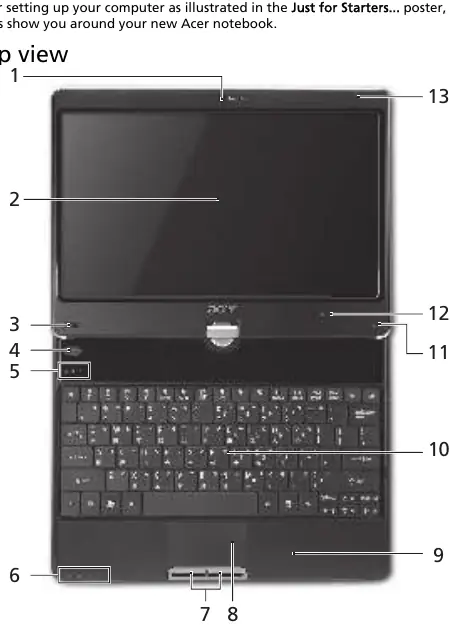
- Top view: Includes the Acer Crystal Eye webcam, LCD screen, programmable keys, backup key, and status indicators for HDD, Num Lock, Caps Lock, Power, Battery, Bluetooth, and WLAN/3G.
- Closed front view: Contains the communication key for WLAN/3G and stereo speakers.
- Rear view: Houses the battery pack bay.
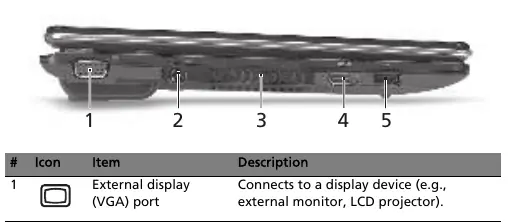
- Left view: Features the VGA port, DC-in jack, ventilation slots, HDMI port, and a USB 2.0 port.
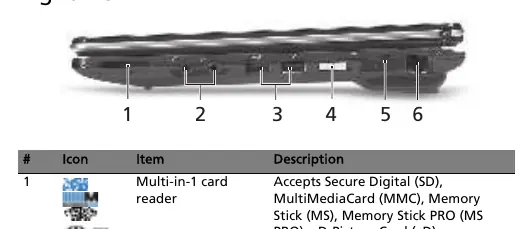
- Right view: Includes a multi-in-1 card reader, audio jacks (headphones/speaker/line-out with S/PDIF and microphone-in), a USB 2.0 port, power button, Kensington lock slot, and Ethernet (RJ-45) port.
- Base view: Provides access to the battery bay, hard disk bay, memory compartment, and cooling fan ventilation.
Hotkeys
To use hotkeys, press and hold the Fn key before pressing the corresponding function key:
- Fn + F1: Power management
- Fn + F2: System property
- Fn + F3: Bluetooth toggle
- Fn + F4: Sleep mode
- Fn + F5: Display toggle
- Fn + F6: Screen blank
- Fn + F7: Touchpad toggle
- Fn + F8: Speaker toggle
- Brightness/Volume: Use arrow keys with Fn for adjustments.
Technical specifications
The series supports Intel Core 2 Duo, Pentium, or Celeron processors with the Mobile Intel GS45 Express Chipset. Memory is upgradeable up to 8 GB using two soDIMM modules. The display is an 11.6-inch HD convertible screen. The device includes a 2.5-inch hard drive, multi-in-1 card reader, and various connectivity options including Gigabit Ethernet, WLAN, and Bluetooth.
Manufacturer information
Acer Inc.
Practical help
Common problems
Battery light is amber
The battery is currently charging.
Screen backlight is off
The screen may be in blank mode to save power; press any key to return.
Cannot access AcerSystem User Guide
Ensure Adobe Reader is installed; the system will prompt for installation if it is missing.
Before use
- Ensure the battery is properly locked in the battery bay.
- Check that ventilation slots are not obstructed to prevent overheating.
- Verify that only one memory card is inserted into the multi-in-1 reader at a time.
- Use the Kensington lock if securing the device to an immovable object.
Specs in practice
- Operating Temperature
- 5 °C to 35 °C; do not operate outside this range.
- Battery Status
- Amber light indicates charging; blue light indicates fully charged while in AC mode.
Images and diagrams
- The top view diagram identifies the webcam, display, and status indicators.
- Side views illustrate the location of I/O ports including HDMI, VGA, and USB.
- The base view shows the location of the battery release latch and memory compartment.
Model compatibility
- Some features (e.g., Bluetooth, 3G) are only available on certain models.
- Specifications are subject to change based on the specific configuration purchased.

Manual page author
David Miller
Documentation analyst
Organizes user manual content into clear summaries, with attention to model details, product context, and everyday usability.