Electronics / Cameras
User Manual for Aluratek 2/4-Port USB 2.0 Auto Sharing Switch
Quick start guide and user manual for Aluratek AUS0202 and AUS0204 USB 2.0 Auto Sharing Switches. Learn how to install, configure AOD software, and troubleshoot connectivity.
Quick answers from the manual
Quick answer
- The Aluratek USB 2.0 Auto Sharing Switch allows 2 (AUS0202) or 4 (AUS0204) computers to share USB peripherals. It supports manual switching via a button or automatic switching via the AOD software (Windows only). p. 1
Key actions
- Connect computers to the switch using the supplied USB 2.0 A-B cable. p. 1
- Press the 'Select' button to switch between computers. p. 1
First start
- Connect computers and peripherals, then install the AOD software from the CD if using Windows. p. 1
Show 3 more answers Show less
Problems and fixes
Device switching delay
Wait 30 seconds between switching to allow the computer to associate with the device.
p. 1Technical specifications
| Parameter | Value | Meaning | Pages |
|---|---|---|---|
| Data Transfer Rate | 480 Mbps | Maximum speed for USB 2.0 | p. 1 |
| Compatibility | USB 2.0 / 1.1 | Backward compatible with USB 1.1 | p. 1 |
Where to find it in the PDF
- Quick Start Guide p. 1
Table of contents
Manual images
Click an image to enlargeQuick Guide from the Manual
The Aluratek USB 2.0 Auto Sharing Switch allows multiple computers to share a single USB peripheral device, such as a printer, scanner, or external hard drive. The device supports manual switching via a push-button or automatic switching using the AOD (Access-On-Demand) software (Windows only).
Hardware Installation
Follow these steps to connect your devices:
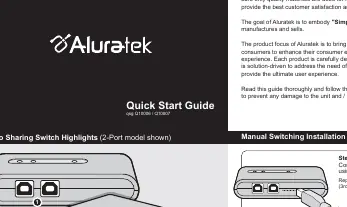
- Connect each computer to the switch using the supplied USB 2.0 A-B cable.
- Connect the peripheral device you wish to share to the USB port on the switch.
- If the peripheral requires more power, an external power adapter may be needed.
Manual Switching
To switch between computers manually:
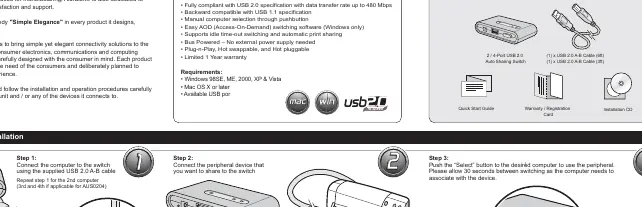
- Push the Select button on the switch unit.
- Wait approximately 30 seconds for the computer to associate with the device.
AOD Software Installation (Windows Only)
The AOD software enables automatic switching and printer sharing features.
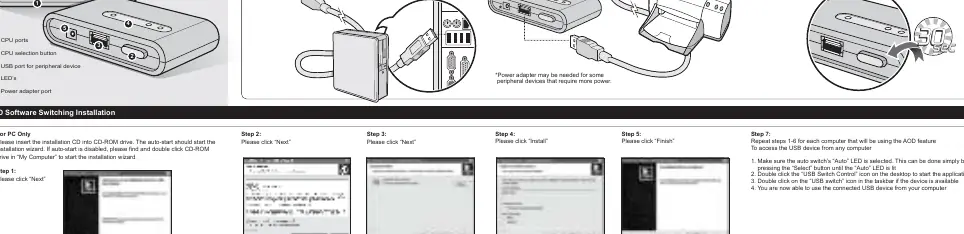
- Insert the installation CD into your CD-ROM drive.
- Follow the on-screen installation wizard (click Next, Install, Finish).
- Restart the computer after installation.
AOD Settings and Features
Idle Time-out: This function allows you to set a time period after which other computers can connect to the device. To change this value, right-click the USB switch icon in the taskbar, select Config, input the desired time, and click Apply.
Automatic Printer Sharing: Once a printer is selected in the AOD software, you can print from any connected computer without manually switching.
LED Indicators
- Green: The USB device is idle and ready to be connected.
- Yellow: The USB device is currently being used by the active computer.
- Red: The USB device is being used by another computer or is disabled.
Manufacturer information
Aluratek
Practical help
Common problems
Device not switching between computers
Ensure you wait at least 30 seconds after pressing the 'Select' button to allow the computer to associate with the device.
Peripheral not detected or functioning
Some peripherals require more power than the USB bus provides; connect an external power adapter if available.
Before use
- Verify you have the correct USB 2.0 A-B cables.
- Ensure your operating system is supported (Windows 98SE/ME/2000/XP/Vista or Mac OS X).
- Check if the peripheral device is USB compatible.
- Ensure the computer is powered on before connecting.
Show more Show less
Specs in practice
- AOD (Access-On-Demand)
- Software for Windows that enables automatic switching and printer sharing.
Images and diagrams
- The switch features CPU ports for connecting computers, a central 'Select' button for manual switching, a dedicated port for the peripheral device, and LED status indicators.
Model compatibility
- AOD software is compatible with Windows only.
- Supports Mac OS X or later (manual switching only).

Manual page author
Michael Turner
Technical manual editor