Electronics / USB Hubs & Docking
User Manual for Aluratek LIVE 1080P HD Webcam AWCL05F
Quick start guide and user manual for the Aluratek LIVE 1080P HD Webcam (AWCL05F). Includes setup instructions, Windows and MacOS operation, system requirements, and troubleshooting support.
Quick answers from the manual
Quick answer
- This guide provides instructions for connecting and using the Aluratek LIVE 1080P HD Webcam on Windows and MacOS computers, including system requirements and software operation. p. 1
Key actions
- Connect the webcam to the computer's USB port. p. 1
- Select the webcam as the USB Audio input in your application settings to use the internal microphone. p. 1
- Enable camera access in Windows or MacOS security settings if using the camera within other apps. p. 1
First start
- The device is plug and play; connect it to a USB port and open an application that accepts a USB video stream. p. 1
Show 3 more answers Show less
Problems and fixes
Using the webcam on a laptop with a built-in camera.
Disable the built-in camera in device manager and select to use the USB Webcam.
p. 1Technical specifications
| Parameter | Value | Meaning | Pages |
|---|---|---|---|
| Processor | 2.4 GHz Intel Core 2 Duo or above | Minimum CPU requirement | p. 1 |
| RAM | 2 GB or more | Minimum memory requirement | p. 1 |
| Interface | USB 2.0 port | Connection type | p. 1 |
| OS Support | Win XP, Win 7, Win 8, Win 10; Android 5.0+; Mac OS 10.6+; Linux 2.6.24+; Chrome OS V29.01547+ | Compatible operating systems | p. 1 |
Where to find it in the PDF
- Quick Start Guide p. 1
Table of contents
Quick Guide from the Manual
The Aluratek LIVE 1080P HD Webcam is a plug-and-play device compatible with Windows, MacOS, Android, Linux, and Chrome OS. Simply connect the USB cable to your computer to begin using it with video applications. Note that if you are using a laptop with a built-in camera, you may need to disable it in your device manager to prioritize the USB webcam.
Product Highlights
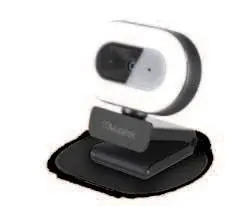
The webcam features an integrated ring light. Use the touch button on the device to toggle the light ON/OFF and adjust brightness levels (Low, Mid, High). The unit also includes a built-in microphone and a mounting clip.
System Requirements
- Processor: 2.4 GHz Intel Core 2 Duo or above
- RAM: 2 GB or more
- Connection: USB 2.0 port
- OS Support: Windows XP/7/8/10, Android 5.0+, Mac OS 10.6+, Linux 2.6.24+, Chrome OS V29.01547+
Product Installation
Connect the webcam's USB cable directly to an available USB 2.0 port on your desktop or laptop computer. The device is plug-and-play and should be recognized automatically by your operating system.
Using Camera on Windows
Windows 10 users can use the preinstalled Camera app. If you need to use the camera with other applications, ensure you enable camera access in Windows security settings (Settings > Privacy > Camera) and toggle on the specific apps you wish to use.
Using Camera on MacOS
MacOS users can use the Photo Booth app for quick previews. For higher-quality recordings using full resolution, use QuickTime or iMovie, as Photo Booth does not utilize the full camera resolution. Ensure you grant camera access in System Preferences > Security & Privacy.
Technical Support
If you require assistance, contact Aluratek support:
- Email: [email protected]
- Web: www.aluratek.com/helpdesk
- Phone: 714-586-8730 (Local)
- Toll free: 1-866-580-1978
Official resources from the manual
Manufacturer information
Aluratek
Practical help
Common problems
Microphone not working
Select the webcam as the USB Audio input in your application settings.
Laptop built-in camera conflict
Disable the built-in camera in your computer's device manager and select the USB Webcam.
Photo Booth video quality is low
Use iMovie or QuickTime for higher-quality videos as Photo Booth does not use the full camera resolution.
Before use
- Ensure your computer has an available USB 2.0 port.
- Verify your system meets the minimum requirements (2.4 GHz Intel Core 2 Duo, 2 GB RAM).
- Check if your OS is supported (Windows XP/7/8/10, Android 5.0+, Mac OS 10.6+, Linux 2.6.24+, Chrome OS).
- Ensure you have administrative rights to change privacy settings for camera access.
Show more Show less
Specs in practice
- Plug and Play
- No driver installation required; works immediately upon USB connection.
Images and diagrams
- Product Highlights: Shows the lens, microphone, mounting clip, tripod mount, and the touch button for the ring light.
- Product Installation: Illustrates connecting the webcam via USB to either a desktop or laptop computer.
Model compatibility
- Compatible with Windows, MacOS, Android, Linux, and Chrome OS.
- Requires USB 2.0 port.

Manual page author
David Miller
Documentation analyst