Electronics / USB Hubs & Docking
User Manual for Aluratek 10,000mAh Wireless Power Bank AQ2PBW10KF
Quick start guide for the Aluratek 10,000mAh Wireless Power Bank (AQ2PBW10KF). Learn how to charge the power bank, charge devices wirelessly or via built-in cables, and understand the OLED display status.
Table of contents
Manual images
Click an image to enlargeQuick Guide
The Aluratek 10,000mAh Wireless Power Bank is designed for portable charging with built-in Lightning and Type-C cables, as well as wireless charging capabilities compatible with Qi2, MagSafe, and Apple Watch. It features an OLED display to monitor charging status and supports simultaneous charging of up to three devices.
Product Overview
- A: Power Button
- B: Wireless Charger
- C: Type-C Charging Port
- D: OLED Display
- E: Charger Stand
- F: Type-C Cable
- G: Lightning Cable
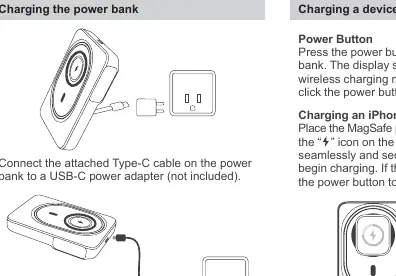
Charging the Power Bank
Connect the attached Type-C cable to a USB-C power adapter (not included). Alternatively, you can connect a USB-C charging cable to the USB-C port on the power bank.
Charging Devices
Wired Charging
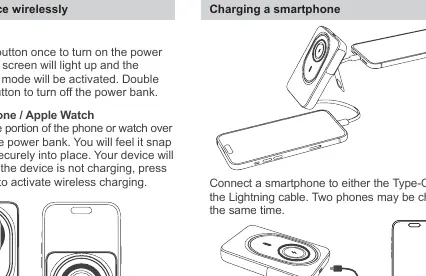
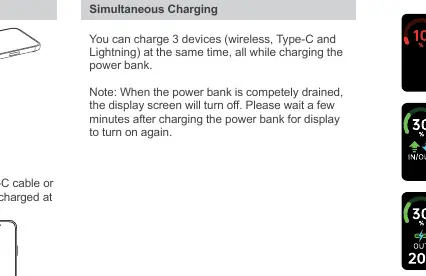
Connect your smartphone to either the built-in Type-C cable or the Lightning cable. You can charge two phones simultaneously using these cables.
Wireless Charging
Press the power button once to turn on the power bank and activate wireless charging mode. Place the MagSafe portion of your phone or watch over the wireless charging icon on the power bank. The device will snap into place and begin charging. If it does not start, press the power button again to activate wireless charging.
Simultaneous Charging
You can charge up to 3 devices (wireless, Type-C, and Lightning) at the same time, even while the power bank itself is being charged.
OLED Display Status
The display provides real-time status updates, including:
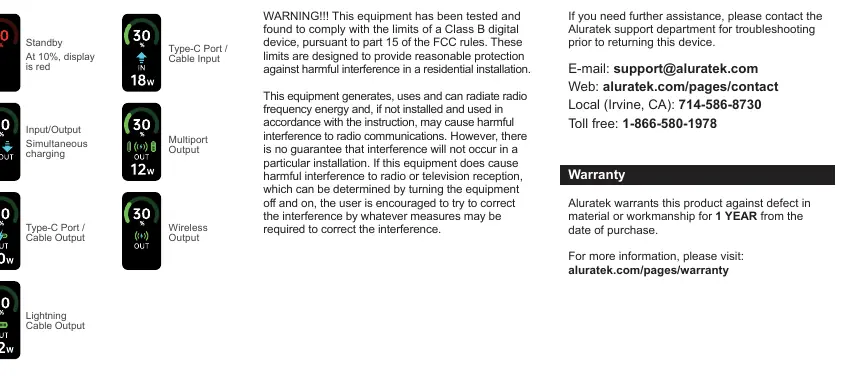
- Standby: Display is red at 10% battery.
- Input/Output: Indicates simultaneous charging.
- Output Modes: Shows status for Type-C, Lightning, Multiport, and Wireless output.
Note: If the power bank is completely drained, the display will turn off. Please wait a few minutes after charging begins for the display to reactivate.
Support and Warranty
If you need assistance, contact Aluratek support:
- E-mail: [email protected]
- Web: aluratek.com/pages/contact
- Local (Irvine, CA): 714-586-8730
- Toll free: 1-866-580-1978
Aluratek warrants this product against defects in material or workmanship for 1 year from the date of purchase.
Official resources from the manual
Manufacturer information
Aluratek
Practical help
Common problems
Wireless charging not starting
Press the power button once to activate wireless charging mode.
Display screen is off
The power bank may be completely drained. Charge the unit and wait a few minutes for the display to turn on.
Before use
- Ensure the power bank is fully charged before first use.
- Verify your device is compatible with Qi2, MagSafe, or Apple Watch wireless charging.
- Ensure you have a USB-C power adapter available (not included).
Show more Show less
Specs in practice
- Wireless Charging
- Compatible with Qi2, MagSafe, and Apple Watch standards.
Images and diagrams
- The power button (A) is used to turn the unit on/off and activate wireless charging.
- The OLED display (D) shows battery percentage and charging status icons.
- Built-in cables (F, G) allow for direct charging without carrying extra cables.
Model compatibility
- Compatible with Qi2, MagSafe, and Apple Watch.

Manual page author
Michael Turner
Technical manual editor