Electronics / USB Hubs & Docking
User Manual for Sabrent HB-HDUC USB Type-C to 2-Port USB 3.0 and HDMI Adapter
Quick guide for the Sabrent HB-HDUC adapter. Learn how to connect your USB-C device to HDMI displays and USB 3.0 peripherals with this easy-to-follow setup manual.
Quick answers from the manual
Quick answer
- The Sabrent HB-HDUC is a plug-and-play adapter that connects a USB Type-C port to an HDMI display and two USB 3.0 ports. p. 2
Key actions
- Connect the adapter to your computer's USB Type-C port. p. 3
- Connect USB devices to the USB 3.0 ports. p. 4
- Connect your display to the HDMI port. p. 4
First start
- Plug the adapter into the computer's USB-C port; no driver installation is required. p. 2, 3
Problems and fixes
Display not working
Ensure the display is set to the correct input source.
p. 5Technical specifications
| Parameter | Value | Meaning | Pages |
|---|---|---|---|
| Resolution | Up to 4K@30Hz | Maximum display output | p. 2, 5 |
| Data Speed | 5Gbps | USB 3.0 transfer speed | p. 2 |
Where to find it in the PDF
- Product Overview p. 2
- Setup Steps p. 3, 4, 5
Table of contents
Manual images
Click an image to enlargeQuick guide from the manual
The Sabrent HB-HDUC is a plug-and-play adapter designed to expand your computer's connectivity. It allows you to connect a USB Type-C port to an HDMI display and two USB 3.0 devices simultaneously. No driver installation is required for setup.
Product Overview
The adapter features the following ports:
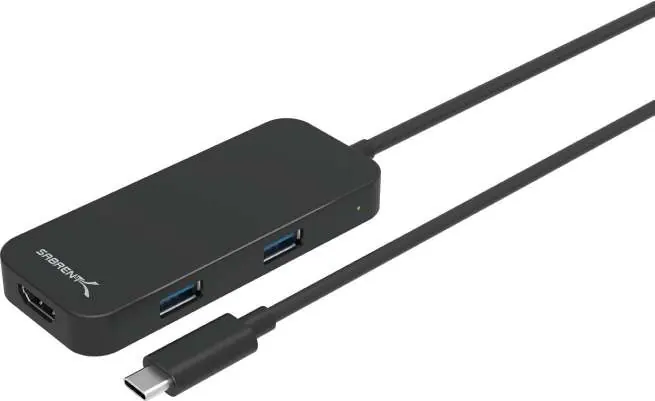
- 1: HDMI Port for display connection.
- 2: Two USB 3.0 ports for data transfer.
- 3: USB Type-C connector for the host computer.
Setup and Installation


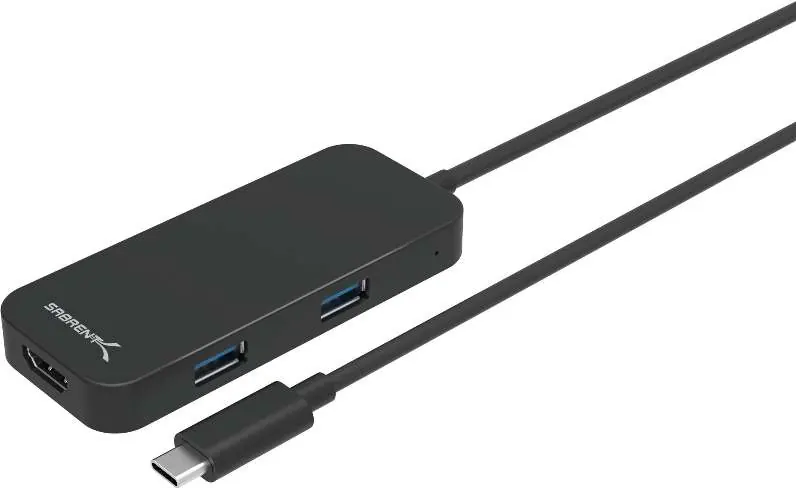
- Connect to Computer: Plug the adapter's USB Type-C cable into an available USB Type-C port on your computer.
- Connect USB Devices: Plug your USB peripherals into either of the two USB 3.0 ports on the adapter.
- Connect Display: Connect your HDMI display cable to the HDMI port on the adapter.
- Verify Connection: Your display should automatically extend. If necessary, go into your computer's display settings to customize your screen configuration.
Technical Notes
- Resolution: Supports up to 4K at 30Hz.
- Compatibility: Backward compatible with HD 1080p displays.
- Input Source: Ensure your display is set to the correct input source if the image does not appear immediately.
- OS Support: Compatible with both Windows and Mac OS.
Support
For additional troubleshooting, please contact the Sabrent Technical Support Team or visit their website at WWW.SABRENT.COM.
Official resources from the manual
Manufacturer information
Sabrent
Practical help
Common problems
Display not showing image
Ensure your display is set to the correct Input Source.
Before use
- Ensure your computer has an available USB Type-C port.
- Verify your display supports HDMI input.
- Check that your USB devices are compatible with USB 3.0.
Images and diagrams
- 2: 2-Ports USB 3.0
- 3: USB Type-C (to Computer)
Model compatibility
- Compatible with Windows and Mac OS.
- Backward compatible with HD 1080p displays.

Manual page author
David Miller
Documentation analyst
Organizes user manual content into clear summaries, with attention to model details, product context, and everyday usability.