Computers / KVM Switches
User Manual for ATEN US3310 2-Port USB-C Dock Switch
Quick guide for the ATEN US3310 2-Port USB-C Dock Switch. Learn how to connect your laptop and smartphone, set up the display, and use the power pass-through features.
Quick answers from the manual
Quick answer
- The ATEN US3310 allows you to share one HDMI monitor, keyboard, and mouse between two USB-C devices (e.g., a laptop and an Android smartphone) with one-button switching. p. 1
Key actions
- Switching devices p. 2
First start
- Connect the HDMI monitor, USB peripherals, and power adapter to the rear ports. Connect your host devices (laptop/phone) to the USB-C host ports. p. 2
Technical specifications
| Parameter | Value | Meaning | Pages |
|---|---|---|---|
| Video Resolution | 3840 x 2160 @ 30Hz | Maximum supported resolution | p. 3 |
| Power Delivery | 85W | Maximum laptop charging output | p. 3 |
Where to find it in the PDF
- Product Overview p. 1
- Features and Connection Diagram p. 2
- Specifications p. 3
Table of contents
Manual images
Click an image to enlargeQuick guide from the manual
The ATEN US3310 is a 2-port USB-C Dock Switch designed to share a single HDMI monitor, keyboard, and mouse between two host devices, such as a laptop and an Android smartphone. It supports one-button switching via a remote port selector and provides power pass-through to charge your devices.
Device Overview
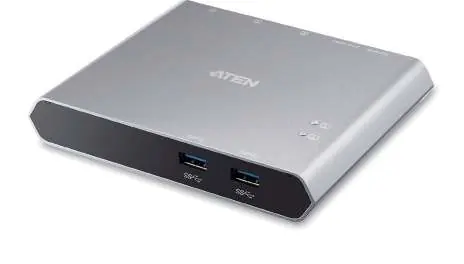
The device features a front panel with two USB-A ports for peripherals and a rear panel for host connections, HDMI output, and power input. The remote port selector allows for convenient switching between the two connected systems.
Installation and Connection
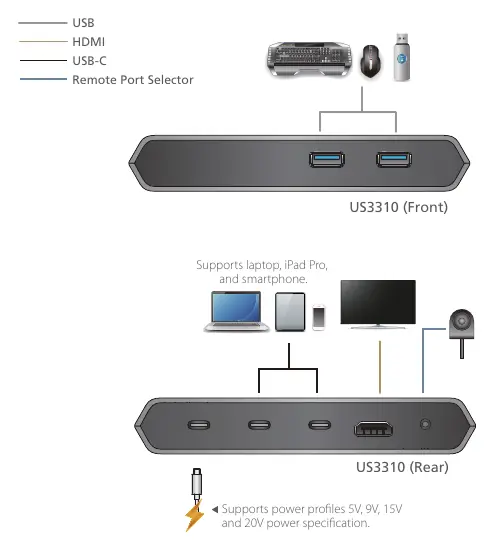
- Connect your HDMI monitor to the HDMI OUT port on the rear panel.
- Connect your USB peripherals (keyboard, mouse, storage) to the USB-A ports on the front panel.
- Connect your host devices (laptop and smartphone) to the USB-C host ports on the rear panel.
- Connect a USB-C PD Power Adapter to the power input port to enable charging for your laptop and phone.
- Use the remote port selector to switch between the two connected host devices.
System Requirements
- Windows: Windows 10 and above (USB-C with DP Alt Mode).
- Mac: Mac OS X 10.12 and above.
- Android: Android 8.0 and later (Samsung DeX or Huawei Desktop mode recommended for PC-like operation).
- iOS: iOS 12.1 and above (iPad Pro 3rd generation 2018 and later).
Specifications
- Video Resolution: Up to 3840 x 2160 @ 30Hz.
- Power Delivery: Supports up to 85W laptop charging (requires a USB-C PD Power Adapter over 65W).
- Operating Temperature: 0 - 40°C.
- Housing: Aluminum.
Practical help
Common problems
Device not charging
Ensure you are using a USB-C PD Power Adapter over 65W. The dock requires power to pass through to the connected devices.
Smartphone not in desktop mode
Only Samsung and Huawei devices support PC-like operation. Other devices may only support mirror mode.
No video output
Ensure your computer or smartphone supports DP Alt Mode via USB-C.
Before use
- Verify your computer or smartphone supports DP Alt Mode.
- Ensure you have a USB-C PD Power Adapter (over 65W recommended) for laptop charging.
- Connect the remote port selector to the switch.
- Ensure all cables are securely connected to the rear ports.
Specs in practice
- USB-C PD Pass-through
- Allows charging your laptop and phone simultaneously while using the dock.
- Video DynaSync
- Ensures EDID and HDCP monitors and computers function flawlessly and provides fast switching.
Images and diagrams
- Front view: Shows USB-A ports for peripherals and status LEDs.
- Rear view: Shows USB-C host ports, HDMI output, power input, and remote port selector connection.
Model compatibility
- Windows 10+, Mac OS X 10.12+, Android 8.0+, iOS 12.1+ (iPad Pro 2018+).

Manual page author
David Miller
Documentation analyst
Organizes user manual content into clear summaries, with attention to model details, product context, and everyday usability.