Garden / Snow Removal
User Manual for Anykit 2-In-1 Inspection Camera NTC30L/NTC30D
Quick guide for the Anykit 2-In-1 Inspection Camera (NTC30L/NTC30D). Learn how to connect, use the Usee Plus app, troubleshoot common issues, and maintain your device.
Quick answers from the manual
Quick answer
- To use the Anykit inspection camera, download the 'Usee Plus' app, connect the device to your smartphone using the appropriate connector (Type-C or Lightning), and grant the app permission to access the camera. p. 4, 5
Key actions
- Download the Usee Plus app. p. 4
- Connect the camera to your phone. p. 4
First start
- Confirm OTG support on Android and grant app permissions. p. 1, 4
Show 4 more answers Show less
Problems and fixes
No response to connect the phone
Check OTG settings and re-plug the connector.
p. 8Maintenance and reset
- Keep the camera lens clean. p. 7
Technical specifications
| Parameter | Value | Meaning | Pages |
|---|---|---|---|
| Resolution | Max 1280*960 | Maximum image resolution | p. 3 |
| Waterproof | IP67 | Water resistance rating | p. 3 |
Where to find it in the PDF
- Product Overview p. 2
- Specifications p. 3
- Operating Instructions p. 4, 5
Table of contents
Manual images
Click an image to enlargeQuick guide from the manual
This inspection camera is designed for DIY use. Before starting, ensure your Android device supports the OTG function. The device requires the Usee Plus app to function. Always keep the lens clean and avoid using the device for medical or personal inspection purposes.
Product Overview
The device consists of the following components:
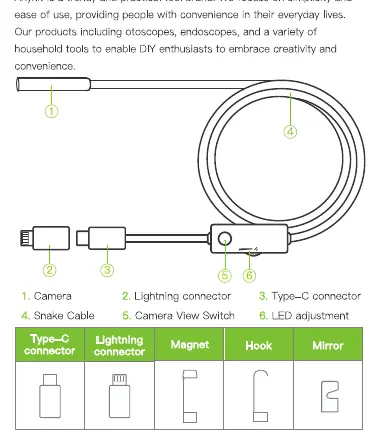
- Camera: The inspection lens.
- Lightning connector: For iOS devices.
- Type-C connector: For Android devices.
- Snake Cable: Flexible cable for maneuvering.
- Camera View Switch: Controls the camera view.
- LED adjustment: Dial to adjust the brightness of the camera lights.
Operating Instructions
To use the inspection camera, follow these steps:
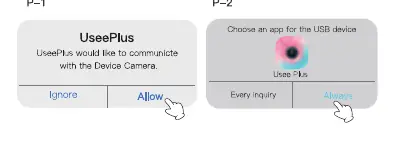
- Download and install the Usee Plus app from the Apple App Store or Google Play Store.
- Connect the endoscope to your smartphone or tablet using the appropriate connector (Type-C for Android, Lightning for iOS).
- Grant the necessary permissions when prompted by the app to allow communication with the device camera.
- Open the app to start using the camera.
App Features
The Usee Plus app interface includes the following controls:
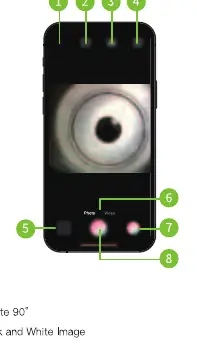
- Back: Return to the previous screen.
- Image Rotate 90°: Adjust the orientation of the image.
- Color/Black and White Image: Toggle display mode.
- Split Screen Mode: View multiple angles if supported.
- Albums: Access saved photos and videos.
- Photo/Video: Switch between capture modes.
- Zoom: Adjust magnification (1x/1.5x/2x).
- Capture: Take a photo or record a video.
Safety and Maintenance
Follow these guidelines to ensure safe operation and longevity of the device:
- Keep the tool dry, clean, and free from oil, water, gas, or corrosive materials.
- Ensure the work area is clean and well-lit.
- Keep bystanders and children away during operation.
- Do not use the device for medical or personal inspection.
- Keep the camera lens clean at all times.
Troubleshooting
If you encounter issues, refer to these solutions:
- No response/connection: Confirm OTG function is enabled on Android. Ensure the plug is securely connected; try re-plugging.
- Image blur: The optimal focal distance is 3cm–10cm. Clean the lens with an alcohol cloth.
- Camera is hot: It is normal for the camera to heat up, especially at high LED brightness.
- App issues: If the app gets stuck, ensure the mobile device battery is above 20%.
Contact Information
For support, contact the Anykit team at [email protected] or visit www.anykit.com. Phone support is available at 877-888-7979 (US), Monday–Friday, 8:00 AM–5:00 PM PST.
Official resources from the manual
Practical help
Common problems
No response when connecting to phone
Confirm OTG function is enabled on Android. Ensure the plug is securely connected; try unplugging and re-plugging several times.
Image is blurry
Ensure the object is within the optimal focal distance of 3cm–10cm. Clean the camera lens with a clean alcohol cloth.
Camera feels hot
This is normal, especially when LED lights are at maximum brightness. It does not affect normal use.
App gets stuck
Ensure your mobile device battery is above 20%.
Before use
- Confirm your Android phone supports the OTG function.
- Download the Usee Plus app from the App Store or Google Play.
- Ensure the camera lens is clean.
- Check that the work area is well-lit.
Show more Show less
Specs in practice
- Waterproof level
- IP67 rated, suitable for wet environments.
- Focal Distance
- Optimal distance is 30mm–100mm (3cm–10cm).
Images and diagrams
- The device features a flexible snake cable with a camera at one end and dual connectors (Type-C and Lightning) at the other.
- The control box includes a dial for LED brightness adjustment and a camera view switch.
Model compatibility
- Compatible with Android devices (Type-C) and iOS devices (Lightning).

Manual page author
Michael Turner
Technical manual editor