Electronics / Audio
User Manual for Audiority Blue Face Plugin
Quick guide for the Audiority Blue Face plugin. Learn how to install, activate, configure system paths, and use the fuzz pedal controls for your audio production.
Table of contents
Manual images
Click an image to enlargeQuick guide from the manual
The Audiority Blue Face is an analog-modeled simulation of the classic 1960s Dunlop Fuzz Face pedal. It is designed to provide distortion and saturation for tube amplifier stages. Please note that upon first installation, the plugin runs in Demo Mode, which outputs 3 seconds of silence every minute until a valid license file is loaded.
System Requirements
Ensure your system meets the following requirements:
- PC: Windows 7 64-bit or later, Intel i5 or equivalent, 4 GB RAM, 1024x768 screen resolution.
- MAC (Intel): OSX 10.13 or later, Intel i5 or equivalent, 4 GB RAM, 1024x768 screen resolution.
- MAC (Silicon): macOS 11.0 or later, M1 or higher, 4 GB RAM, 1024x768 screen resolution.
- Hosts: VST2, VST3, AU, CLAP 64-bit host; PT11 or higher for AAX 64-bit.
Installation and File Locations
The plugin files are installed in specific sub-folders depending on your operating system. On Mac, presets and license files are located in /Users/Shared/Audiority/. On PC, they are located in C:\Users\Public\Public Documents\Audiority. Plugin formats (AAX, CLAP, VST, VST3) are placed in their respective standard system directories.
Plugin Activation
You can activate the plugin using either an offline or online method:
- Offline Activation: After purchasing, download the license file from your email or the Audiority User Area. Click the Audiority logo in the plugin toolbar, select Register, and click Load License to import the file. Alternatively, drag and drop the license file onto the registration window.
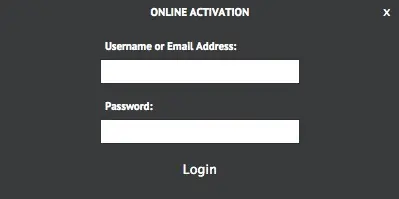
- Online Activation: If registered in the User Area, click the Audiority logo, select Register, enter your username/email and password, then click Login to automatically activate the plugin.
User Area and Redeem Codes
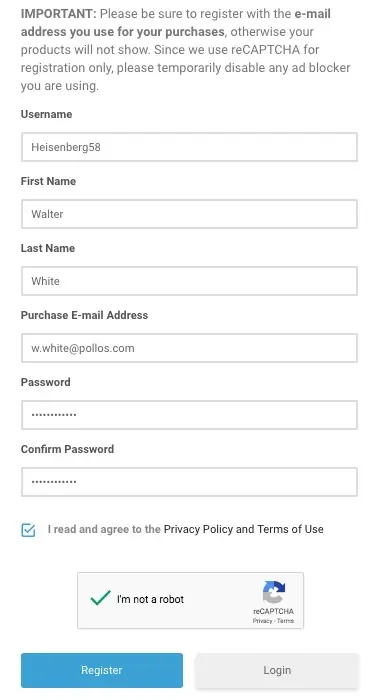
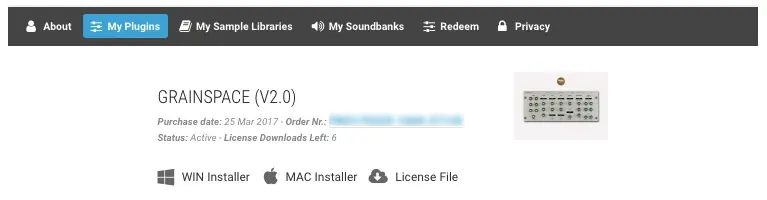
If you purchased the plugin from a dealer, you will receive a redeem code. Register an account at the Audiority website, log in to the User Area, and use the Redeem section to enter your code. Once submitted, the license file will be available for download in the My Plugins section.
Plugin Parameters
The plugin interface includes the following controls:
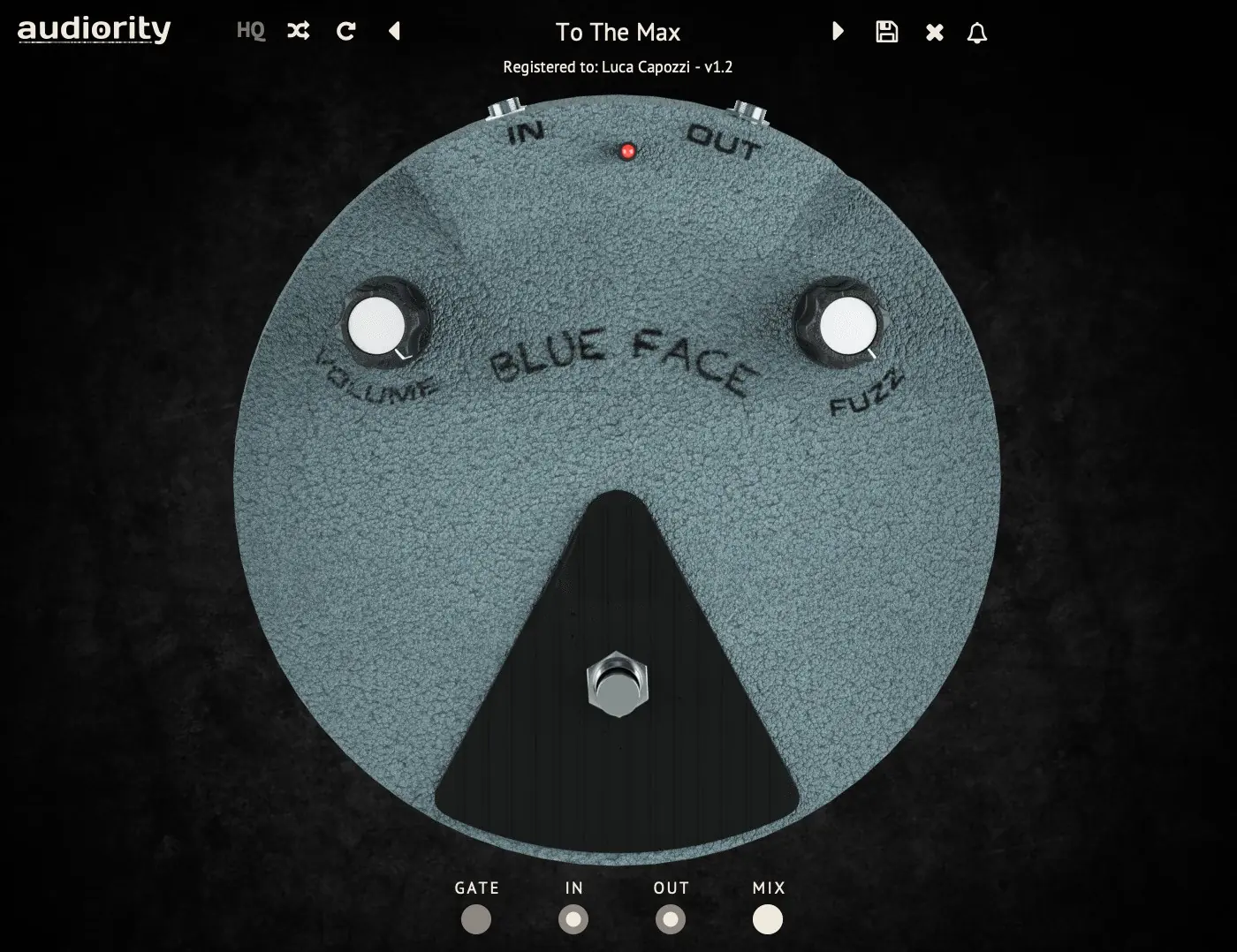
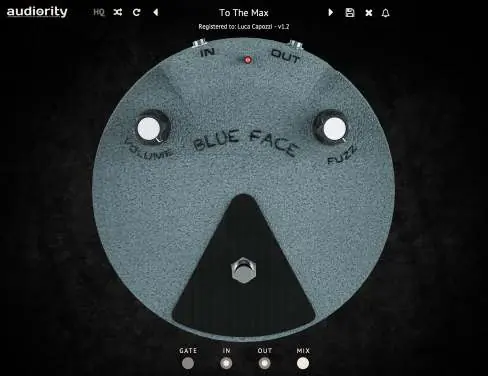
- VOLUME: Adjusts the output volume of the pedal.
- FUZZ: Controls the amount of distortion. Minimum settings provide light dirt, while maximum settings provide heavy saturation.
- GATE: Sets the noise gate threshold.
- IN: Adjusts pre-effect gain.
- OUT: Adjusts post-effect gain.
- MIX: Blends the dry and wet signals.
The toolbar also features an HQ button for oversampling to reduce aliasing, and Randomize/Reset buttons for preset management.
User Paths Setting
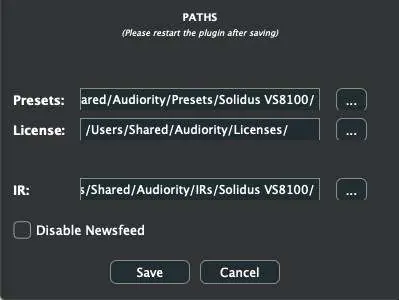
You can customize the file paths for Presets, License, and IR folders by selecting Settings from the logo menu. Do not move the Settings folder from its default location.
Practical help
Common problems
Plugin outputs 3 seconds of silence every minute
The plugin is in Demo Mode. You must load a license file or activate it online to remove this limitation.
License file not found
Ensure you have downloaded the license file from your Audiority User Area and loaded it via the plugin registration window.
Before use
- Verify your OS meets the minimum requirements (Windows 7+ or macOS 10.13+).
- Ensure you have a 64-bit DAW host installed.
- Register an account at the Audiority website.
- Download the installer and license file from the User Area.
- Install the plugin and restart your DAW if necessary.
Images and diagrams
- The main interface features two large knobs for Volume and Fuzz, with smaller controls for Gate, In, Out, and Mix at the bottom.
Model compatibility
- Supports AAX, AU, CLAP, VST2, and VST3 plugin formats.
- Requires 4GB RAM and 1024x768 screen resolution.

Manual page author
Michael Turner
Technical manual editor
Reviews PDF manuals for structure, safety notes, and practical product details so readers can find the right information quickly.