Electronics / Audio
Audiority Dr Phase User Manual
Quick guide for the Audiority Dr Phase phaser plugin. Learn about system requirements, installation paths, plugin parameters, and global controls.
Table of contents
Manual images
Click an image to enlargeQuick guide from the manual
The Audiority Dr Phase is an analog-modeled simulation of the classic Phase 90 phaser stompbox. This guide provides essential information for installation, system requirements, and parameter usage to help you get started with the plugin.
System Requirements
Ensure your system meets the following requirements before installation:
- PC: Windows 7 64-bit or later, Intel i5 or equivalent, 4 GB RAM, 1024x768 resolution.
- Mac (Intel): OSX 10.13 or later, Intel i5 or equivalent, 4 GB RAM, 1024x768 resolution.
- Mac (Silicon): macOS 11.0 or later, M1 or higher, 4 GB RAM, 1024x768 resolution.
- Host: VST2, VST3, AU, CLAP 64-bit host, or PT11/higher AAX 64-bit host.
Installation and File Locations
The plugin installs presets, license, and IR files to specific directories based on your operating system:
- Mac: /Users/Shared/Audiority/
- PC: C:\Users\Public\Public Documents\Audiority
Plugin files (AAX, CLAP, VST, VST3) are placed in their respective standard plugin folders within an Audiority sub-folder.
Plugin Parameters
The interface provides several controls to shape your sound:
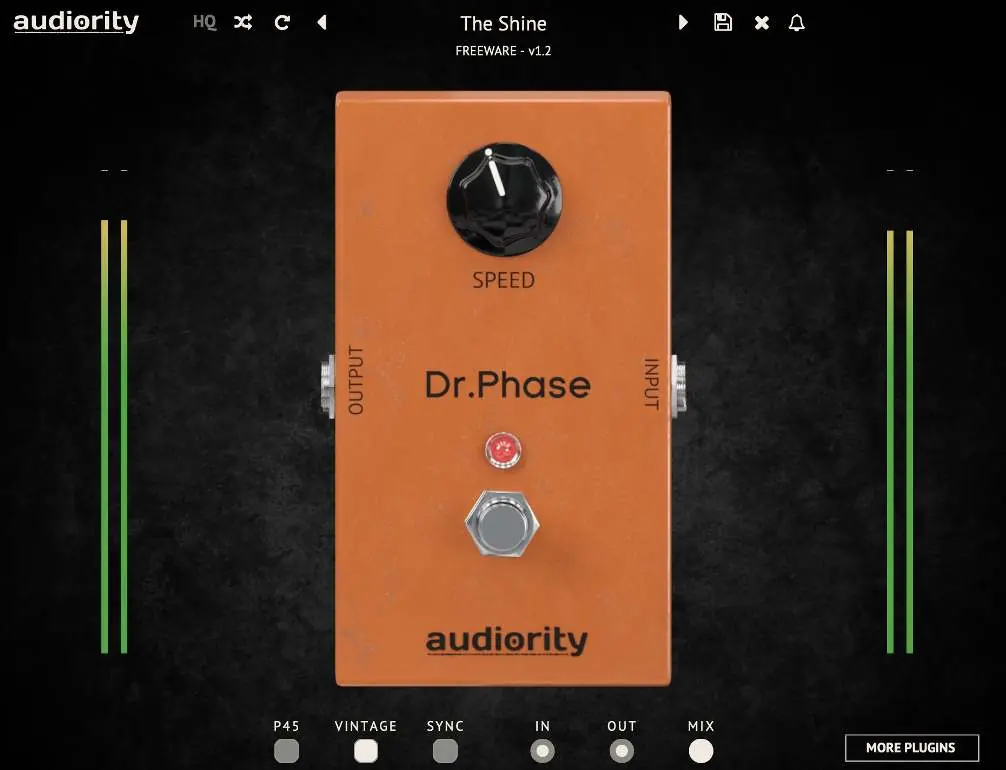
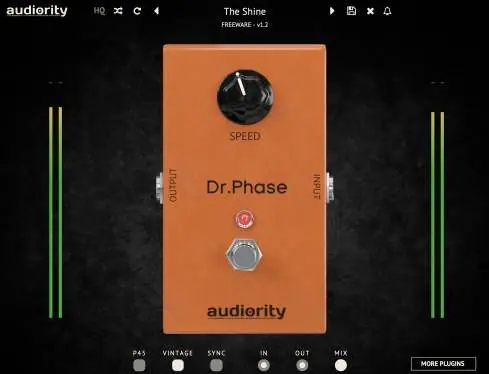
- SPEED: Adjusts the modulation speed of the phaser.
- P45: Switches the phaser to a 2-stage mode.
- VINTAGE: Removes the feedback resistor from the circuit, creating a smoother phasing effect.
- SYNC: Synchronizes the modulation speed to your host DAW tempo.
Global Controls
Located in the bottom right of the interface:
- IN: Adjusts the pre-effect gain.
- OUT: Adjusts the post-effect gain.
- MIX: Controls the dry/wet signal balance.
Toolbar and Resizing
Click the Audiority logo in the top left to access the menu for registering the plugin, changing interface size, and customizing file paths. Use the HQ button to enable oversampling, which helps reduce aliasing when the signal saturates. Use Randomize and Reset buttons to manage presets.
Support
For technical issues or questions, contact [email protected] or visit www.audiority.com.
Official resources from the manual
Practical help
Common problems
Plugin crashing on some configurations
Ensure your system meets the minimum requirements and that you are using the latest version of the plugin.
Installation path issues
Verify that the plugin is installed in the correct directory for your specific host (e.g., /Library/Audio/Plug-Ins/VST/Audiority for Mac).
Before use
- Verify your OS version (Windows 7+ or macOS 10.13+)
- Ensure at least 4 GB of RAM is available
- Check that your DAW supports VST2, VST3, AU, CLAP, or AAX formats
- Confirm screen resolution is at least 1024x768
- Register the plugin via the Audiority logo menu
Images and diagrams
- The main interface features a central Speed knob for modulation control.
- Bottom switches allow toggling between P45, Vintage, and Sync modes.
- Global controls for Input, Output, and Mix are located at the bottom right.
Model compatibility
- Requires 64-bit host software.
- macOS 10.13 is the minimum version for Mac users.
- AAX Native Silicon support is available.

Manual page author
David Miller
Documentation analyst
Organizes user manual content into clear summaries, with attention to model details, product context, and everyday usability.