Electronics / Audio
User Guide for Eventide Temperance Pro
Quick guide for Eventide Temperance Pro. Learn how to use Modal Reverb, Tempering controls, Note Selection panels, and the Sequencer to shape your soundscapes.
Table of contents
Manual images
Jump to the sectionQuick guide from the manual
Temperance Pro is a Modal Reverb plugin designed to create unique musical soundscapes by deconstructing audio into individual resonances. The core functionality revolves around 'Tempering'—the ability to emphasize or de-emphasize specific musical notes within the reverb tail. To get started, ensure you register your product online to receive updates. The interface is controlled via mouse/finger gestures, with fine-tune adjustments available using Command (Mac) or Ctrl (Windows) modifiers.
Tempering the Reverb
The plugin features five main components that determine the musical tuning of the reverb. Note that these controls will not affect the sound if the Temper knob is set to 0.
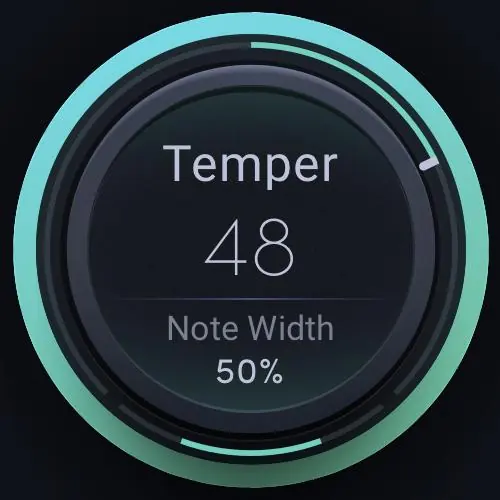

- Temper Knob: Sets the amount of tempering. Positive values emphasize selected notes; negative values de-emphasize them.
- Note Width: Adjusts the spectral bandwidth of the tempered notes.
- Note Selection Panels: Used to select which musical notes are applied.
- Temper Target Selector: Determines if tempering applies to Early reflections, Late resonances, or All.
- Temper Range Sliders: Confines tempering to a specific portion of the reverb spectrum.
Note Selection Panels
These panels determine which notes of the Western 12-tone scale are used for tempering. There are three modes:
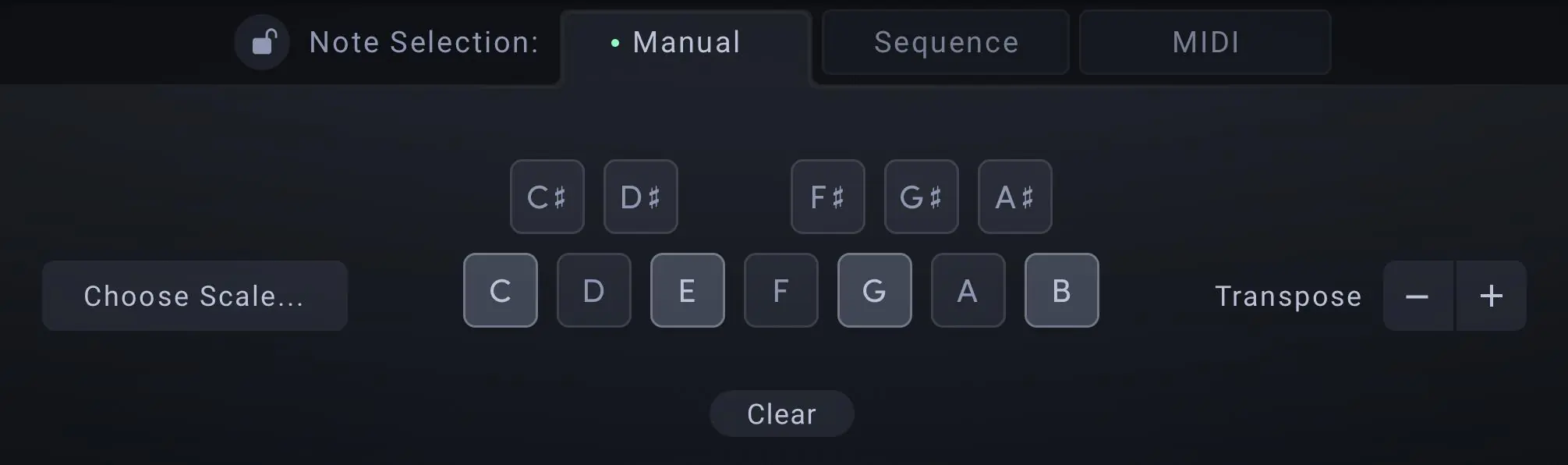
- Manual: Select individual notes using the Note Keypad.
- Sequence: Use the custom sequencer to trigger notes over time.
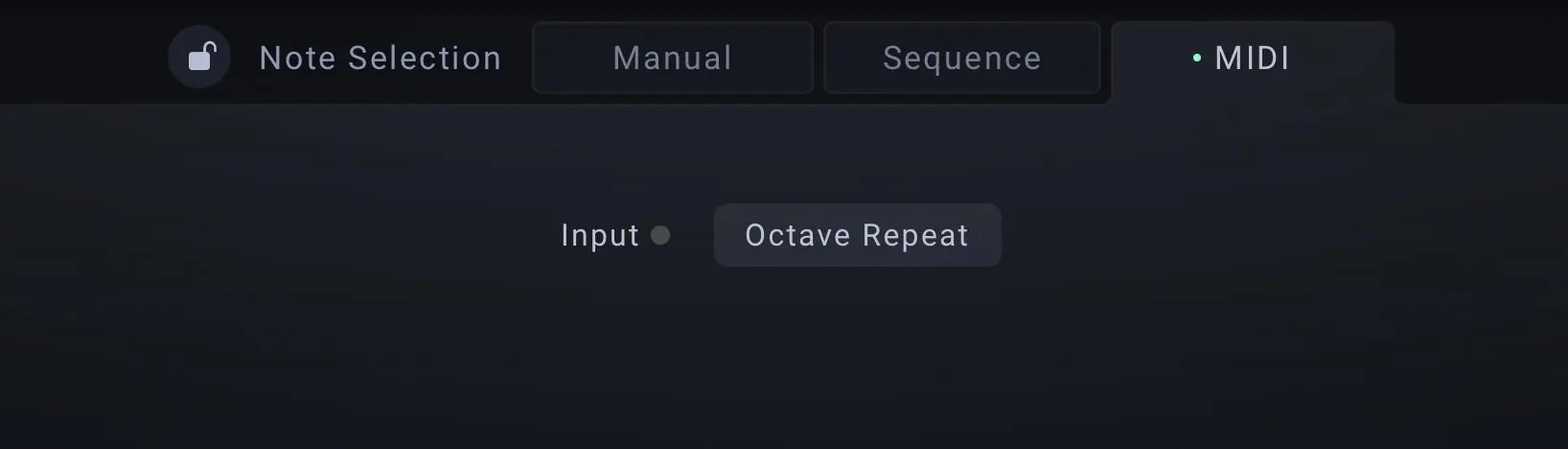
- MIDI: Use incoming MIDI note messages to select notes.
You can use the Notes Lock button to prevent preset changes from overwriting your selection. The Tuning Fork icon allows access to Global Tuning Parameters, including Reference Frequency (440Hz default) and Fine Tune.
The Spectrum Analyzer
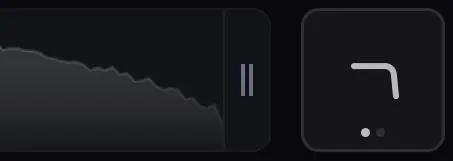
The Spectrum Analyzer displays frequency vs. level. When the Temper knob is positive, it highlights selected notes in white. It also features Lowcut and Highcut filter sliders to control the bandwidth of the wet output, with adjustable slopes (12 or 36dB/Oct).
Sequence
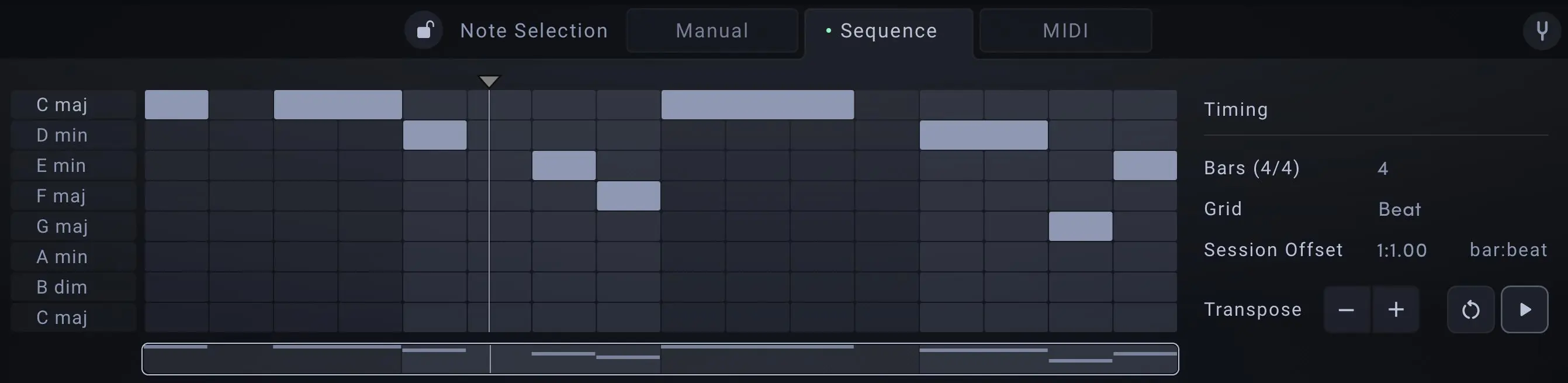
The Sequencer allows you to sequence up to 8 different intervals, chords, scales, or modes. You can specify the total length in bars, set grid resolution, and use the Retrigger button to start playback from the beginning. The Arm/Disarm button syncs the sequencer with your DAW playback.
MIDI
In MIDI mode, Temperance Pro responds to MIDI note on/off messages. The Octave Repeat feature, when enabled, duplicates incoming MIDI notes across all octaves above the played pitch, allowing for flexible chord voicings.
Main Reverb Controls
Beyond tempering, the plugin includes standard reverb controls:
- Modal Response (MR) Dropdown: Selects the foundational reverb space (Rooms, Halls, Mechanical, Unusual Spaces, Special FX).
- Pre-Delay: Sets delay before the reverb, syncable to DAW tempo.
- Mix: Balances dry and wet signals.
- Decay & Size: Adjusts the overall decay time and scales the MR size.
- Position: Biases towards early or late reflections.
- Density: Activates/deactivates specific modes for Lo-Fi or chime-like effects.
- Output Level: Adjusts final volume.
Practical help
Common problems
Tempering controls have no effect on the sound.
Ensure the Temper knob is not set to 0 (centered at 12:00).
Preset changes overwrite selected notes.
Use the Notes Lock button to protect your current Note Selection panel settings.
High CPU usage.
Enable Eco Mode to lower the total mode count used for the Modal Response.
Before use
- Register the product online for updates.
- Ensure your DAW is compatible.
- Check if you need to use Manual, Sequence, or MIDI mode for note selection.
- Set the Temper knob away from 0 to hear tempering effects.
- Adjust the Modal Response category to suit your source material.
Specs in practice
- Reference Frequency
- 400-500Hz. Adjusts the absolute global tuning reference (default 440Hz).
Images and diagrams
- The NoteScape Visualizer shows energy distribution and responds to Tempering controls.
- The Sequence Grid allows for editing note progression over time.
- The Manual Note Keypad allows for direct selection of notes to be tempered.
- The Spectrum Analyzer shows frequency content and filter settings.
Model compatibility
- Presets have a .tidex extension.
- Factory presets are located in /Music/Eventide/Temperance Pro/Presets (Mac) or /Documents/Eventide/Temperance Pro/Presets (Windows).
- It is recommended to save presets using the Temperance Pro preset bar, not the DAW's generic preset bar.

Manual page author
Emily Carter
User documentation editor
Prepares concise manual descriptions and highlights the most useful setup, operation, and maintenance information for readers.