Computers / Keyboards Input
Brydge 11 MAX+ Keyboard for 11-Inch iPad Pro User Guide
Quick guide for the Brydge 11 MAX+ keyboard for 11-inch iPad Pro. Learn how to pair, use trackpad gestures, charge, and manage keyboard shortcuts.
Table of contents
Quick guide from the manual
The Brydge 11 MAX+ is a wireless keyboard designed for the 11-inch iPad Pro. It features Instant-On technology for immediate reconnection and a built-in trackpad. To ensure optimal performance, particularly for trackpad gestures, ensure that AssistiveTouch is disabled in your iPad settings.
Power and Pairing
Powering On/Off: Press the power key for one second to turn the keyboard on until the LED flashes green. Press and hold the power key for three seconds to turn it off until the LED flashes red.
Pairing: Press and hold the Bluetooth key for three seconds until the LED flashes blue. On your iPad, navigate to Settings > Bluetooth and select Brydge 11 MAX+ to complete the pairing process.
Installation and Removal
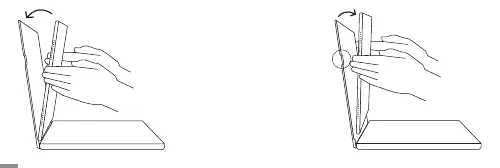
To insert your iPad, place the Brydge keyboard on a flat surface and open the case. Place the iPad into the bottom of the case and lean it towards the back; the magnets will snap it into place. To remove, place the keyboard on a flat surface and use the tabs on either side of the case to release the iPad.
Trackpad Gestures
The trackpad supports various multi-touch gestures to navigate iPadOS:
- Open Today View: Swipe right with two fingers.
- Switch between open apps: Swipe left or right with three fingers.
- Zoom in and out: Pinch open or closed.
- Open App Switcher: Swipe up with three fingers and pause.
- Scroll Up/Down: Swipe two fingers up or down.
- Scroll Left/Right: Swipe two fingers left or right.
- Go Home: Swipe one finger past the bottom of the screen.
- Open Control Center: Swipe one finger to the top right corner.
- Open Search: Swipe down with two fingers.
Battery and Charging
To check battery life, go to the Batteries section in Today View. If the battery level drops below 15%, the keyboard will automatically disable backlight functionality to conserve power. To charge, insert the charging cable into the keyboard and connect it to a power source. A solid red LED indicates the device is charging; the light will turn off when the battery is fully charged. A full charge takes approximately three hours.
Keyboard Shortcuts
Use these standard shortcuts to improve productivity:
- Copy: Command + C
- Paste: Command + V
- Cut: Command + X
- Underline: Command + U
- Italic: Command + I
- Home Screen: Command + H
- Switch App: Command + Tab
- Show Dock: Command + Option + D
- Search: Command + Space
- Undo: Command + Z
- Switch Language: Ctrl + Shift + Spacebar
Settings and Firmware
For the best experience, download the Brydge Connect app from the App Store to receive the latest firmware updates. Ensure AssistiveTouch is turned off by going to iPad Settings > Accessibility > Touch > AssistiveTouch > OFF.
Support and Warranty
The product includes a 1-year limited hardware warranty. For support, visit www.brydge.com/support or call +1 (435) 604-0481.
Official resources from the manual
Practical help
Common problems
Trackpad gestures are not working correctly
Ensure AssistiveTouch is disabled. Go to iPad Settings > Accessibility > Touch > AssistiveTouch > OFF.
Backlight is not working
If the battery level is below 15%, the backlight functionality is automatically disabled to conserve power.
Keyboard not connecting to iPad
Ensure the keyboard is powered on and in pairing mode (hold Bluetooth key for 3 seconds until LED flashes blue). Then select the device in iPad Bluetooth settings.
Before use
- Charge the keyboard fully before first use (up to 3 hours).
- Ensure your iPad Pro 11-inch is compatible.
- Download the Brydge Connect app for firmware updates.
- Disable AssistiveTouch on your iPad for proper gesture support.
Specs in practice
- Charging Indicator
- A solid red LED indicates the keyboard is charging; the light turns off when fully charged.
Images and diagrams
- Insert/Remove: Place the keyboard on a flat surface, open the case, and snap the iPad into the magnetic case.
Model compatibility
- Compatible with iPad Pro 11-inch (1st, 2nd, 3rd generation) and iPad Air (4th generation).

Manual page author
Emily Carter
User documentation editor
Prepares concise manual descriptions and highlights the most useful setup, operation, and maintenance information for readers.