Computers / Keyboards Input
User Manual for Epomaker 108EC Keyboard
Quick guide for the Epomaker 108EC keyboard. Learn how to configure backlight, macros, special key functions, and use the programming software.
Table of contents
Manual images
Click an image to enlargeQuick guide from the manual
The Epomaker 108EC keyboard features two main modes: OFFICE mode (Standard) and Custom mode. You can switch between these modes using the M key on the top right corner. When the M light is on, the keyboard is in Custom mode, enabling all programmed functions. The keyboard supports advanced configuration via programming software, including backlight customization, macro recording, and firmware updates.
Backlight control
The keyboard offers various lighting effects controlled via FN+ key combinations:
- FN+~: Specific lights (Programming software definitions).
- FN+!1: Quick color (loops through colors).
- FN+@2: Meteor shower effect.
- FN+ #3: Ripple/Aurora effect.
- FN+$4: Breath effect.
- FN+%5: Demo mode (stop with FN+SPACE).
- FN+&7 to +=: Backlight R1 to R6 recording.
- FN+F10: Turn backlight off.
- FN+Up/Down: Adjust luminance (6 levels).
- FN+Left/Right: Adjust effect frequency (5 levels).
Special key functions
The keyboard includes several hardware-level shortcuts:
- FN+ESC: Keyboard Lock/Unlock.
- FN+F9: Adjust trigger point (high/low stage).
- FN+L-Ctrl: Press for 3 seconds to exchange Caps and Left Ctrl.
- FN+L-Alt: Press for 3 seconds to switch between Win and Mac OS modes.
- FN+Backspace: Press for 5 seconds to switch/auto-identify USB and PS/2 interfaces.
- FN+Delete: Press for 5 seconds to clear the key counter.
- ESC+L-ctrl+F12+R-ctrl: Press for 5 seconds to restore factory settings.
Keyboard configuration
To perform advanced customization, use the programming software:
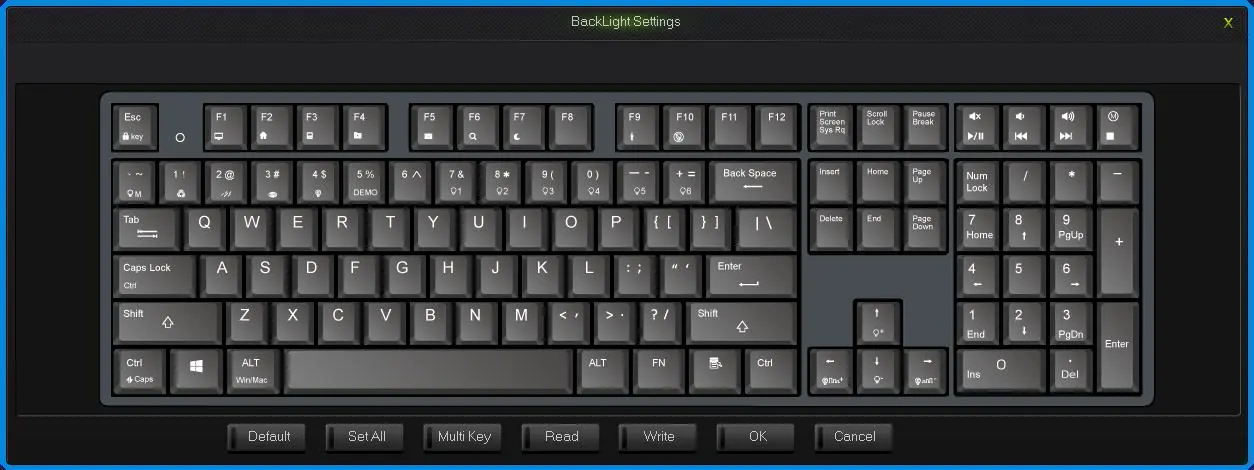
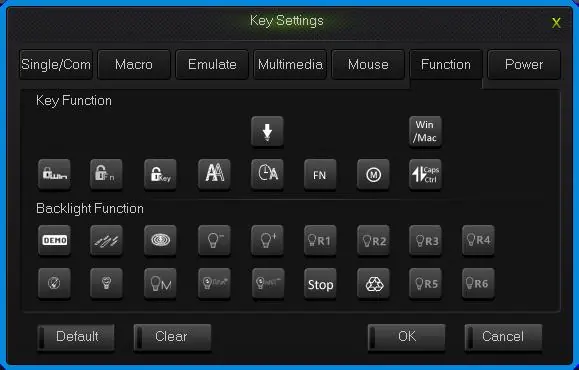
- Backlight: Use the "LightSet" key in the software to define colors for specific keys or all keys.
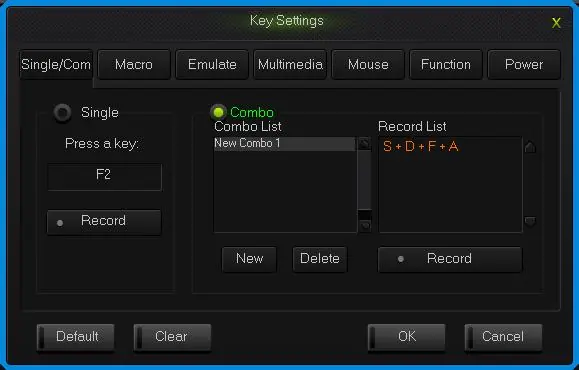
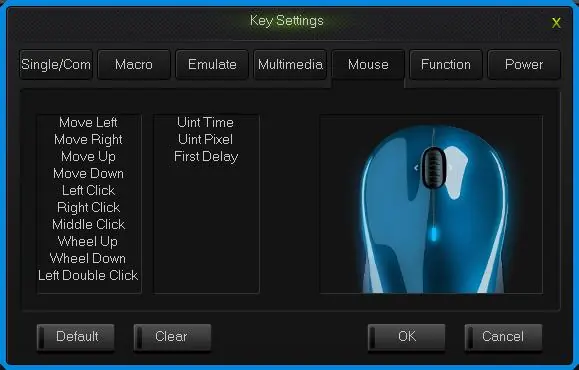
- Key Configuration: In the software, you can assign single keys, combinations, macros, mouse functions, multimedia controls, and power functions to any key.
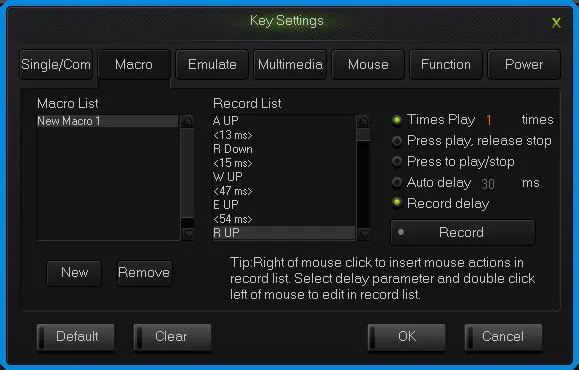
- Macros: Define sequences of key presses, releases, and delays. You can insert mouse actions and modify delays (50ms-60000ms).
- Saving: Always click "Save" in the main screen to store configurations. Use "WriteKeys" to synchronize settings to the keyboard.
Firmware update
To update the keyboard firmware:
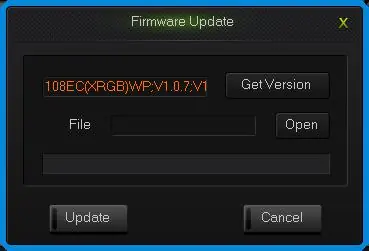
- Open the programming software.
- Click "Get Version" to check the current firmware.
- Click "Open" to select the .bin firmware file.
- Click "Update" and follow the on-screen prompts.
Practical help
Common problems
Keyboard is locked and does not react to presses.
Use the touch switch on the upper left corner or press FN+ESC to unlock.
Cannot open programming software.
Ensure the keyboard is in Win OS mode (indicator flashes 1 time). If in Mac mode, the software will not connect.
Mac OS keys are not working as expected.
Press FN+L-Alt for 3 seconds until the indicator flashes 2 times to switch to Mac OS mode.
Before use
- Connect the keyboard via USB.
- Determine if you need Office mode (standard) or Custom mode (programmable).
- Install the programming software if you intend to create macros or custom lighting.
- Check the M key light status to identify the current mode.
Specs in practice
- Trigger point
- Adjustable sensitivity (high/low stage) for key actuation.
Model compatibility
- Supports both Windows and Mac OS.
- Programming software is only compatible with Windows OS mode.
- Supports USB and PS/2 interfaces.

Manual page author
Emily Carter
User documentation editor
Prepares concise manual descriptions and highlights the most useful setup, operation, and maintenance information for readers.