Computers / Keyboards Input
Genius Wired Mouse and Keyboard User Guide
Quick guide for Genius wired mice, keyboards, and combos. Includes installation instructions, safety guidelines, maintenance tips, and mouse button functions.
Table of contents
Manual images
Click an image to enlargeQuick Guide
This manual provides instructions for Genius wired mice, keyboards, and keyboard-mouse combos. These devices are designed for plug-and-play operation, requiring no manual driver installation.
Installation
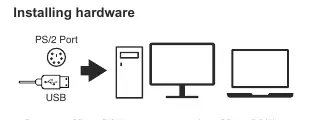
To install your device, simply plug the USB or PS/2 connector into the corresponding port on your computer. The device will be automatically recognized by your operating system.
Mouse Factory Settings
The standard mouse configuration includes the following functions:
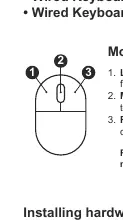
- Left Button: Provides traditional mouse functions like click, double-click, and drag.
- Magic-Roller: Used to scroll and navigate the Internet and Windows documents.
- Right Button: Provides traditional mouse right-click functions.
Safety and Maintenance
To ensure the longevity of your device and your physical comfort, follow these guidelines:
- Operating Environment: Use the device in temperatures between 0°C (32°F) and 40°C (104°F). Keep away from liquids and humidity.
- Cleaning: Disconnect the device from the computer once a month and clean it using a soft cloth or cotton swab. Do not use soap or aggressive cleaning agents.
- Ergonomics: To avoid physical discomfort or injury, maintain a straight wrist posture, adjust your chair and table height, and take regular breaks to stretch your arms, shoulders, and neck.
Regulatory Information
This device complies with Part 15 of the FCC Rules. It is designed to provide reasonable protection against harmful interference in a residential installation. If interference occurs, try reorienting the receiving antenna, increasing the separation between equipment, or connecting to a different circuit.
Manufacturer information
Genius
Practical help
Common problems
Device not working
Ensure the USB or PS/2 connector is firmly plugged into the computer port.
Physical discomfort during use
Adjust chair and table height, keep wrists straight, and take regular breaks to stretch.
Before use
- Ensure the computer is powered on.
- Identify the correct port (USB or PS/2) on your computer.
- Ensure the operating environment is between 0°C and 40°C.
Specs in practice
- Plug and Play
- The device is automatically detected and configured by the computer upon connection.
Images and diagrams
- The mouse diagram illustrates the three main inputs: Left Button (1), Magic-Roller (2), and Right Button (3).
- The installation diagram demonstrates connecting the USB/PS2 cable to a desktop or laptop computer.
Model compatibility
- Supports both USB and PS/2 connections.

Manual page author
Michael Turner
Technical manual editor
Reviews PDF manuals for structure, safety notes, and practical product details so readers can find the right information quickly.