Computers / Keyboards Input
Lofree FLOW 100-Key Mechanical Keyboard
Quick guide for the Lofree FLOW 100-Key mechanical keyboard. Learn how to connect via wired or Bluetooth, switch between Windows and Mac modes, control ambient lighting, and understand indicator light statuses.
Table of contents
Manual images
Click an image to enlargeQuick guide from the manual
The Lofree FLOW 100-Key is a dual-mode mechanical keyboard supporting both wired and Bluetooth connections. To begin, ensure the keyboard is set to the correct system mode (Windows or Mac) and connection type (Wired or Bluetooth) using the switches on the back of the device.
Product overview
The keyboard features a 100-key layout with a low-profile design. Key components include:
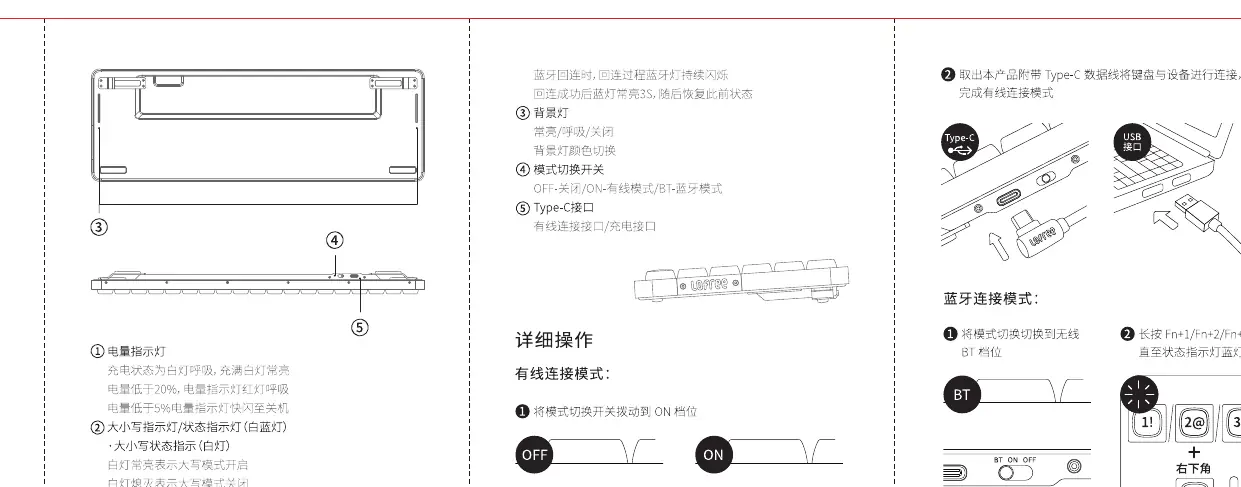
- Battery Indicator: Located on the side, indicates charging status and battery level.
- Caps Lock Indicator: Shows status of Caps Lock.
- Bluetooth Indicator: Shows pairing and connection status.
- Mode Switch: Toggles between Wired (OFF) and Bluetooth (ON) modes.
- System Switch: Toggles between Windows and Mac layouts.
Connection methods
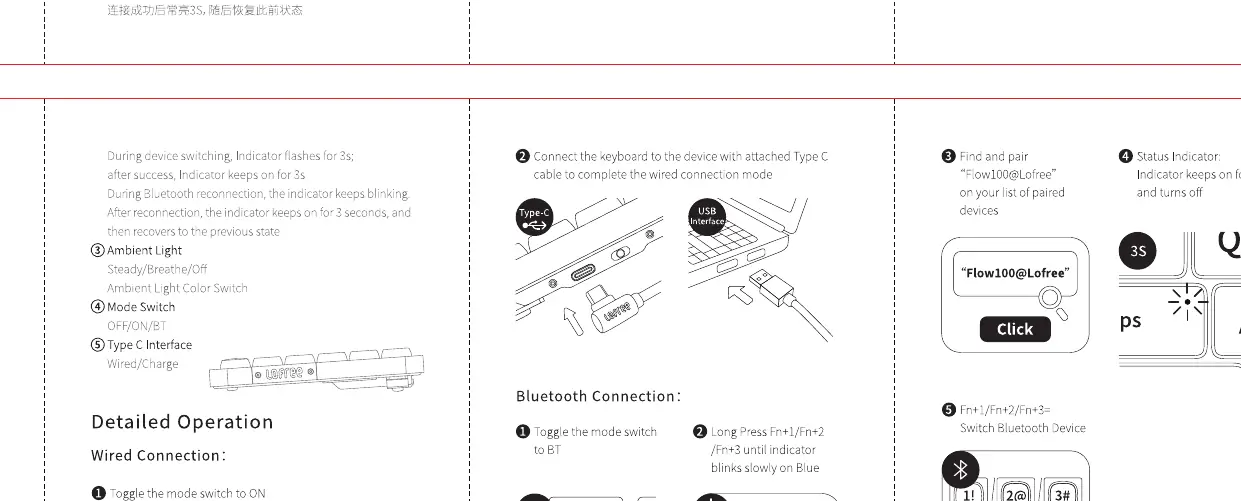
Wired connection
- Toggle the mode switch to OFF.
- Connect the keyboard to your device using the provided Type-C cable.
Bluetooth connection
- Toggle the mode switch to ON.
- Press and hold FN + 1, 2, or 3 for 3 seconds to enter pairing mode. The Bluetooth indicator will flash slowly.
- Find and pair with "Flow100@Lofree" on your device.
- The indicator will stay on for 3 seconds once connected.
System and lighting controls
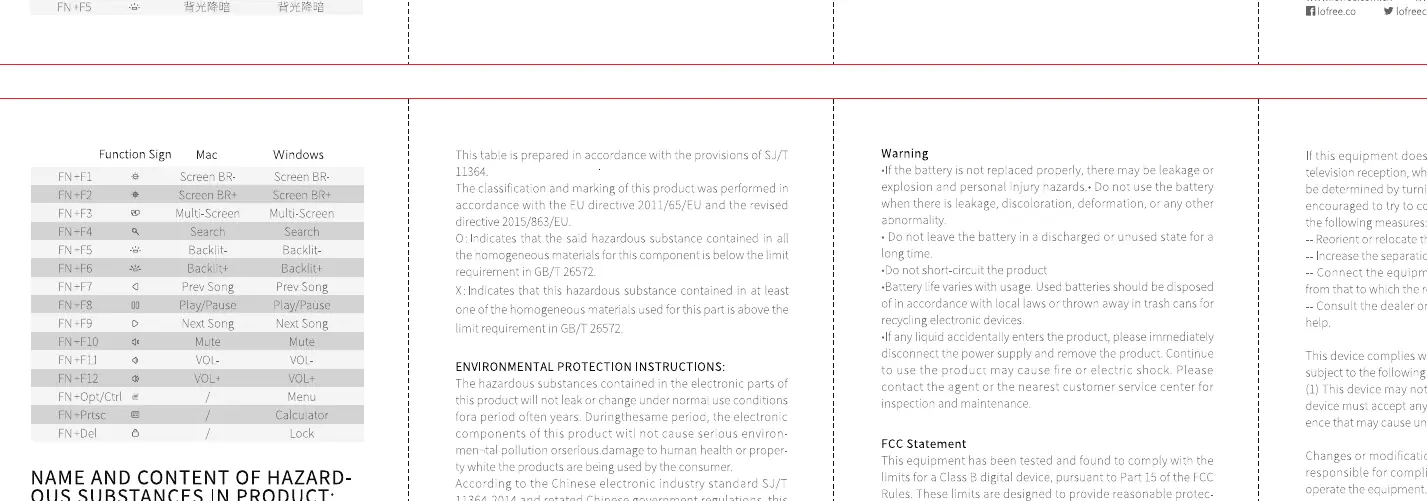
System switch
To ensure correct functionality, set the keyboard to your operating system:
- Windows: Press FN + N.
- Mac: Press FN + M.
Ambient light
You can adjust the ambient lighting effects using the keyboard shortcuts:
- Adjust Light: Press FN + Right Control to cycle through lighting modes.
Indicator lights
- Battery Indicator: Flashes when charging, stays on when fully charged.
- Caps Lock Indicator: White light indicates Caps Lock is enabled.
- Bluetooth Indicator: Flashes slowly during pairing; stays on for 3 seconds after successful connection.
Practical help
Common problems
Keyboard not connecting via Bluetooth
Ensure the mode switch is set to ON. Press and hold FN + 1, 2, or 3 for 3 seconds to re-enter pairing mode until the indicator flashes.
Wrong key mapping (e.g., Windows/Mac keys)
Ensure you have selected the correct system mode. Press FN + N for Windows or FN + M for Mac.
Before use
- Check the mode switch on the back (OFF for wired, ON for Bluetooth).
- Ensure the system switch is set to your OS (Windows or Mac).
- Charge the keyboard if the battery indicator is low.
- Ensure your computer's Bluetooth is enabled when pairing.
Images and diagrams
- The mode switch is located on the back of the keyboard.
- The Bluetooth pairing keys are FN + 1, 2, and 3.
- The system switch (Win/Mac) is located on the back.
Model compatibility
- Compatible with Windows and macOS operating systems.

Manual page author
David Miller
Documentation analyst
Organizes user manual content into clear summaries, with attention to model details, product context, and everyday usability.