Home Appliances / Refrigerators
Insignia 104-Key Bluetooth Keyboard
Quick setup guide for the Insignia 104-Key Bluetooth Keyboard. Learn how to install batteries, pair with your device, and troubleshoot common connection issues.
Table of contents
Manual images
Click an image to enlargeQuick setup guide
This guide provides essential instructions for setting up and using your Insignia 104-Key Bluetooth Keyboard. Ensure you have two AAA batteries (included) before starting.
Features
- Compatible with Windows 11 and 10, macOS 11.4 – 10.12, ChromeOS 89, iPadOS 14.4.2, and Android 6.
- 104-key layout with integrated number pad.
- Bluetooth connectivity.
- Scissor switch design for quiet typing.
- Multimedia hot keys for enhanced Windows functionality.
Battery installation
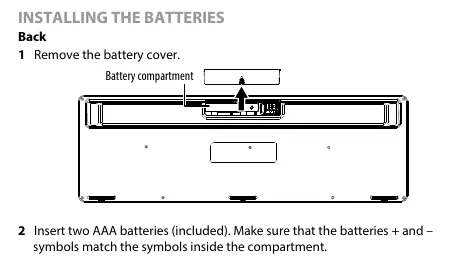
- Remove the battery cover on the back of the keyboard.
- Insert two AAA batteries. Ensure the + and - symbols match the markings inside the compartment.
- Replace the battery cover.
Connecting your keyboard
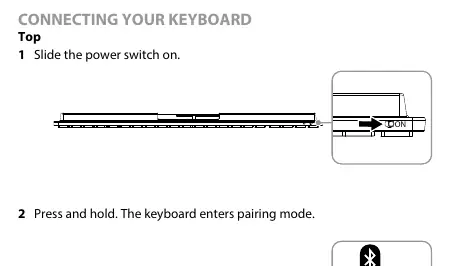
- Slide the power switch on the top of the keyboard to the ON position.
- Press and hold the Bluetooth button to enter pairing mode.
- On your Bluetooth device, turn on Bluetooth and select Insignia BT 3.0 KB or Insignia BT 5.0 KB from the pairing list.
- When connected, a “Pairing success” prompt will appear. If both options are available, select Insignia BT 5.0 KB for a faster connection.
Shortcut keys
The keyboard features multimedia keys accessible via the FN key:
- FN+F1: Decrease brightness
- FN+F2: Previous media track
- FN+F3: Play/pause media
- FN+F4: Next media track
- FN+F5: Mute all media
- FN+F6: Decrease volume
- FN+F7: Increase volume
- FN+F8: Increase brightness
- FN+F9: Launch the music app
- FN+F10: Stop media
- FN+F11: Calculator
- FN+F12: Search files and apps
Troubleshooting
If your keyboard is not working or failing to pair:
- Connection issues: Ensure the device meets system requirements, batteries have power, and the keyboard is within 33 ft (10 m) of the device. Move away from other wireless devices to prevent interference.
- Pairing issues: Shorten the distance between devices. Ensure both are in pairing mode. Refresh the Bluetooth list on your device. Turn the keyboard and device off and back on.
- Low battery: The low battery indicator will blink for three seconds when power is low.
Specifications
- Dimensions: 0.8 × 15.6 × 5 in. (2.21 × 39.66 × 12.85 cm)
- Weight: 15.74 oz. (.45 kg)
- Battery: 2 AAA alkaline batteries
- Battery life: Approximately 13 months (based on average usage)
- Bluetooth versions: BT 3.0, BT 5.0
- Operating distance: 33 ft. (10 m)
Practical help
Common problems
Keyboard not working or intermittent connection
Check battery levels, ensure the device meets system requirements, and move away from other wireless devices to reduce interference.
Device won't pair
Ensure both the keyboard and host device are in pairing mode, shorten the distance between them, and refresh the Bluetooth list on your host device.
Keyboard disconnects frequently
Turn the keyboard and device off and on again. Ensure the Bluetooth driver on your computer is up to date.
Before use
- Install two AAA batteries (included).
- Ensure the host device supports Bluetooth.
- Verify the host device OS is compatible (Windows 10/11, macOS 11.4+, ChromeOS 89+, iPadOS 14.4.2+, or Android 6+).
- Slide the power switch to ON.
Specs in practice
- Battery life
- Approximately 13 months based on average usage.
- Operating distance
- Up to 33 ft (10 m) from the connected device.
- Bluetooth versions
- Supports both BT 3.0 and BT 5.0; BT 5.0 is recommended for faster connection.
Images and diagrams
- The battery compartment is located on the back of the keyboard.
- The power switch and Bluetooth button are located on the top edge of the keyboard.
- The low battery and scroll lock indicator is located on the front right side.
Model compatibility
- Compatible with Windows 11 and 10, macOS 11.4 – 10.12, ChromeOS 89, iPadOS 14.4.2, and Android 6.

Manual page author
David Miller
Documentation analyst
Organizes user manual content into clear summaries, with attention to model details, product context, and everyday usability.