Electronics / Cameras
Canon imageRUNNER 1643iF / 1643i User's Guide
Comprehensive user guide for the Canon imageRUNNER 1643iF and 1643i printers, covering setup, network configuration, basic operations, copying, faxing, printing, scanning, and maintenance.
Table of contents
Product Overview
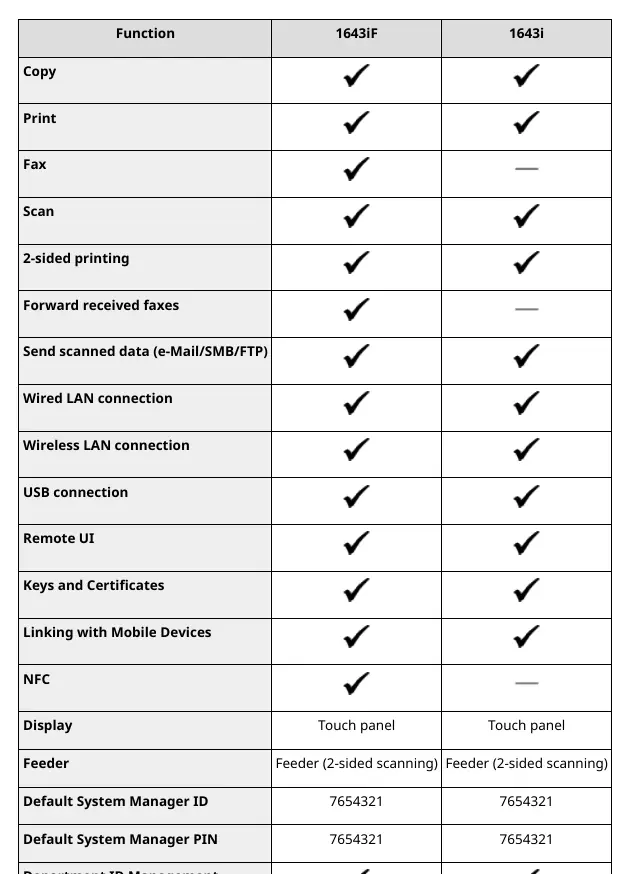
The Canon imageRUNNER 1643iF and 1643i are high-performance multifunction printers designed for efficient office workflows. This guide provides detailed instructions for setting up, operating, and maintaining these devices to ensure optimal performance.
Getting Started
Initial setup involves configuring the machine using the built-in Setup Guide, which covers language selection, date/time settings, and network configuration. Users should also prioritize security by assigning a private IP address and setting up access PINs to prevent unauthorized use.
Network Configuration
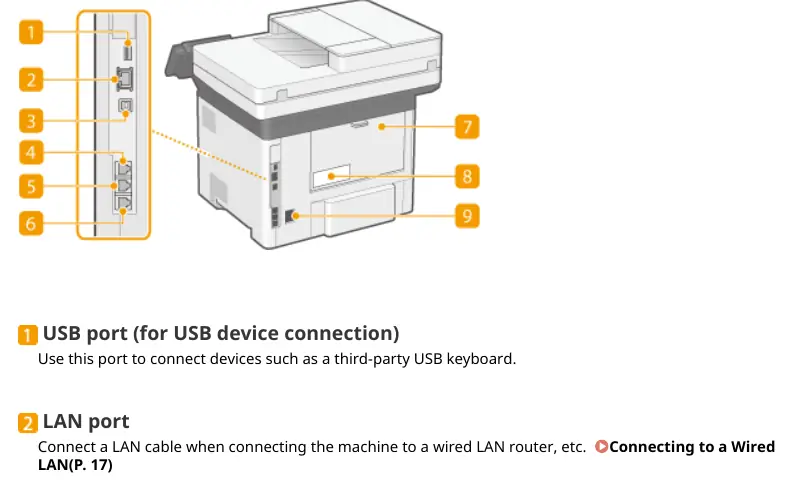
The machine supports both wired and wireless LAN connections. Network settings can be managed via the operation panel or the Remote UI. Key configurations include setting IP addresses (IPv4/IPv6), DNS, SMB, and WINS for seamless integration into your office network environment.
Basic Operations
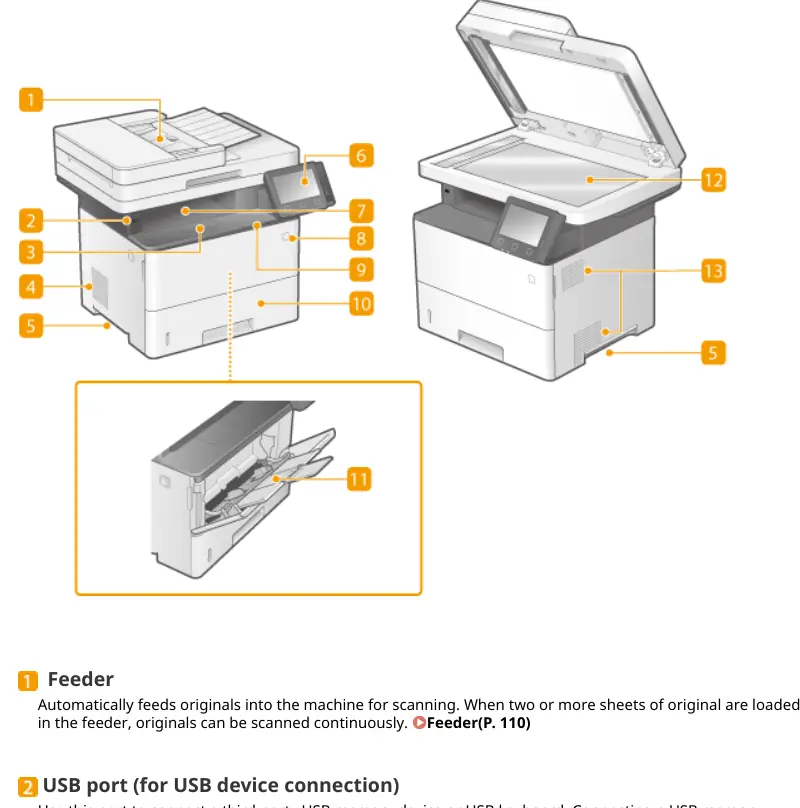
The intuitive touch panel provides easy access to core functions like copying, scanning, and faxing. Users can customize the Home screen to prioritize frequently used tasks and register custom paper sizes for specific printing needs.
Copying, Faxing, and Scanning
- Copying: Offers advanced features such as N-on-1 copying, ID card copying, and passport copying, with options to adjust image quality and sharpness.
- Faxing: Supports various receiving modes, including automatic reception and forwarding. Features like PC Fax allow sending documents directly from a computer.
- Scanning: Enables scanning to computers, USB memory devices, e-mail, or shared folders. Advanced security options like device signatures and PDF encryption are available for sensitive documents.
Maintenance and Troubleshooting
Regular maintenance, such as cleaning the platen glass, feeder, and fixing assembly, is essential for print quality. The guide also covers toner cartridge replacement and how to check the remaining amount of consumables. If issues arise, the built-in troubleshooting and error message system provides clear guidance for resolution.
Security and Management
Administrators can manage the machine via the Remote UI, setting access privileges, configuring network security (firewalls, TLS), and managing firmware updates. The machine also supports robust authentication methods to protect stored information.
Related manuals
Related manuals from the same brand or category.
Electronics / Cameras
Canon RF 16mm F2.8 STM Lens Instructions
CanonElectronics / Cameras
Canon RF 16-28mm F2.8 IS STM Lens Instructions
CanonElectronics / Cameras
Canon 15x50 IS All Weather Binoculars Instruction Manual
CanonElectronics / Cameras
Canon Prima Super 150U Film Camera Instructions
CanonElectronics / Cameras
Canon EOS Rebel T7 / EOS 1500D Instruction Manual
CanonElectronics / Cameras
Canon RF 14-35mm F/4.0 L IS USM Wide Zoom Lens Instructions
CanonElectronics / Cameras
Canon RF-S 14-30mm f/4-6.3 IS STM PZ Lens Instructions
CanonElectronics / Cameras
Canon RF 135mm F1.8 L IS USM Lens Instructions
CanonElectronics / Cameras
Canon EOS Rebel T6 / EOS 1300D Camera Instruction Manual
Canon
Manual page author
Emily Carter
User documentation editor
Prepares concise manual descriptions and highlights the most useful setup, operation, and maintenance information for readers.