Electronics / Networking
Cisco Business 143ACM Mesh Extender Quick Start Guide
Quick start guide for the Cisco Business 143ACM Mesh Extender. Learn how to connect, configure, and set up your mesh extender using the mobile app or web interface.
Table of contents
Manual images
Click an image to enlargeQuick Start Guide
This guide provides the essential steps to set up your Cisco Business 143ACM Mesh Extender. Before beginning, ensure you have an active Internet connection, a router acting as a DHCP server, and an operational/configured CBW Primary AP (140AC/145AC/240AC) with Mesh enabled.
What's in the Box
- Cisco Business 143ACM Mesh Extender
- Quick Start Guide
- Power Adapter
- Mounting Kit
- Technical Support Contact List
- Pointer Card China RoHS
- Compliance Information (for EU SKU only)
Product Features
The device includes the following physical features:
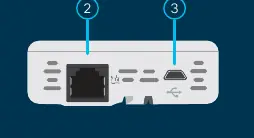
- Status LED
- PoE-In Port
- Type B USB Port (power supply)
- QR Code
- Mode button (on side)
- Kensington Lock (on side)
Get Connected
To connect the device:
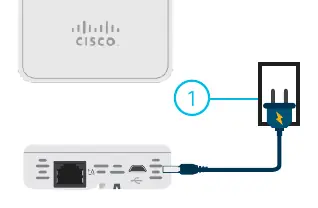
- Connect the provided power adapter to the mesh extender and plug it into a power source.
- Press the power button to begin the initial boot-up.
- The LED will cycle through red, amber, and green colors during the boot process. This is normal behavior.
Get Configured
You can configure the device using the Cisco Business Mobile app or a web browser.
Cisco Business Mobile App
No computer is required for this method. Scan the QR code provided in the documentation to download the app and follow the on-screen installation instructions.
Web UI (Internet Browser) Setup
If you prefer not to use the mobile app, you can use the Web UI. Detailed instructions for this method are available in the Web UI Setup Document, which can be accessed via the support link provided in the documentation.
Mounting and Grounding
Cisco Business mesh extenders can be mounted in several configurations. Please refer to the Administration Guide for specific mounting instructions.
Get Support
For additional product documentation, including the Web UI Setup document and the Administration Guide, visit https://cisco.com/go/cbw143acm
Official resources from the manual
Manufacturer information
Cisco Systems, Inc.
Practical help
Common problems
Device fails to boot or LED does not light up
Ensure the power adapter is securely connected to both the mesh extender and the power source.
Cannot find the mesh extender during setup
Ensure your CBW Primary AP (140AC/145AC/240AC) is operational, configured, and has Mesh enabled.
Before use
- Active Internet connection
- Operational/configured CBW Primary AP (140AC/145AC/240AC) with Mesh enabled
- Router acting as a DHCP server
- QR code reader app (if not using the Cisco Business Mobile app)
Specs in practice
- Type B USB Port
- Used for power supply input.
Images and diagrams
- The Status LED cycles through red, amber, and green during the initial boot-up sequence.
- The QR code on the back of the device is used to obtain the MAC address if the mobile app is not used.
Model compatibility
- Requires an operational/configured CBW Primary AP (140AC/145AC/240AC) with Mesh enabled.

Manual page author
Michael Turner
Technical manual editor
Reviews PDF manuals for structure, safety notes, and practical product details so readers can find the right information quickly.