Electronics / Networking
Quick Start Guide for Cisco Business 150AX Access Point
Quick start guide for the Cisco Business 150AX Access Point. Learn how to connect, configure, and set up your Wi-Fi 6 network using the mobile app or web interface.
Table of contents
Manual images
Click an image to enlargeQuick guide from the manual
The Cisco Business 150AX Access Point is designed to create a new Wi-Fi 6 wireless network or expand an existing Cisco Business Wireless (CBW) network. Setup can be performed via the Cisco Business Mobile app or a web browser.
What's in the box

- Cisco Business 150AX Access Point
- Mounting Kit
- Ethernet Cable
- Quick Start Guide
- Technical Support Contact List
- Pointer Card China RoHS
- Compliance Information (for EU SKU only)
Requirements
- Active Internet connection
- Mobile device with Wi-Fi capability (not connected to an active wireless network)
- Cisco Business Mobile app or a compatible web browser (Microsoft Edge ver. 10+, Safari ver. 7+, Firefox ver. 33+, or Chrome ver. 38+)
- PoE switch, router, or PoE injector to supply power
- Router or switch to act as your DHCP Server
Hardware connection
Connect your access point via the provided ethernet cable to a PoE LAN port on your switch or router. If you do not have a PoE switch or router, you must use a PoE injector to supply power to the device.
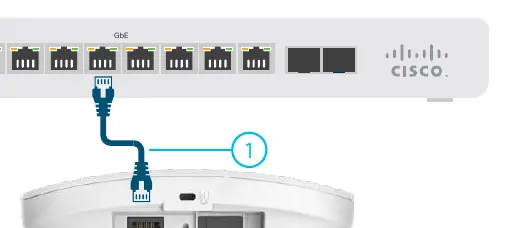
Setting up the network
Setting up a new network: Upon power-up, the device will begin its initial boot. The LED will cycle through patterns of green, red, and off. This process can take 6 minutes or longer. The device is ready for configuration only when the LED becomes solid green.
Adding to an existing CBW Wi-Fi 6 network: Allow the access point to boot up and automatically update its firmware and configuration to match the existing network. This may take 10 minutes or more. The LED will cycle through green, red, and off. Once the LED is solid green, the setup is complete. Once connected to the network, the LED will turn blue.
Configuration
Mobile App: Download the Cisco Business Mobile app by scanning the QR code provided in the manual or visiting cisco.com/go/cbapp. Follow the in-app installation instructions.
Web UI: If you prefer not to use the mobile app, you can use the Web UI for setup. Instructions for this method are available in the Web UI Setup Document, accessible via the support link.
Mounting
Cisco Business Wireless access points can be mounted on a suspended ceiling, a hard ceiling, a wall, or in the plenum air space above a suspended ceiling. Detailed mounting instructions are located in the Administration Guide.
Support
For additional product documentation, including the Web UI Setup Document and Administration Guide, visit: https://cisco.com/go/cbw150ax
Official resources from the manual
Manufacturer information
Cisco Systems, Inc.
Practical help
Common problems
Device LED cycles green, red, and off for a long time.
This is normal during the initial boot process. It can take 6 minutes or longer. Wait until the LED is solid green.
No PoE switch available.
You must use a PoE injector to supply power to the access point.
Device not connecting to existing network.
Ensure the device has finished the firmware and configuration update process (indicated by a solid green LED) before it turns blue.
Before use
- Ensure you have an active Internet connection.
- Have a mobile device with Wi-Fi capability ready (not connected to an active wireless network).
- Verify you have a PoE switch, router, or PoE injector.
- Ensure a router or switch is available to act as your DHCP Server.
- Download the Cisco Business Mobile app or ensure a compatible web browser is available.
Images and diagrams
- The device features a PoE-In port, Kensington lock, and security screw hole.
- The mounting bracket is located on the rear of the device.
Model compatibility
- Compatible with Cisco Business Mobile app.
- Web UI supports Microsoft Edge (ver. 10+), Safari (ver. 7+), Firefox (ver. 33+), and Chrome (ver. 38+).

Manual page author
Michael Turner
Technical manual editor
Reviews PDF manuals for structure, safety notes, and practical product details so readers can find the right information quickly.