Electronics / Networking
Cisco Business 142ACM Mesh Extender Quick Start Guide
Quick start guide for the Cisco Business 142ACM Mesh Extender. Learn how to set up your device, connect to the network, and configure it using the Cisco Business Mobile app or Web UI.
Table of contents
Manual images
Click an image to enlargeQuick guide from the manual
The Cisco Business 142ACM Mesh Extender is designed to expand the coverage of your existing Cisco Business Wireless Network. To get started, ensure you have an active internet connection, a configured CBW Primary AP (140AC/145AC/240AC) with Mesh enabled, and a router acting as a DHCP server. Simply plug the device into a power outlet, wait for the LED to cycle through red, amber, and green, and then configure it using the Cisco Business Mobile app or the Web UI.
Product overview
The device features include:
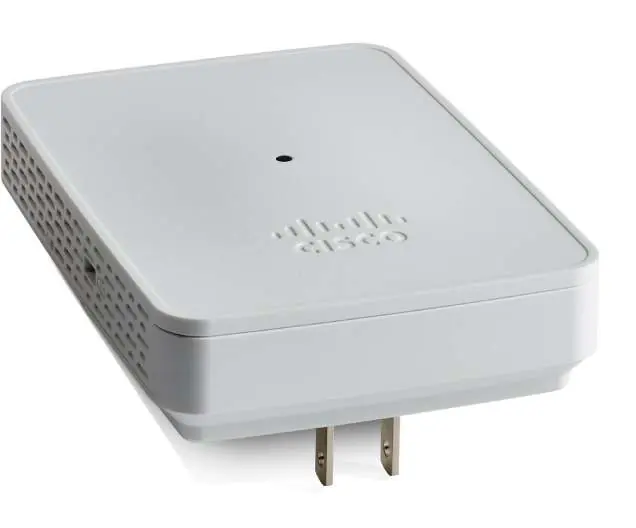
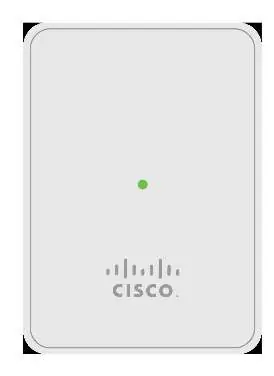
- Status LED: Indicates the operational status of the device.
- QR Code: Used for setup and identification.
- Mode Button: Located on the side of the unit.
- Kensington Lock: Located on the side for security.
- AC Plug: Integrated plug for power, which may vary by country.
Requirements
Before beginning the setup, ensure you have the following:
- An active Internet connection.
- An operational and configured CBW Primary AP (140AC/145AC/240AC) with Mesh enabled.
- A router to act as your DHCP server.
- A QR code reader (if not using the Cisco Business Mobile app).
Getting connected
Plug the mesh extender into a power outlet. The device will begin its initial boot-up process. During this time, the LED will cycle through red, amber, and green colors. This behavior is normal.
Configuration
You can configure the device using one of the following methods:
- Cisco Business Mobile App: Download the app on your mobile phone or tablet by scanning the QR code on the device or visiting cisco.com/go/cbapp. Follow the in-app installation instructions.
- Web UI (Internet Browser): If you prefer not to use the app, you can use the Web UI for setup. Instructions for this method are available in the Web UI Setup Document, which can be downloaded via the support link provided below.
Support
For Cisco support and additional product documentation, including the Web UI Setup document and the Administration Guide, visit: cisco.com/go/cbw142acm
Official resources from the manual
Manufacturer information
Cisco Systems, Inc.
Practical help
Common problems
LED not cycling through colors during boot
Ensure the device is firmly plugged into a power outlet and receiving power.
Cannot find the configuration app
Scan the QR code on the back of the device or visit cisco.com/go/cbapp to download the Cisco Business Mobile app.
Before use
- Verify you have an active Internet connection
- Ensure you have an operational CBW Primary AP (140AC/145AC/240AC) with Mesh enabled
- Confirm your router is acting as a DHCP server
- Have a QR code reader ready if not using the mobile app
Images and diagrams
- Status LED: Located on the front, indicates boot status
- Mode Button: Located on the side of the unit
- Kensington Lock: Located on the side of the unit
- AC Plug: Integrated on the back of the unit
Model compatibility
- Requires an operational/configured CBW Primary AP (140AC/145AC/240AC) with Mesh enabled

Manual page author
Emily Carter
User documentation editor
Prepares concise manual descriptions and highlights the most useful setup, operation, and maintenance information for readers.