Electronics / Networking
User Guide for Cisco Nexus Insights Cloud Connector Application
A comprehensive guide to installing, configuring, and using the Cisco Nexus Insights Cloud Connector application on Cisco DCNM, including device connector setup, proxy configuration, and TAC Assist log collection.
Quick answers from the manual
Quick answer
- The Cisco Nexus Insights Cloud Connector application enables telemetry and TAC Assist log collection on Cisco DCNM by connecting to the Cisco Intersight Cloud. p. 5, 7, 10
Key actions
- Configure Device Connector p. 11, 13
- Collect Logs via TAC Assist p. 17, 18
First start
- Ensure the Device Connector is configured and the fabric is connected to Cisco Intersight Cloud. p. 10, 13
Problems and fixes
Log upload failure
Verify proxy settings and ensure the fabric is connected to the Intersight Cloud.
p. 12, 18Where to find it in the PDF
- Installation and Setup p. 5, 7, 10
- TAC Assist Usage p. 16, 17, 18
Table of contents
Manual images
Click an image to enlargeAbout Cisco Nexus Insights Cloud Connector
The Cisco Nexus Insights Cloud Connector (Cisco NI Cloud Connector) application is pre-packaged with Cisco Data Center Network Manager (Cisco DCNM). It monitors utilities and provides a secure way for connected devices to send information and receive control instructions from the Cisco Intersight portal. The application enables telemetry data collection and TAC Assist functionalities, which are useful for troubleshooting and working with Cisco TAC.
Installation and Upgrades
Cisco DCNM packages the Cisco NI Cloud Connector app. When upgrading Cisco DCNM, the application may require an explicit upgrade action within the applications tab. Note that version 2.0.30 of the app does not auto-start and requires clustered mode to function.
Setting Up the Device Connector
The Device Connector is the bridge between your local Cisco DCNM platform and the Cisco Intersight Cloud. To set it up:
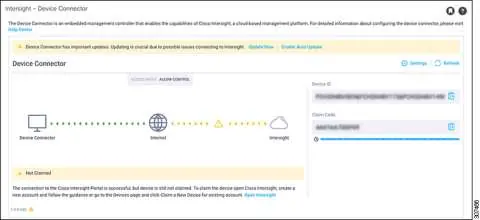
- Navigate to the Cisco DCNM navigation pane and click Administration.
- Select Device Connector under the Cisco DCNM Server list.
- Click Settings at the far right of the screen.
- Set the Device Connector switch to On (green highlight).
- Choose Allow Control to enable full read/write operations from Cisco Intersight.
Configuring Proxy Settings
If your network requires a proxy for HTTPS connections to svc.intersight.com, you must configure it within the Device Connector settings:
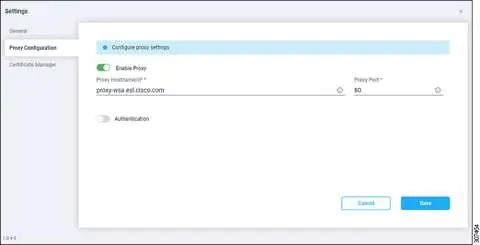
- In the Device Connector settings, click Proxy Configuration.
- Enable the Enable Proxy switch.
- Enter the Proxy Hostname/IP and Proxy Port.
- If authentication is required, enable the Authentication switch and provide your username and password.
- Click Save.
Navigating the Application
The application interface is divided into a Navigation pane and a Work pane. The Navigation pane provides access to:
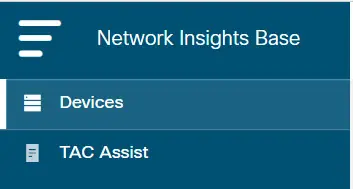
- Devices: Displays devices by name, serial number, IP address, version, and platform.
- TAC Assist: Allows you to collect logs for specified devices to assist with service requests.
Using TAC Assist
TAC Assist enables the collection of logs for devices in your network, which can be attached to Service Requests (SRs) for analysis.
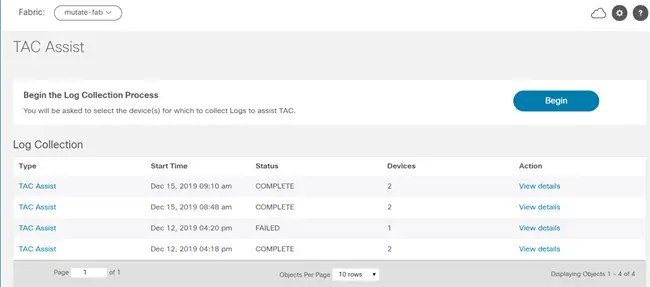
- Click TAC Assist in the navigation pane.
- Click Begin to initiate the log collection process.
- Select the device(s) for which you want to collect logs.
- Click Collect Logs.
- Once collected, you can view the job details and click Upload to send the logs to the Cisco Intersight Cloud.
Enhanced TAC Assist
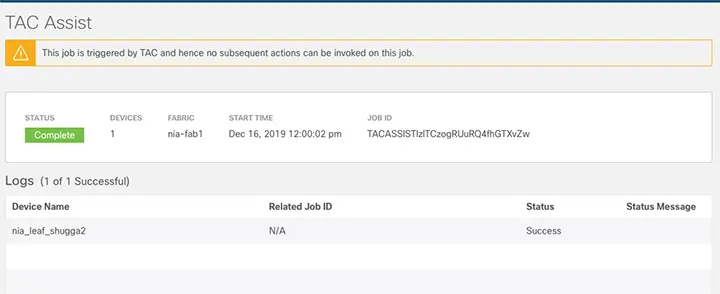
The Enhanced TAC Assist feature allows Cisco TAC to trigger a log collection request directly for an SR on Cisco DCNM. This process automates the collection and upload of logs without requiring explicit user action.
Official resources from the manual
Manufacturer information
Cisco Systems, Inc.
Practical help
Common problems
Device Connector not connected
Ensure DNS is configured on managed devices to resolve svc.intersight.com and verify proxy settings.
Log collection failed
Check network connectivity to Cisco Intersight Cloud and verify that the fabric is properly connected.
App not auto-starting
Note that Cisco NI Cloud Connector 2.0.30 does not auto-start and requires clustered mode.
Before use
- Ensure Cisco DCNM is installed and running.
- Verify network connectivity to Cisco Intersight Cloud.
- Configure DNS on managed devices to resolve svc.intersight.com.
- Ensure the fabric is connected to Cisco Intersight Cloud.
- Verify that the Device Connector is enabled and set to Allow Control.
Specs in practice
- Access Mode: Read-only
- Prevents configuration changes from Cisco Intersight on Cisco DCNM.
- Access Mode: Allow Control
- Enables full read/write operations from the appliance, allowing Cisco Intersight to manage the device.
Images and diagrams
- Device Connector Status: Indicates if the application is Not Connected, Connected/Not Claimed, or Connected/Claimed.
- TAC Assist Dashboard: Displays the status of log collection jobs (Pending, In Progress, Complete, Failed).
Model compatibility
- Cisco NI Cloud Connector 2.0.30 works only in clustered mode.
- Security appliances that terminate outbound device connector HTTPS connections are not supported.

Manual page author
Emily Carter
User documentation editor
Prepares concise manual descriptions and highlights the most useful setup, operation, and maintenance information for readers.