Electronics / Networking
Cisco IMC PowerTool User Guide Release 2.x
A comprehensive user guide for the Cisco IMC PowerTool (Release 2.x), covering installation, connection procedures, PowerShell cmdlet usage, firmware updates, and system configuration examples.
Quick answers from the manual
Quick answer
- Cisco IMC PowerTool is a PowerShell module that uses XML APIs to automate Cisco IMC management tasks, including firmware updates, user management, and BIOS configuration. p. 1, 7
Key actions
- Connect to Cisco IMC p. 13
- Update Firmware p. 24
First start
- Launch IMC PowerTool from the desktop shortcut. p. 13
Problems and fixes
Invalid certificate connection
Use Set-UcsPowerToolConfiguration -InvalidCertificateAction Fail to enforce certificate validation.
p. 16Maintenance and reset
- Reset event filters p. 32, 33
Technical specifications
| Parameter | Value | Meaning | Pages |
|---|---|---|---|
| PowerShell Requirement | 3.0 or higher | Minimum PowerShell version for the module. | p. 3 |
| .NET Requirement | 4.5 or higher | Minimum .NET Framework version. | p. 3 |
Where to find it in the PDF
- Introduction and Requirements p. 1, 7, 8, 9
- Getting Started p. 13, 14, 15, 16
- Examples p. 19, 20, 21, 22
Table of contents
Quick guide from the manual
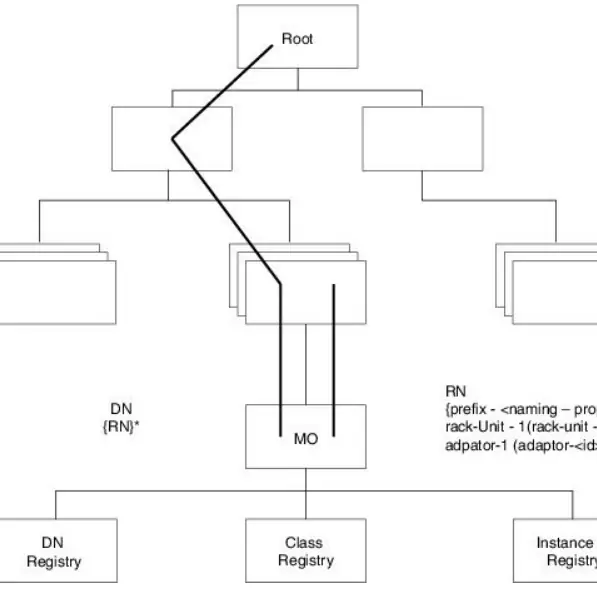
Cisco IMC PowerTool is a PowerShell module designed to automate Cisco Integrated Management Controller (IMC) tasks using XML APIs. It allows administrators to create, modify, or delete Managed Objects (MOs) within the Cisco IMC Management Information Tree (MIT).
System Requirements
- Windows PowerShell 3.0 or higher (4.0+ required for DSC).
- .NET Framework Version 4.5 or higher.
- Compatible with Cisco UCS C-Series Servers (Release 1.5, 2.0, 3.0, 3.1, 4.0) and E-Series Servers (Release 2.2(1) and higher).
Getting Started
To begin using the tool, launch IMC PowerTool from the desktop shortcut. Use the Connect-Imc cmdlet to establish a connection to a Cisco IMC server. By default, the handle is added to a DefaultImc list. You can connect to multiple IMCs by specifying multiple handles or overriding the default configuration using Set-UcsPowerToolConfiguration.
Credentials and SSL
Credentials can be stored in encrypted files using Export-UcsPsSession and reused for future logins. For SSL certificate handling, the default action is to ignore invalid certificates. This can be changed to 'Fail' using Set-UcsPowerToolConfiguration -InvalidCertificateAction Fail.
PowerTool Mapping
The PowerTool cmdlets are generated from the MO specification. Common verbs include:
- Get: Retrieves objects (uses ConfigResolveClass).
- Add: Creates objects (uses ConfigConfMo).
- Set: Modifies objects (uses ConfigConfMo).
- Remove: Deletes objects (uses ConfigConfMo).
Examples and Configuration
The manual provides extensive examples for common administrative tasks, including:
- Firmware Management: Updating firmware via Set-ImcFirmwareUpdatable or HUU firmware updates.
- User Management: Adding users and managing credentials.
- Storage Configuration: Setting boot drives, changing disk modes (JBOD to UG), and creating virtual drives.
- BIOS Settings: Setting BIOS passwords (E-Series only) and configuring boot order.
- DSC (Desired State Configuration): Using the Cisco.UCS.DesiredStateConfiguration module to configure multiple IMCs in a datacenter.
Official resources from the manual
Manufacturer information
Cisco Systems, Inc.
Practical help
Common problems
Connection fails due to certificate issues
Check the InvalidCertificateAction setting. By default, it is set to 'Ignore'. You can change this to 'Fail' using Set-UcsPowerToolConfiguration -InvalidCertificateAction Fail.
Cannot connect to multiple Cisco IMCs
By default, multiple handles are not allowed in DefaultImc. Use Set-UcsPowerToolConfiguration -SupportMultipleDefaultUcs $true to override this.
Before use
- Install Windows PowerShell 3.0 or higher.
- Install .NET Framework Version 4.5 or higher.
- Ensure Windows PowerShell 4.0 or higher is installed if using DSC.
- Verify compatibility with your Cisco IMC release version.
Specs in practice
- DN (Distinguished Name)
- A unique identifier for a Managed Object (MO) in the MIT, representing its location from the root.
- RN (Relative Name)
- Identifies an MO within the context of its parent.
- MO (Managed Object)
- Physical or logical entity (e.g., CPU, DIMM, user) configured in the Cisco IMC.
Images and diagrams
- The manual includes a diagram illustrating the Management Information Tree (MIT) hierarchy, showing how Root, MOs, and Registries are structured.
Model compatibility
- Compatible with Cisco UCS C-Series Servers (Release 1.5, 2.0, 3.0, 3.1, 4.0).
- Compatible with Cisco UCS E-Series Servers (Release 2.2(1) and higher).

Manual page author
Emily Carter
User documentation editor
Prepares concise manual descriptions and highlights the most useful setup, operation, and maintenance information for readers.