Electronics / Networking
Cisco Aironet Access Point Secure Data Wipe Guide
Learn how to securely erase data from Cisco Access Points using the clear ap config command. This guide covers the wipeout process, verification commands, and compatibility requirements for various Cisco AP models.
Table of contents
Quick Guide to Secure Data Wipe
The Secure Data Wipe feature allows you to securely erase files from the file system of Cisco Access Points (APs). This process is irreversible and removes configuration files, crash files, log files, boot variables, and package logs.
- Standard Method: Use the clear ap config command via the CLI.
- Work Group Bridge (WGB) Mode: Requires a physical interaction. Press and hold the mode button for 20 to 60 seconds to remove storage content.
- Verification: Use the show flash wipeout-log command to confirm the wipeout status and view history.
Overview of Secure Data Wipe
The Secure Data Wipe feature is designed to ensure that sensitive data is removed from the AP flash memory without the scope of recovery. When triggered, the system erases the following:
- Configuration and backup configuration files
- Crash files
- Log files
- Boot variables
- Package logs
Performing a Data Wipe
To initiate the secure data wipe, access the AP command line interface and execute the clear ap config command. This command triggers the wipeout process and stores basic information about the operation, including the status, which can be used for troubleshooting.
Verifying Wipeout Status
After performing the wipe, you can check the output of the operation by running the following command:
Cisco-AP# show flash wipeout-log
The output will display details such as the filesystem name, total files, wipe method, bytes cleared, device PID, serial number, and the final status (e.g., SUCCESS).
Compatibility and Requirements
The Secure Data Wipe feature depends on specific firmware versions and AP models:
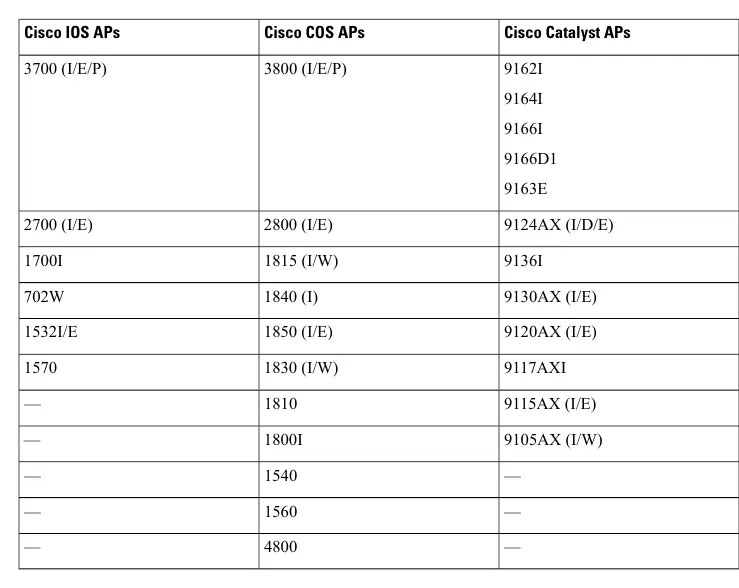
- Cisco Wave 1 APs: Supported in Cisco IOS XE Amsterdam 17.3 and Cisco IOS XE Cupertino 17.9.3 and later. Not supported in 17.4, 17.5, 17.6, 17.7, 17.8, 17.10 and later releases.
- Cisco Wave 2 APs: Supported in Cisco IOS XE Dublin 17.11 and Cisco IOS XE 17.13.
- General Support: Cisco Wave 1 and Wave 2 APs are supported in Cisco IOS XE Dublin 17.12.
Manufacturer information
Cisco Systems, Inc.
Practical help
Common problems
Data wipe not working on WGB mode
Ensure you are using the physical mode button on the device, not the CLI command. Press and hold the button for 20 to 60 seconds.
Feature not available or command not recognized
Verify that your AP model is supported and that you are running a compatible version of Cisco IOS XE (e.g., 17.3+ for Wave 1, 17.11+ for Wave 2).
Before use
- Verify your AP model is listed in the supported devices table.
- Check that your firmware version (Cisco IOS XE) supports the Secure Data Wipe feature.
- Determine if the AP is in Work Group Bridge (WGB) mode.
- Ensure you have console access to the AP to run CLI commands.
Specs in practice
- clear ap config
- The primary command used to trigger the secure data wipe process on the AP.
- show flash wipeout-log
- The command used to verify the results of the data wipe and view the history of wipeout operations.
Model compatibility
- Cisco Wave 1 APs have specific firmware exclusions (17.4 through 17.8, 17.10).
- WGB mode requires physical button interaction rather than software commands.

Manual page author
Emily Carter
User documentation editor
Prepares concise manual descriptions and highlights the most useful setup, operation, and maintenance information for readers.