Electronics / Networking
Cisco Business 142AC Mesh Extender Quick Start Guide
Quick start guide for the Cisco Business 142AC Mesh Extender. Learn how to set up your device using the Cisco Business app or web interface, configure mesh settings, and troubleshoot connection issues.
Table of contents
Manual images
Click an image to enlargeQuick guide from the manual
The Cisco Business 142AC Mesh Extender is designed to expand the coverage of your existing Cisco Business Wireless Network. Before starting, ensure you have an active Internet connection, a router acting as a DHCP server, and an operational/configured CBW Master AP (140AC, 145AC, or 240AC) with Mesh enabled.
What is in the box
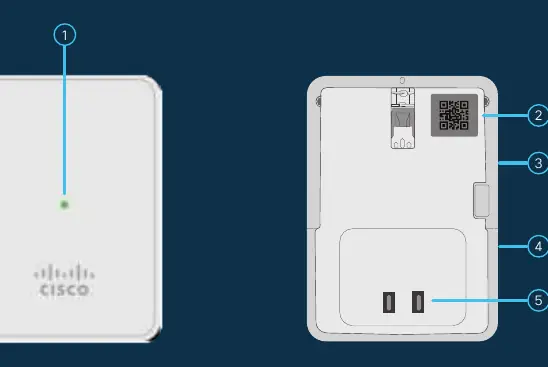
- Cisco Business 142AC Mesh Extender
- Quick Start Guide
- Technical Support Contact List
- Pointer Card China RoHS
- Compliance Information (for EU SKU only)
Preparing your product
To begin, plug the mesh extender into a power outlet. During the initial boot-up process, the LED will cycle through red, amber, and green. This is normal behavior. If you are using the Cisco Business app, you can connect to the SSID of the Master AP and proceed with the setup. If not using the app, obtain the MAC address by scanning the QR code on the back of the device.
Configuration methods
You can configure the mesh extender using two primary methods:
- Cisco Business App: Download the app, go to Monitor My Network, select the Discovered Master, log in, and select Add a device. Follow the on-screen steps.
- Web UI: Launch a web browser, navigate to https://ciscobusiness.cisco, and log into the Master AP.
Step-by-step setup via Web UI
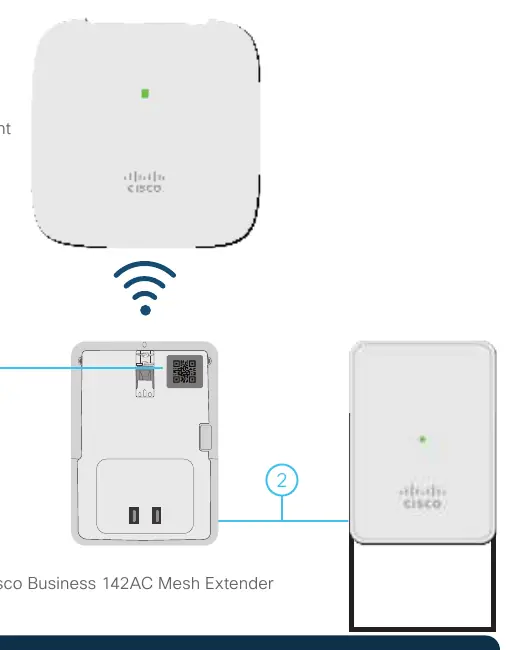
- Log into the Master AP using the credentials created during initial configuration.
- Ensure Mesh support is enabled on the Master AP by navigating to Wireless Settings > Mesh. If the button is not green, enable it and select Apply. The AP will reboot.
- Navigate to Wireless Settings > WLAN Users > Local MAC Addresses.
- Click Add MAC Address and enter the MAC address of the mesh extender.
- Select the Type as Whitelist.
- The mesh extender LED will cycle through states while uploading firmware and joining the Master AP. This may take ten minutes or more. A solid or blinking green LED indicates a successful connection.
- Verify the device is listed under Wireless Settings > Access Points in the AP Model column.
- Save the configuration by clicking the red disk icon in the web interface header.
Support and resources
For additional details on LED indicators, advanced configurations, and mounting instructions, refer to the Cisco Business Wireless Access Point Administration Guide. For support, visit cisco.com/go/cbw142ac.
Official resources from the manual
Manufacturer information
Cisco Systems, Inc.
Practical help
Common problems
Mesh button is not enabled
Go to Wireless Settings > Mesh on the Master AP and ensure the Mesh button is enabled (green). Select Apply and confirm; the AP will reboot.
Mesh extender not joining the network
Ensure the MAC address of the extender has been added to the Local MAC Addresses list on the Master AP and set to Whitelist.
LED status during boot
Cycling through red, amber, and green is normal during initial boot. A solid or blinking green LED confirms the device has successfully joined the network.
Before use
- Active Internet connection
- Configured CBW Master AP (140AC, 145AC, or 240AC)
- Mesh support enabled on the Master AP
- Router acting as DHCP server
- QR code reader (if not using the Cisco Business app)
Specs in practice
- Kensington Lock
- Physical security slot located on the side of the device.
Images and diagrams
- Front view: Shows the Status LED.
- Back view: Shows the QR code, Mode button, Kensington lock, and AC plug.
Model compatibility
- Compatible with Cisco Business Wireless Master APs: 140AC, 145AC, and 240AC.

Manual page author
David Miller
Documentation analyst
Organizes user manual content into clear summaries, with attention to model details, product context, and everyday usability.