Electronics / Networking
Cisco Nexus 1000V for Microsoft Hyper-V Troubleshooting Guide
A comprehensive troubleshooting guide for the Cisco Nexus 1000V for Microsoft Hyper-V. Includes diagnostic steps for installation, upgrades, licensing, high availability, port management, VLANs, and more.
Table of contents
Manual images
Click an image to enlargeQuick guide from the manual
This guide provides troubleshooting procedures for the Cisco Nexus 1000V for Microsoft Hyper-V. It covers common issues related to installation, upgrades, licensing, high availability, and network configuration. Use the command-line interface (CLI) tools described here to diagnose and resolve network connectivity and performance problems.
Troubleshooting Process
To effectively troubleshoot your network, follow these systematic steps:
- Gather information: Define the specific symptoms of the problem.
- Identify potential causes: List all possible factors contributing to the symptoms.
- Eliminate causes: Systematically test and eliminate potential problems, starting from the most likely, until the symptoms disappear.
Installation and Connectivity
If you encounter issues during installation or host connectivity, verify the following:

- Host in 'Not Responding' state: Launch the Microsoft SCVMM UI, select the server, and refresh the host.
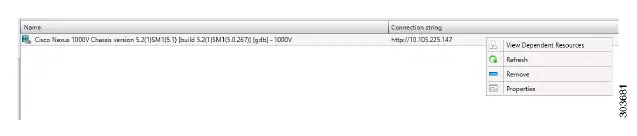
- Missing VMs: Check 'View Dependent Resources' in the SCVMM UI.
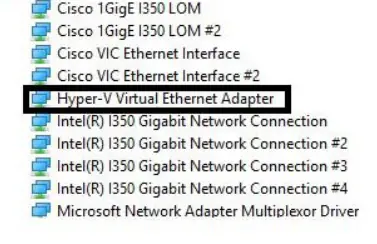
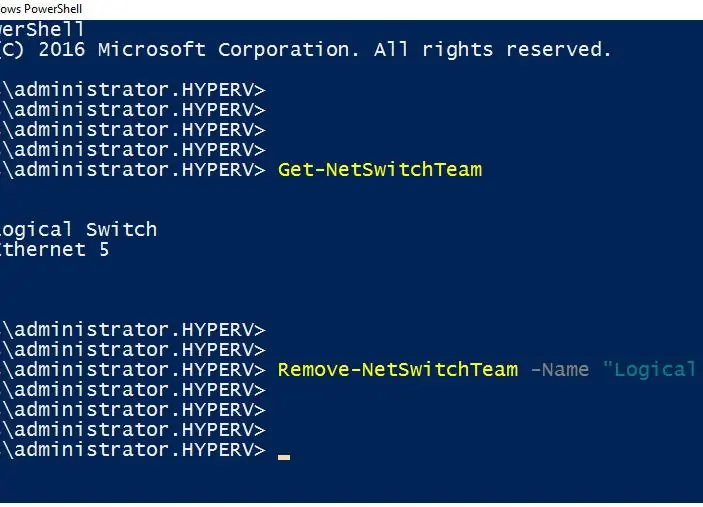
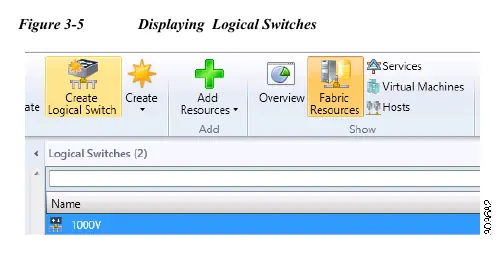
- Adding hosts fails (Error 2912): Ensure the Hyper-V Virtual Ethernet Adapter and Switch Extension Adapter are correctly configured. You may need to uninstall these adapters and recreate the virtual switch.
- SCVMM connectivity: Ensure the VSM is reachable from the SCVMM server by checking proxy and firewall settings.
Upgrades and Licensing
For upgrade and licensing issues:
- ISSU failures: Verify HA synchronization state using 'show system redundancy status'. Ensure sufficient space in the 'bootflash:' repository.
- VEM upgrade issues: Ensure the VSM upgrade is performed before the VEM upgrade.
- License issues: Verify license usage with 'show license usage'. Ensure the host ID in the license file matches the ID on the VSM.
High Availability
To troubleshoot high availability (HA) issues:
- Active VSM not seeing standby: Verify roles using 'show system redundancy status'. Check control and management VLAN connectivity.
- Synchronization failures: Ensure both VSMs are running the same software version.
- Both VSMs active: Check for network connectivity problems between the VSMs and the upstream switch.
Ports and Switching
For port and Layer 2 switching issues:
- Port diagnostics: Use 'show interface brief' to check status. Use 'show interface ethernet mod/port counters' to identify synchronization problems.
- Port Security: If a port is disabled due to a security violation, identify the cause using 'show logging | inc PORT-SECURITY'.
- VLAN issues: Ensure the VLAN is active and allowed on the trunk port using 'show interface switchport'.
- Private VLANs: Verify configuration with 'show vlan private-vlan'.
Advanced Network Features
Troubleshooting for advanced features:
- NetFlow: Use 'module vem module-number execute vemcmd show netflow monitor' to verify monitor status.
- ACLs: Use 'module vem module-number execute vemcmd show acl' to list installed ACLs on the VEM.
- QoS: Use 'module vem module-number execute vemcmd show qos policy' to list installed policy maps.
- SPAN: Verify session status with 'show monitor'.
- IGMP Snooping: Use 'show ip igmp snooping groups' to verify multicast group information.
- DHCP/DAI/IPSG: Use 'show ip dhcp snooping binding' to verify IP-to-MAC bindings.
System Diagnostics and Support
For deep diagnostics, use the following tools:
- Ethanalyzer: A command-line protocol analyzer for capturing control-plane traffic.
- Logs: Use 'show logging logfile' to view system messages.
- Technical Support: Before contacting Cisco TAC, collect switch information using 'show tech-support detail' on the VSM and 'vem-support.ps1' on the VEM.
Official resources from the manual
Manufacturer information
Cisco Systems, Inc.
Practical help
Common problems
Host in 'Not Responding' state in SCVMM
Refresh the host in the Microsoft SCVMM UI.
VEM Unlicensed
Verify license usage with 'show license usage' and check socket count.
Port Link Failure
Check physical cabling, verify port state, and use 'vem-support.ps1' to collect configuration.
Cannot create a VLAN
Check if the VLAN ID is in the reserved range (3968-4047, 4094).
Before use
- Ensure VSM VM and VEM are up and running.
- Verify compatible versions of Microsoft SCVMM and VSM.
- Check that http://VSM-IP is visible from the SCVMM server.
- Ensure port 80 and 443 are open.
- Maintain a consistent Cisco Nexus 1000V release across all network devices.
Images and diagrams
- Figure 3-1: Shows adapters under Network Adapters in Device Manager.
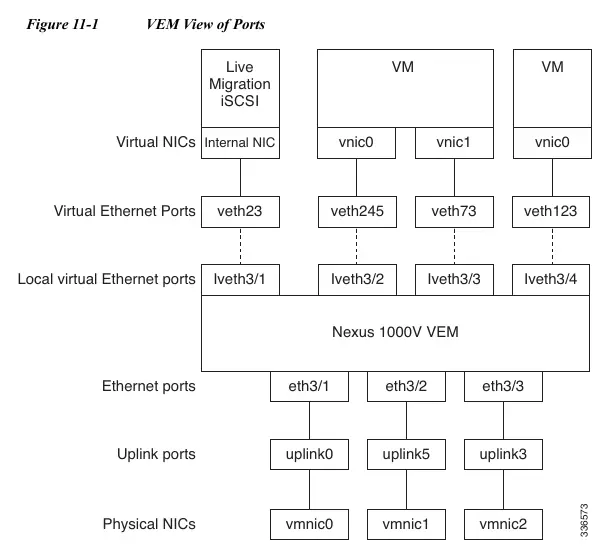
- Figure 11-1: Illustrates the VEM view of ports, mapping virtual NICs to vEth ports.
- Figure 11-2: Shows the VSM view of ports and their connection to the L2 Cloud and Upstream Switch.
Model compatibility
- APC is supported only in ON mode channels, not LACP.
- NetFlow is not supported in port channels.
- VLAN ACLs are not supported.

Manual page author
Emily Carter
User documentation editor
Prepares concise manual descriptions and highlights the most useful setup, operation, and maintenance information for readers.