HVAC / Thermostats & Controls
Quick Start Guide for Danfoss BD Controller 101N08xx Series
A comprehensive quick start guide for the Danfoss BD Controller 101N08xx series. This manual provides essential instructions for wiring single and twin compressor configurations, pairing the Bluetooth gateway, installing the Tool4Cool...
Table of contents
Manual images
Click an image to enlargeQuick guide from the manual
This guide provides the essential steps to set up and configure the Danfoss BD Controller 101N08xx series. It covers hardware connection, Bluetooth gateway pairing, software installation, and network setup. For detailed operation instructions, refer to the full documentation listed in the Further Information section of the PDF.
Checklist
Before beginning, ensure you have the following components:
- BD Controller 101N08xx Series module and cables
- Tool4Cool LabEdition software installation CD
- Product key for BD compressor controller
- DC line cords
- NTC temperature sensor (or mechanical thermostat)
- Danfoss Bluetooth gateway and USB power supply
- Bluetooth communication cable
Connecting cables
The controller supports both single and twin compressor configurations. Ensure all connections are secure according to the wiring diagrams provided in the manual. Key components to connect include the battery, fuse, main switch, fans, and temperature sensors. Refer to the specific wiring diagram for your configuration (Single or Twin) to ensure correct pin-out and interface connections.
Pairing the gateway
To enable communication, the Bluetooth gateway must be paired with your computer:
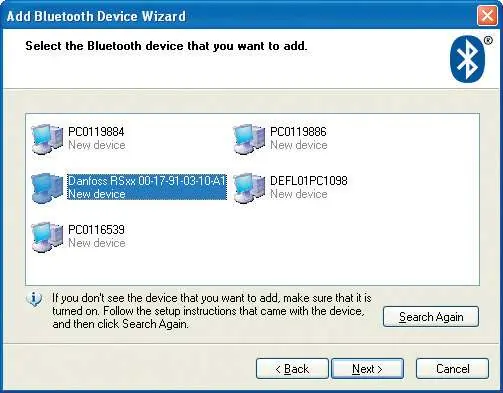
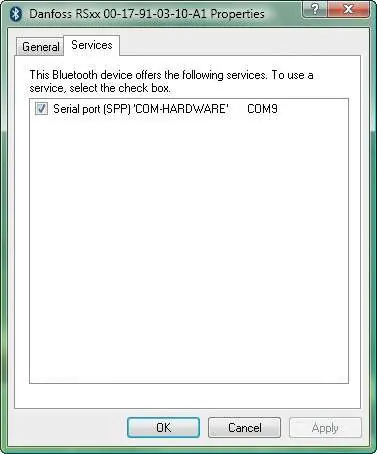
- Turn on the Bluetooth radio adapter on your computer.
- Press the push button on the Danfoss Bluetooth gateway; the LED will blink green.
- Open the Bluetooth Devices menu in the Control Panel.
- Select 'Add' and follow the wizard to find the gateway.
- When prompted, enter the passkey: 1234.
- Note the outgoing COM port assigned to the device for use in the software.
Installing software
Install the Tool4Cool LabEdition software to manage the controller:
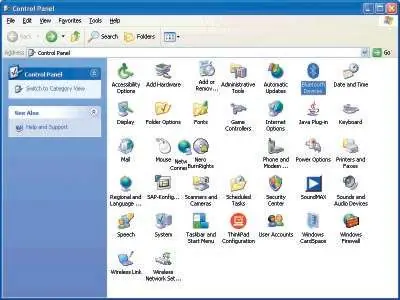
- Ensure your PC has the latest .NET Framework updates.
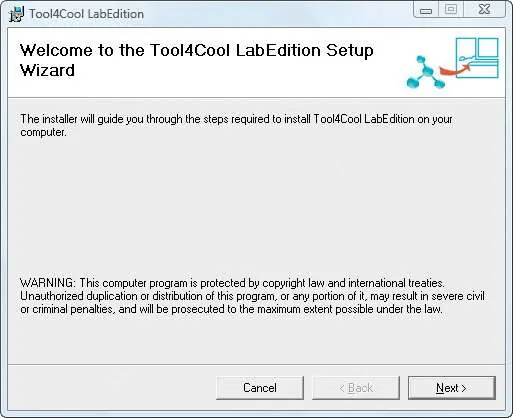
- Insert the installation CD and run setup.exe.
- Follow the on-screen Setup Wizard instructions to complete the installation.
Installing Product Key
To activate the software features:
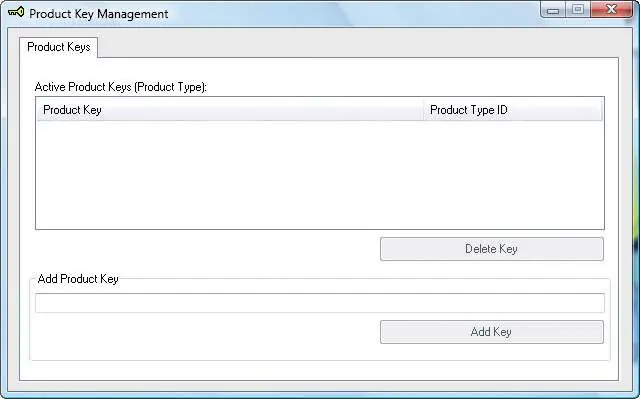
- Start Tool4Cool LabEdition.
- Navigate to Help in the menu bar and select Product Keys.
- Enter the Product Key found in the Checklist section of this guide and click Add Key.
Connecting network
Configure the network connection within the software:
- In Tool4Cool, select File >Connect Network.
- Select the COM port noted during the gateway pairing process.
- Set the protocol to Modbus/RTU and click Configure.
- In the Configure Network dialog, set the Last Network Node to 1 and the Refresh Rate to 15.
- Press OK to finalize the connection. A red arrow will appear in the software interface when the controller is accessible.
Ready to operate
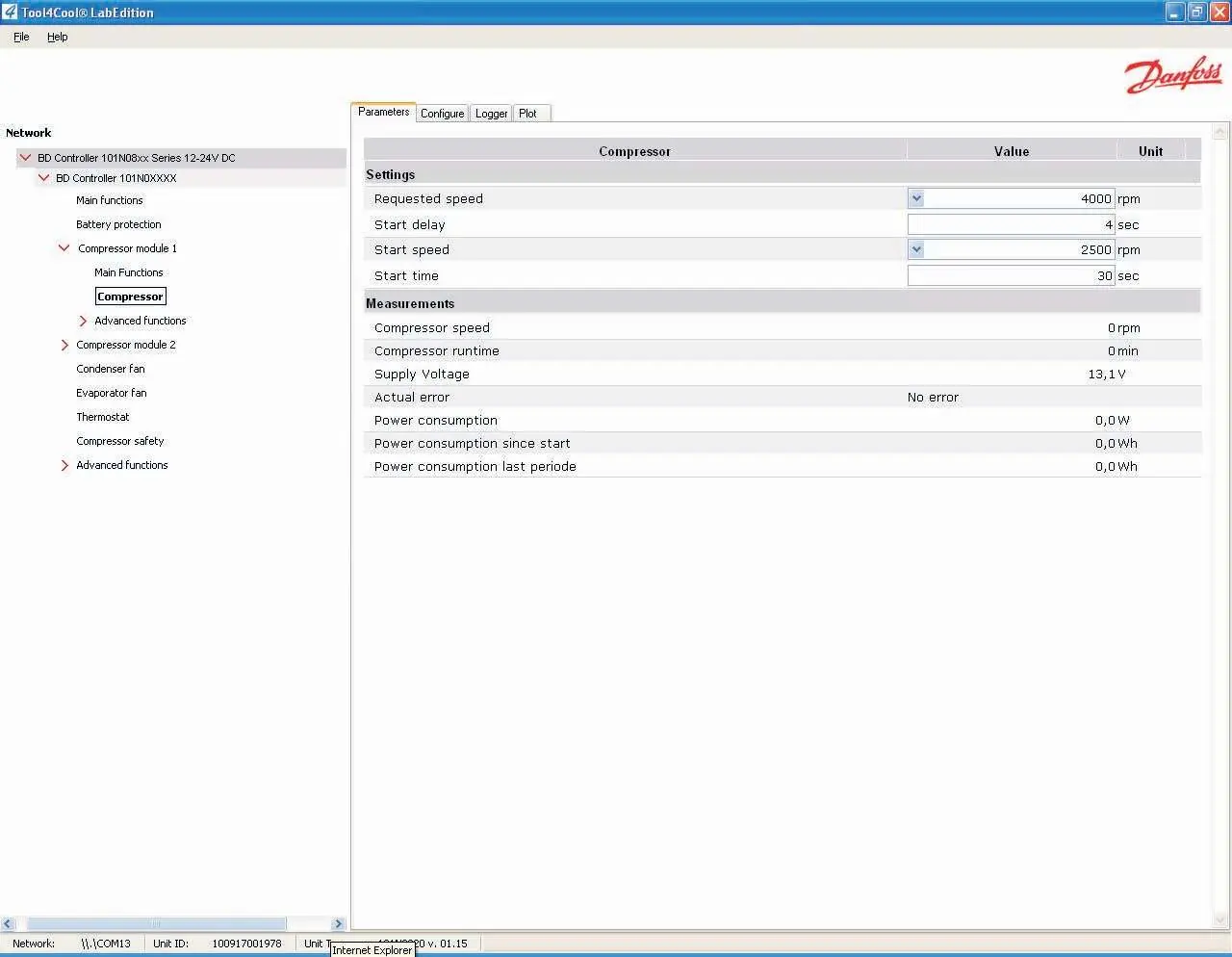
Once connected, you can view and manage controller parameters by clicking the red arrows in the Tool4Cool interface. You can monitor compressor speed, supply voltage, and power consumption, or adjust settings such as start delay and start speed.
Official resources from the manual
Manufacturer information
Danfoss A/S
Practical help
Common problems
Gateway LED is not blinking during pairing.
The gateway runs for 30 seconds before shutting down. Turn the gateway on again by pressing the push button and restart the pairing process.
Bluetooth device not found by computer.
Ensure the gateway is turned on, the LED is blinking, and the Bluetooth radio adapter on your computer is active.
Pairing fails at a specific stage.
Turn the gateway off and on again, then retry the pairing steps from the beginning.
Before use
- Verify you have the correct BD Controller 101N08xx series module.
- Ensure the Tool4Cool LabEdition software CD is available.
- Locate the unique Product Key provided in the manual.
- Have the required DC line cords and NTC temperature sensor ready.
- Ensure the Bluetooth gateway and USB power supply are present.
Specs in practice
- Refresh Rate 15
- The frequency (in seconds) at which the software updates network data.
Images and diagrams
- Wiring diagrams illustrate the connection points for single and twin compressor setups.
- Diagrams show the integration of the battery, fuse, main switch, and various sensors.
Model compatibility
- Requires .NET Framework with latest updates.
- Compatible with Windows XP and Windows Vista operating systems.
- Supports single and twin compressor configurations.

Manual page author
David Miller
Documentation analyst
Organizes user manual content into clear summaries, with attention to model details, product context, and everyday usability.