Computers / Backup Software
Re-imaging Guide for Dell OptiPlex All-in-One Plus 7420
A comprehensive re-imaging guide for the Dell OptiPlex All-in-One Plus 7420. This document provides system administrators with the correct sequence for installing drivers, BIOS updates, and operating system reinstallation procedures to...
Quick answers from the manual
Quick answer
- This guide provides the required sequence for re-imaging the Dell OptiPlex All-in-One Plus 7420, including BIOS updates, OS reinstallation, and the specific order for installing drivers and applications. p. 1, 7
Key actions
- Download drivers from the Dell support website using your Service Tag. p. 8, 10
- Follow the specific reinstallation sequence starting with BIOS, then OS, then drivers. p. 7
Problems and fixes
Computer fails to boot after BIOS update
Clear the CMOS settings to reset the BIOS to factory defaults.
p. 8Show 2 more answers Show less
Maintenance and reset
- Clear CMOS settings to reset BIOS. p. 8
Where to find it in the PDF
- Installation Overview p. 5
- Order of Reinstallation p. 7
- Updating BIOS p. 8
Table of contents
Important Information
This re-imaging guide is designed specifically for system administrators. Do not attempt to re-image the system if you are not an administrator or are unsure of the procedures, as failure to follow instructions may result in permanent data loss. This guide is applicable to computers shipped with Windows 10 or Windows 11.
Order of Reinstallation
To achieve optimal performance, install drivers and applications in the following sequence:
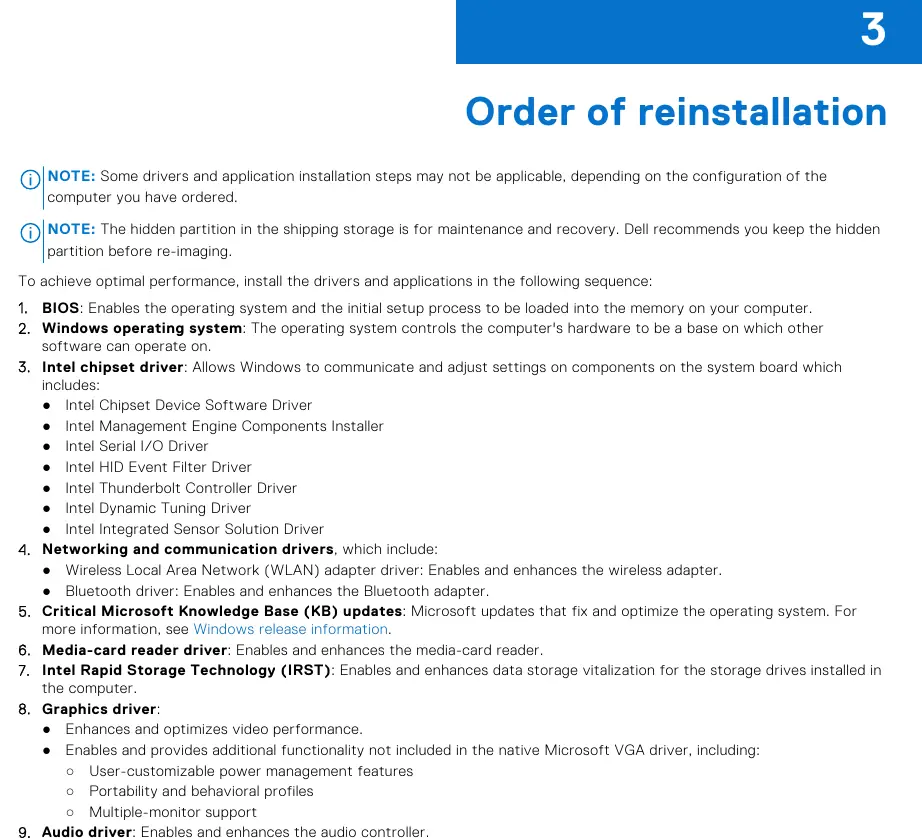
- BIOS: Enables the operating system and initial setup process.
- Windows operating system: The base for all other software.
- Intel chipset driver: Allows communication with system board components.
- Networking and communication drivers: Includes WLAN and Bluetooth drivers.
- Critical Microsoft Knowledge Base (KB) updates: Optimizes the operating system.
- Media-card reader driver: Enables the media-card reader.
- Intel Rapid Storage Technology (IRST): Enhances data storage vitalization.
- Graphics driver: Optimizes video performance.
- Audio driver: Enhances the audio controller.
- Security drivers.
- Dell applications: Includes Dell Update, Dell Power Manager, and Dell On-Screen Display.
BIOS Management
It is recommended to update the BIOS when an update is available or after replacing the system board. Visit the Dell support website, enter your Service Tag, and select the BIOS category to download the latest version. If the computer fails to boot after a BIOS update, you may need to clear the CMOS settings to reset the BIOS to factory defaults.
Driver Installation
Always download device drivers from the official Dell support website using your computer's Service Tag. Installing drivers from non-Dell websites can cause system performance issues, corrupt operating system files, or introduce malicious software. If your computer is operating normally, driver updates may be unnecessary.
Manufacturer information
Dell Technologies Inc.
Practical help
Common problems
System fails to boot after BIOS update
Perform a BIOS reset by clearing the CMOS settings.
Data loss during re-imaging
Always back up all data before attempting to reinstall the operating system.
Blue screen after RAID controller change
If a SATA hard drive is installed, ensure the RAID controller is enabled; switching to AHCI mode may cause system errors.
Before use
- Verify you have administrative privileges.
- Back up all important data.
- Identify your computer using the Service Tag or Express Service Code.
- Ensure you have the necessary installation media (USB, CD, or DVD).
- Check that your computer is running Windows 10 or Windows 11.
Show more Show less
Model compatibility
- This guide is applicable to computers shipped with Windows 10 or Windows 11.
- Some driver installation steps may not be applicable depending on your specific computer configuration.

Manual page author
Emily Carter
User documentation editor