Computers / Laptops
Re-imaging Guide for Dell XPS 17 9720
A comprehensive re-imaging and driver installation guide for the Dell XPS 17 9720. This manual provides the correct sequence for BIOS, operating system, and driver updates to ensure optimal system performance and stability.
Table of contents
Important Information for Re-imaging
This guide is intended for system administrators and advanced users. It covers the re-imaging process, which involves removing all software and reinstalling it. This is recommended when the operating system is corrupted or damaged. This guide is applicable only to computers shipped with Windows 10 or Windows 11.
Installation Overview
Re-imaging ensures your computer runs optimally. Dell recommends downloading all drivers and applications directly from the official Dell Drivers & Downloads website. Installing drivers from non-Dell sources may cause performance issues, system instability, or security risks.
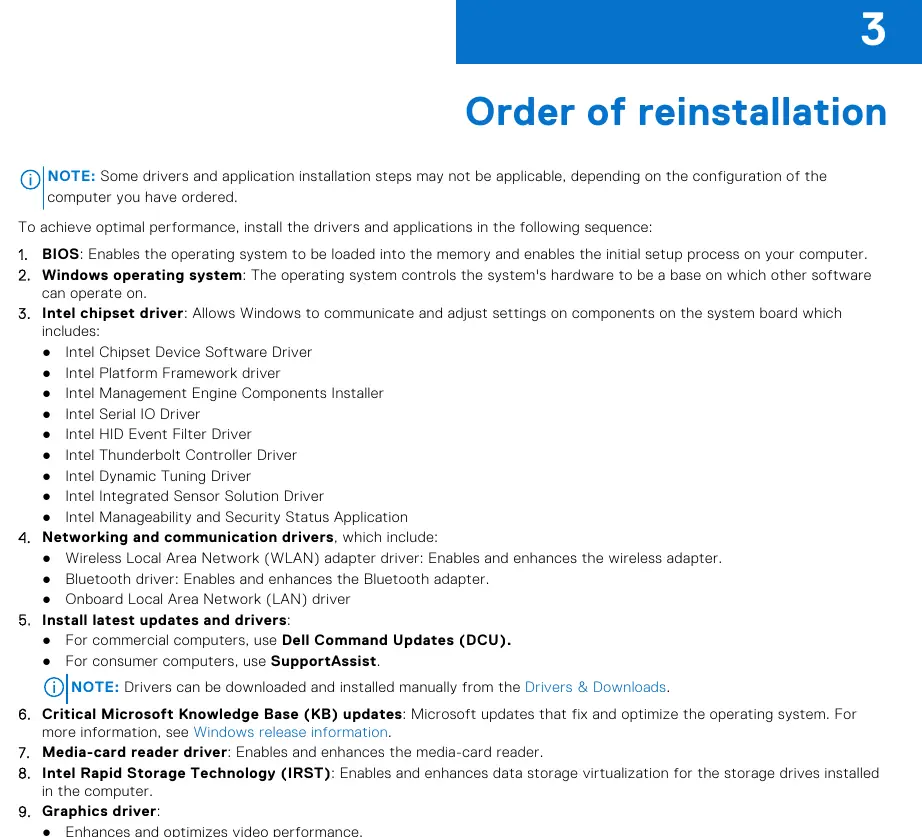
Order of Reinstallation
To achieve optimal performance, you must install drivers and applications in the following specific sequence:
- BIOS: Enables the operating system to load and initializes system hardware.
- Windows Operating System: The base for all other software.
- Intel Chipset Driver: Allows Windows to communicate with system board components.
- Networking and Communication Drivers: Includes WLAN, Bluetooth, and LAN drivers.
- Latest Updates: Use Dell Command Updates (commercial) or SupportAssist (consumer).
- Critical Microsoft KB Updates: Fixes and optimizes the OS.
- Media-card Reader Driver: Enables the card reader.
- Intel Rapid Storage Technology (IRST): Manages data storage virtualization.
- Graphics Driver: Optimizes video performance and power management.
- Audio Driver: Enables the audio controller.
- Security Drivers: Includes the Goodix Fingerprint Sensor.
- Dell Applications: Includes Dell Update and Dell Power Manager.
BIOS Management
If you need to update or reset the BIOS:
- Updating: Go to the Dell support website, search for your model, select the BIOS category, download the latest version, and run the file.
- Clearing CMOS: If the system fails to boot after a BIOS update, a CMOS reset may be required. Refer to your specific Service Manual for details.
- TPM Security: To enable or configure the Trusted Platform Module, enter the BIOS setup (F2 during startup), navigate to Security, and adjust the TPM state settings.
Docking Station Compatibility
The system supports Dell Docking Stations WD19, WD19TB, and WD22TB4. Caution: You must update your computer’s BIOS and the docking station drivers to the latest versions available on the Dell support site before connecting the dock. Failure to do so may result in the dock not being recognized or functioning incorrectly.
Getting Help
For further assistance, use the following resources:
- Dell Support Website: www.dell.com/support
- My Dell App: Use for tips and product information.
- Contact Support: Search for "Contact Support" in the Windows search bar.
- Knowledge Base: Access via the Support page on the Dell website.
Official resources from the manual
Manufacturer information
Dell Technologies Inc.
Practical help
Common problems
Docking station not recognized or functioning poorly
Update the computer's BIOS and the docking station drivers to the latest versions from the Dell support website.
System performance issues after re-imaging
Ensure all drivers were installed in the correct sequence, starting with the BIOS and Chipset drivers.
Blue screen after enabling RAID
If a SATA hard drive is already installed, enabling the RAID controller may cause a system crash. You must reinstall the operating system to enable RAID.
Before use
- Back up all important data before starting the re-imaging process.
- Ensure you have administrative privileges on the computer.
- Verify that the computer is running Windows 10 or Windows 11.
- Download all necessary drivers from the official Dell Drivers & Downloads website.
- Ensure the BIOS settings, including SATA configurations, are correctly set.
Model compatibility
- 4 TB SSD is only supported on systems configured with discrete graphics.
- Compatible with Dell Docking Stations: WD19, WD19TB, and WD22TB4.

Manual page author
Michael Turner
Technical manual editor
Reviews PDF manuals for structure, safety notes, and practical product details so readers can find the right information quickly.