Computers / Laptops
User Guide for Dell Chromebook 3110 2-in-1
Comprehensive setup guide and technical specifications for the Dell Chromebook 3110 2-in-1. Includes port layouts, keyboard shortcuts, battery status indicators, and hardware details.
Quick answers from the manual
Quick answer
- The Dell Chromebook 3110 2-in-1 is a convertible laptop. This manual provides setup instructions, port descriptions, technical specifications, and keyboard shortcuts. p. 1, 4, 10, 19
Key actions
- Find Service Tag p. 6
- Check Battery Status p. 9
Problems and fixes
Battery critically low
Connect power adapter; LED will blink amber.
p. 9Technical specifications
| Parameter | Value | Meaning | Pages |
|---|---|---|---|
| Processor | Intel Celeron N4500 / N5100 | CPU options | p. 10 |
| Memory | 4 GB / 8 GB LPDDR4x | On-board memory | p. 11 |
| Storage | 32 GB / 64 GB eMMC | On-board storage | p. 13 |
Where to find it in the PDF
- Specifications p. 10, 11, 12, 13
- Keyboard Shortcuts p. 19
Table of contents
Manual images
Click an image to enlargeQuick Guide
The Dell Chromebook 3110 2-in-1 is a versatile laptop designed for various usage modes. This guide provides essential information on device layout, operating modes, battery status, and technical specifications to help you get started.
Views of the Device
The device features various ports and components to support connectivity and interaction:
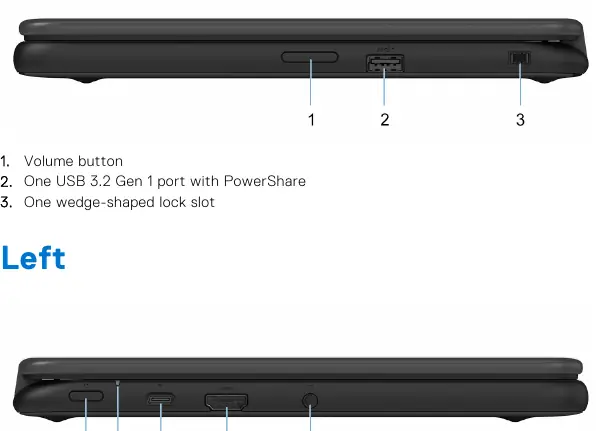
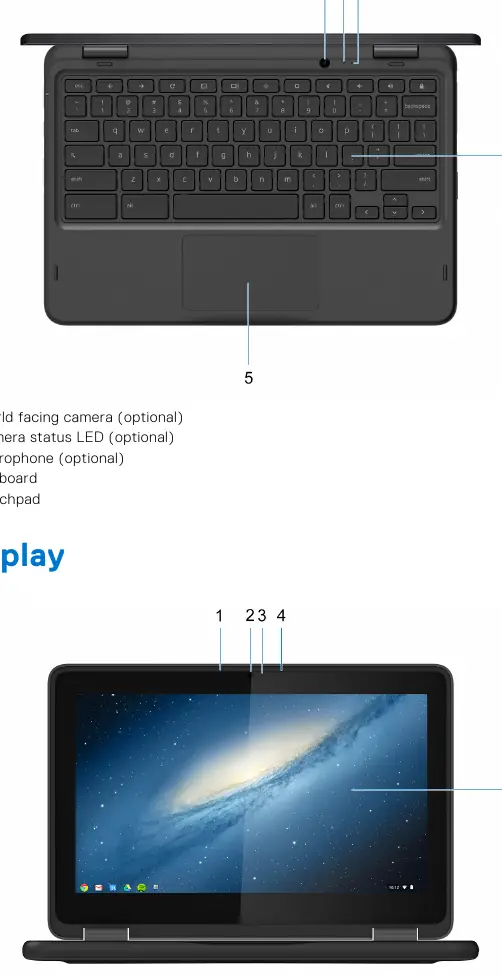
- Right Side: Includes a volume button, a USB 3.2 Gen 1 port with PowerShare, and a wedge-shaped lock slot.
- Left Side: Features the power button, LED status light, a USB 3.2 Gen 1 Type-C port (with Power Delivery and DisplayPort Alt mode), an HDMI 1.4b port, and a headset combo port.
- Top: Contains the keyboard, touchpad, and optional world-facing camera, camera status LED, and microphone.
- Display: Features a microphone and display panel.
Operating Modes
The 2-in-1 design supports multiple modes for different tasks:
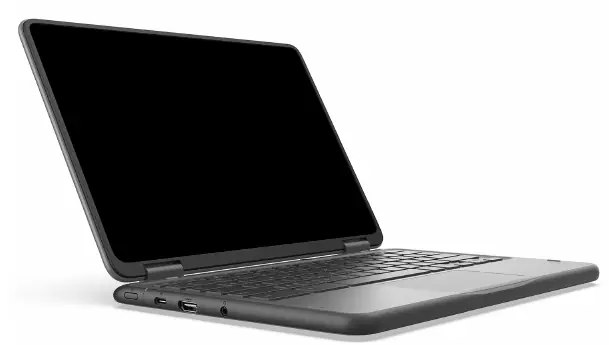
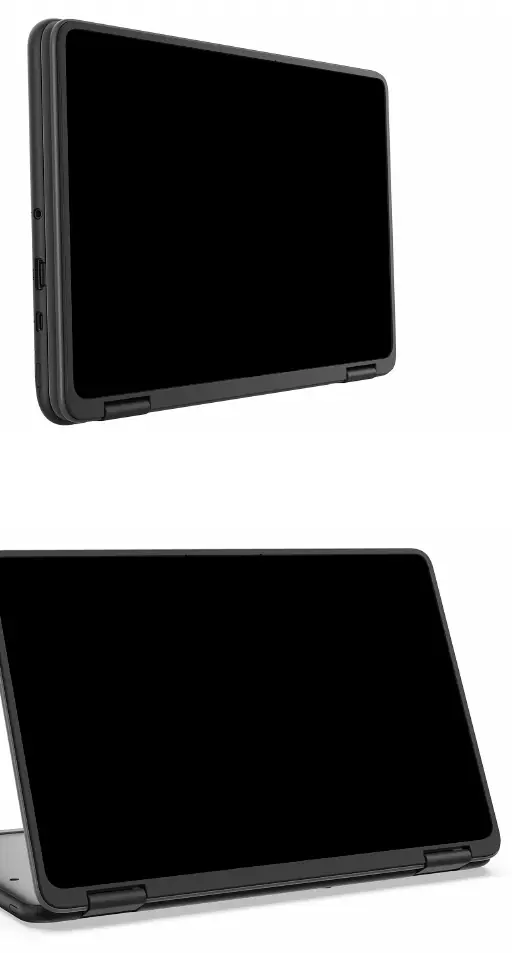
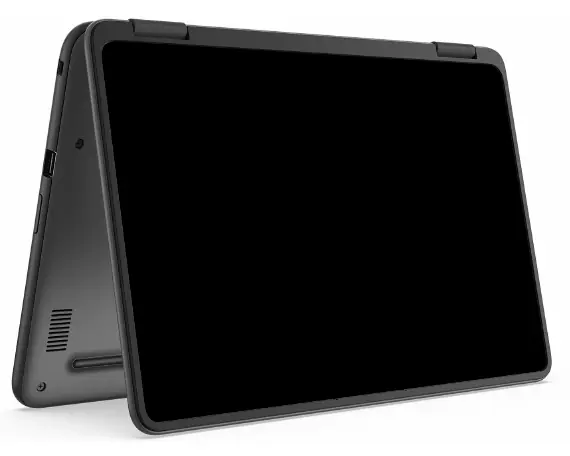
- Notebook: Standard laptop configuration.
- Tablet: The screen folds back for handheld use.
- Stand: The keyboard is used as a base for the screen.
- Tent: The device is propped up like a tent for viewing.
Battery and Status Indicators
The LED status light indicates the battery and power state:
- Solid Amber: AC adapter connected, battery charging (< Fully Charged).
- Solid White: AC adapter connected (Fully Charged) or battery adequately charged.
- Blinking Amber: Battery is critically low (< 10%).
Technical Specifications
Key hardware specifications include:
- Processor: Intel Celeron N4500 or N5100.
- Memory: 4 GB or 8 GB LPDDR4x (on-board, non-upgradable).
- Storage: 32 GB or 64 GB eMMC (on-board, non-upgradable).
- Display: 11.6-inch HD (1366 x 768) IPS touch display.
- Wireless: Intel AX201 (Wi-Fi 6, Bluetooth 5.2).
Keyboard Shortcuts
The Chromebook features dedicated function keys for browser and system control, including browser back/refresh, full screen, window overview, screenshot, brightness, and volume controls. Use the Fn key for secondary functions.
Getting Help
For support, visit www.dell.com/support to access diagnostics, drivers, and manuals. You can identify your specific hardware using the Service Tag located on the bottom of the device.
Official resources from the manual
Manufacturer information
Dell Technologies Inc.
Practical help
Common problems
Battery is critically low
The LED will blink amber (1 sec on, 1 sec off). Connect the power adapter immediately.
Cannot upgrade memory or storage
Memory and storage are on-board and cannot be upgraded after purchase.
USB Type-C device not working
Ensure the device is removed after use to avoid system damage.
Before use
- Identify the Service Tag on the bottom cover for support.
- Check battery charge status via the LED indicator.
- Ensure the power adapter is connected if the battery is low.
- Familiarize yourself with the different 2-in-1 modes (Notebook, Tablet, Stand, Tent).
- Review keyboard shortcuts for efficient navigation.
Specs in practice
- USB 3.2 Gen 1 with PowerShare
- Allows charging of external devices even when the laptop is off.
- DisplayPort Alt mode
- Allows the USB-C port to output video signals to external displays.
- H1 Security Chip
- Hardware-based security component for the Chromebook.
Images and diagrams
- The right side contains the volume button, USB port, and lock slot.
- The left side contains the power button, LED, USB-C port, HDMI port, and headset jack.
Model compatibility
- Supports Wi-Fi 6 (802.11ax).
- Supports Bluetooth 5.2.
- Display supports pen touch (on specific models).

Manual page author
David Miller
Documentation analyst
Organizes user manual content into clear summaries, with attention to model details, product context, and everyday usability.