Power / Batteries & Chargers
Re-imaging Guide for Dell OptiPlex Small Form Factor Plus 7020
A comprehensive re-imaging guide for the Dell OptiPlex Small Form Factor Plus 7020. This document provides essential instructions for system administrators on the correct sequence for reinstalling Windows, updating the BIOS, and installing...
Table of contents
Quick guide from the manual
This guide is intended for system administrators. It outlines the necessary steps to re-image the Dell OptiPlex Small Form Factor Plus 7020, including BIOS updates, OS reinstallation, and the correct sequence for installing drivers. Important: This guide is only applicable to computers with Windows 11 installed. Always back up your data before attempting to re-image the system.
Order of reinstallation
To achieve optimal performance, install drivers and applications in the following sequence:
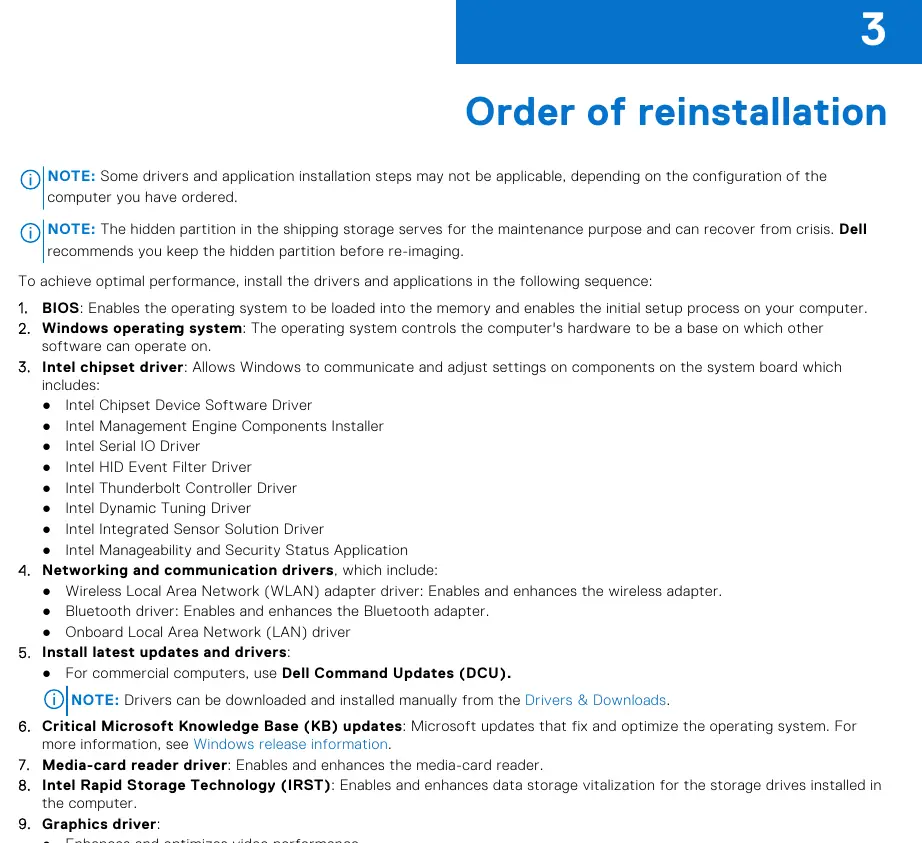
- BIOS: Enables the operating system to load and initial setup.
- Windows operating system: The base for all software.
- Intel chipset driver: Allows Windows to communicate with system board components.
- Networking and communication drivers: WLAN, Bluetooth, and Onboard LAN.
- Latest updates and drivers: Use Dell Command Updates (DCU) for commercial computers.
- Critical Microsoft Knowledge Base (KB) updates: Fixes and optimizations for the OS.
- Media-card reader driver: Enables the media-card reader.
- Intel Rapid Storage Technology (IRST): Enables high-performance SATA and RAID capabilities.
- Graphics driver: Optimizes video performance and power management.
- Audio driver: Enables the audio controller.
- Security drivers: Includes Goodix Fingerprint Sensor.
- Dell applications: Dell Update, Dell Power Manager, Dell On-Screen Display, and Dell Optimizer.
Updating or resetting the BIOS
It is recommended to update the BIOS when an update is available or after replacing the system board. You can update the BIOS via the Dell support website by entering your Service Tag or Model. If the computer fails to boot after a BIOS update, you may need to clear the CMOS settings to reset the BIOS to factory defaults.
Trusted Platform Module (TPM) security
To enable and configure TPM:
- Turn on or restart your computer.
- Press F2 when the Dell logo appears to enter the BIOS setup program.
- Navigate to the Security pane.
- Configure the TPM state (Enabled/Disabled) and TPM 2.0 security settings as required.
- Save the settings and exit.
Reinstalling the operating system
Before attempting a reinstall, ensure you have backed up all data. The Windows operating system is validated for this computer. For specific instructions on installing Windows on Intel 12th Generation computers using ISO images, refer to the Dell knowledge base articles available on the support website.
Getting help
For further assistance, visit the Dell support website. You can identify your computer using the Service Tag or Express Service Code to access specific drivers, manuals, and diagnostic tools. For technical support or customer service issues, visit the Dell contact page.
Manufacturer information
Dell Inc.
Practical help
Common problems
Computer unable to boot after BIOS update
Perform a BIOS reset by clearing the CMOS settings.
Data loss during re-imaging
Always back up all data before attempting to reinstall the operating system.
Hardware components not functioning correctly
Ensure all drivers are installed in the specific sequence provided in the reinstallation order section.
Before use
- Verify you are a system administrator
- Back up all critical data
- Ensure the computer has Windows 11 installed
- Have installation media (USB/DVD) ready
- Check BIOS settings, including SATA configurations
Specs in practice
- Intel Chipset Driver
- Enables communication between Windows and system board components.
- IRST (Intel Rapid Storage Technology)
- Enables high-performance SATA and RAID capabilities for storage drives.
- Intel Management Engine
- Enables advanced manageability features.
Model compatibility
- This guide is only applicable to computers with Windows 11 installed.

Manual page author
David Miller
Documentation analyst
Organizes user manual content into clear summaries, with attention to model details, product context, and everyday usability.