Computers / Laptops
User Manual for Dell XPS 13 Plus 9320 Laptop
Quick guide for the Dell XPS 13 Plus 9320 laptop. Includes setup instructions, port layout, keyboard shortcuts, and detailed technical specifications.
Table of contents
Manual images
Click an image to enlargeQuick Guide from the Manual
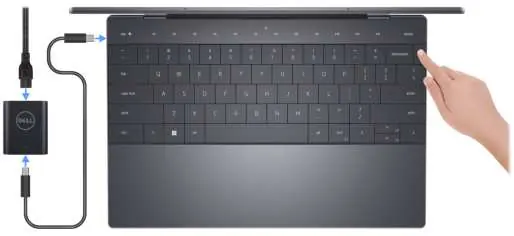
This document provides setup instructions and technical specifications for the Dell XPS 13 Plus 9320. To set up your computer, connect the power adapter to the AC-adapter cable and the USB Type-C cable. Connect the other end of the AC-adapter cable to a power source, then connect the USB Type-C cable to the port on your computer and press the power button. Follow the on-screen Windows setup instructions to complete the configuration.
Device Overview
Top View
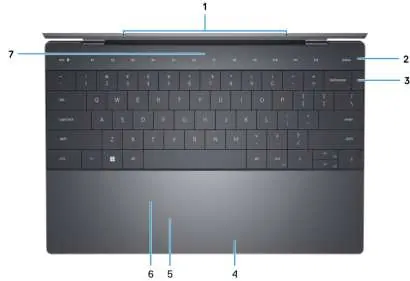
The top of the laptop features a capacitive touch row that displays media or function keys. The power button includes an integrated fingerprint reader. The keyboard is backlit, and the touchpad is haptic, supporting multi-touch gestures.
Ports and Connectivity
The device is equipped with two Thunderbolt 4 USB Type-C ports (one on the left, one on the right) that support power delivery, DisplayPort 2.0, and data transfer speeds up to 40 Gbps. Note that a USB-C to DisplayPort adapter is required for DisplayPort devices, and a USB-C to 3.5mm adapter is required for audio devices.
Screen and Camera
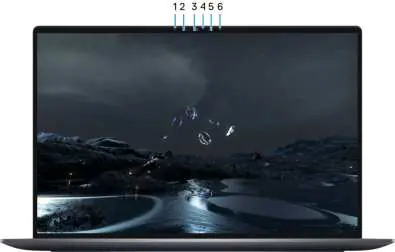
The display assembly includes an infrared emitter, an infrared camera for Windows Hello authentication, and an RGB camera for video calls and recording.
Bottom View
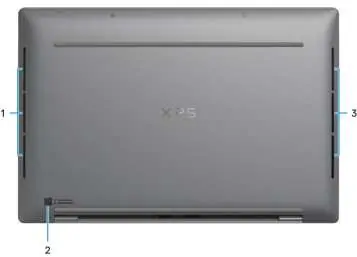
The bottom of the device houses the speakers and the service tag, which is a unique alphanumeric identifier used by Dell support to identify hardware components and warranty information.
Keyboard Shortcuts
The top row of the keyboard is a capacitive touch panel. The mechanical Fn key toggles between F1-F12 keys and media control keys. Pressing Fn + Esc locks the capacitive panel mode. Additional shortcuts include Fn + B (Pause), Fn + S (Scroll Lock), Fn + R (System Request), Fn + Ctrl + B (Break), and Fn + Left Arrow (Home/End).
Technical Specifications
- Processor: Supports 12th and 13th Gen Intel Core i5/i7 processors.
- Memory: LPDDR5 memory is integrated on the motherboard and is not upgradeable.
- Storage: Supports M.2 2230 or M.2 2280 NVMe PCIe SSDs.
- Battery: 3-cell, 55 Wh smart lithium-ion battery.
- Display: Various options including FHD+, UHD+, and OLED 3.5K panels with Eyesafe technology.
Support and Contact
For self-help, use the My Dell app or visit the Dell Support Site. You can access diagnostics, drivers, and manuals by entering your Service Tag or Express Service Code on the Dell support website.
Manufacturer information
Dell Inc.
Practical help
Common problems
Power adapter LED behavior
If the LED blinks 6 times, it indicates the USB-C cable is connected to the laptop. If it lights for 10 seconds, the AC cable is connected to the adapter but not the laptop.
Battery not charging or laptop won't turn on
The battery may be in power-saving mode during shipment. Ensure the power adapter is connected to the computer when turning it on for the first time.
Before use
- Connect the power adapter to the AC cable and USB-C cable.
- Connect the USB-C cable to the laptop port.
- Press the power button to turn on the device.
- Follow on-screen Windows setup instructions.
- Connect to a network for Windows updates.
Specs in practice
- Thunderbolt 4
- Supports USB4, DisplayPort 2.0, and power delivery via USB-C.
- LPDDR5 Memory
- Memory is soldered to the motherboard and cannot be upgraded by the user.
Images and diagrams
- The top view diagram identifies the capacitive touch row, power button with fingerprint reader, and haptic touchpad.
- The bottom view diagram shows the location of the speakers and the service tag.
Model compatibility
- Requires USB-C to DisplayPort adapter for external monitors.
- Requires USB-C to 3.5mm adapter for wired audio devices.
- Memory is not upgradeable.

Manual page author
Emily Carter
User documentation editor
Prepares concise manual descriptions and highlights the most useful setup, operation, and maintenance information for readers.