Computers / Laptops
Owner's Manual for Dell Precision 3480
Get to know your Dell Precision 3480 with this comprehensive owner's manual. Includes setup instructions, detailed hardware specifications, port layouts, and troubleshooting tips.
Table of contents
Manual images
Click an image to enlargeQuick guide from the manual
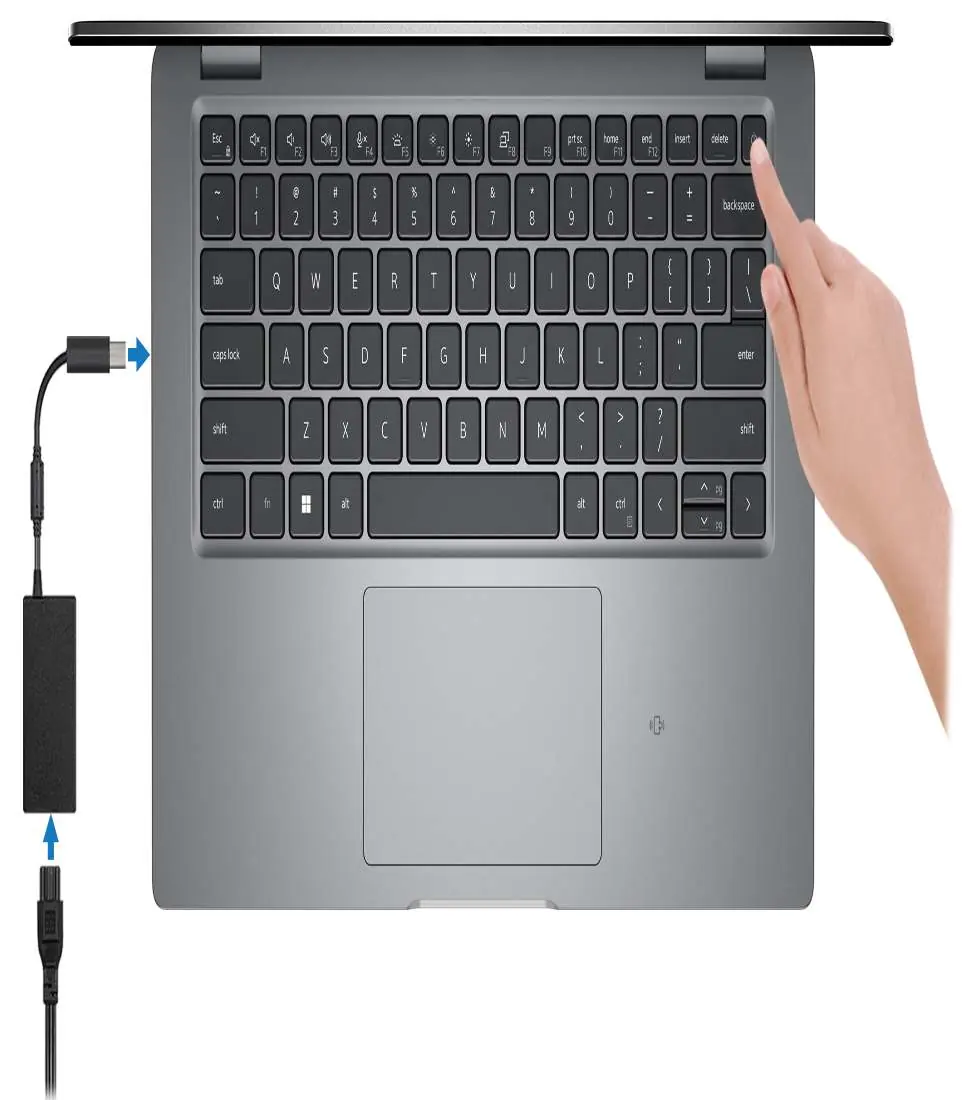
To set up your Dell Precision 3480, connect the power adapter to the computer and press the power button. Note that the battery may be in power-saving mode during shipment, so ensure the adapter is connected for the first startup. Follow the on-screen instructions to complete the operating system setup for either Windows or Ubuntu. It is recommended to connect to a network during setup to receive necessary updates.
Device overview
The Precision 3480 features various ports and components for connectivity and interaction:

- Right side: Includes a universal audio jack, USB 3.2 Gen 1 port with PowerShare, HDMI port, and a security-cable slot.
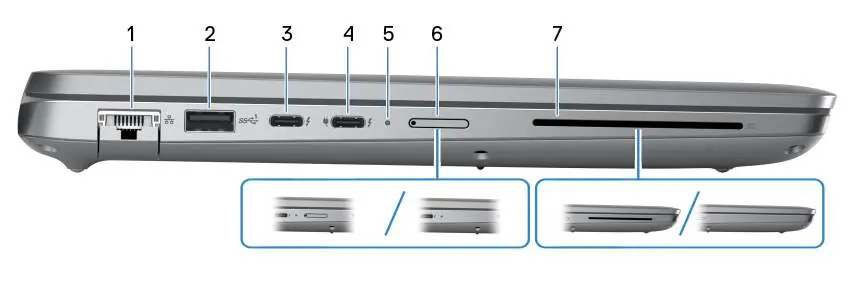
- Left side: Features a network port (RJ45), USB 3.2 Gen 1 port, two Thunderbolt 4 ports (with DisplayPort/Power Delivery), a nano-SIM slot (optional), and a smart-card reader (optional).
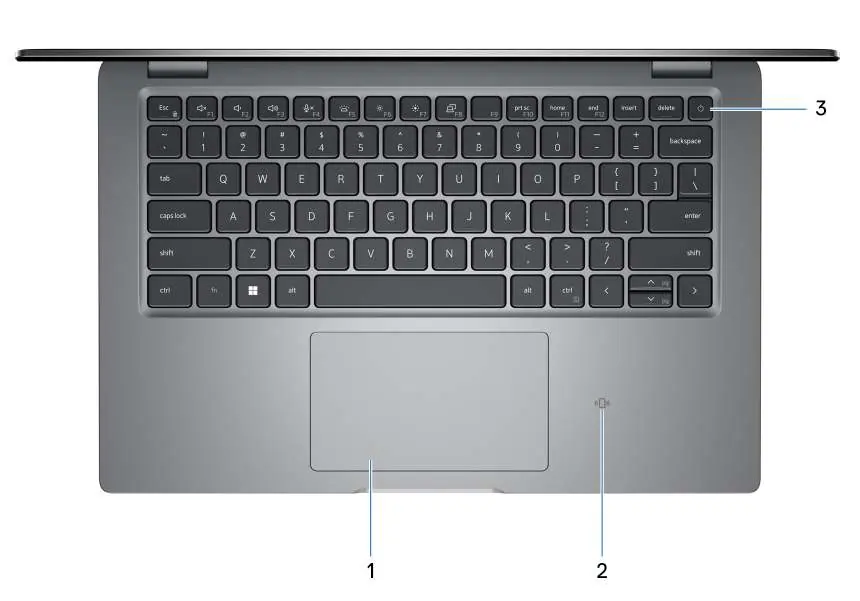
- Top: Contains the touchpad, NFC/contactless smart card reader (optional), and the power button with an optional fingerprint reader.
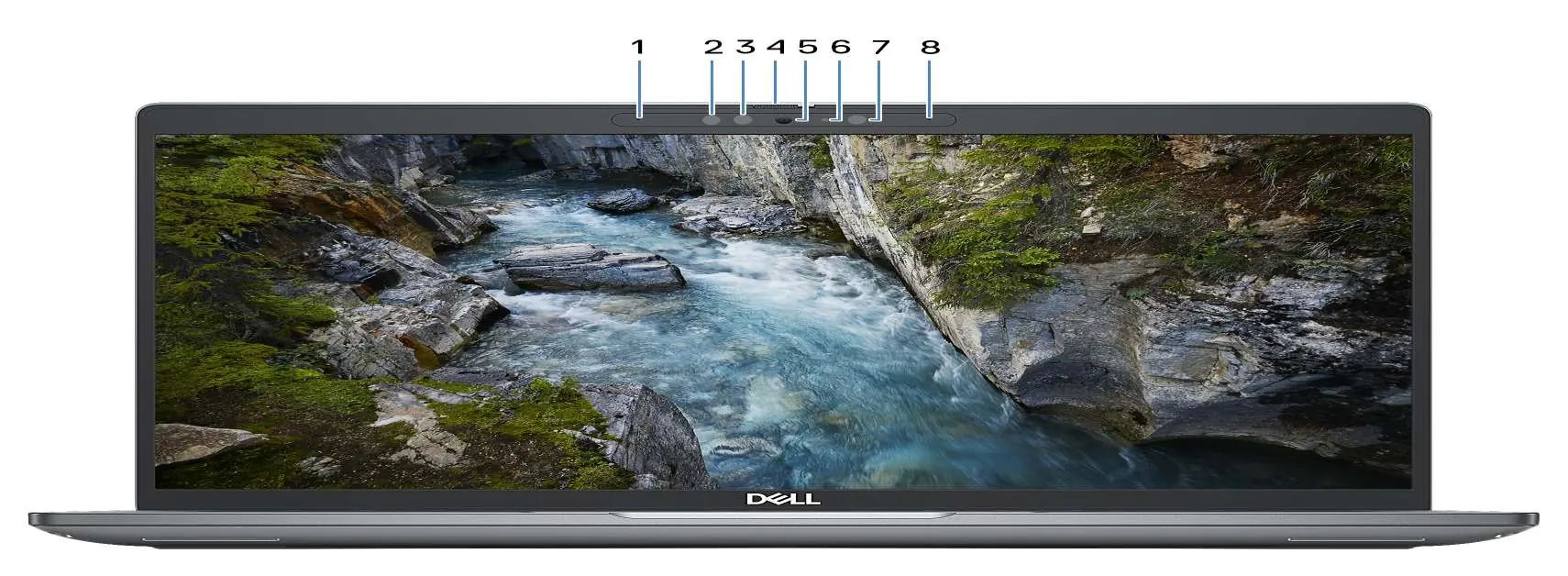
- Display: Equipped with microphones, infrared emitter/camera (optional), camera shutter, and an ambient-light sensor.
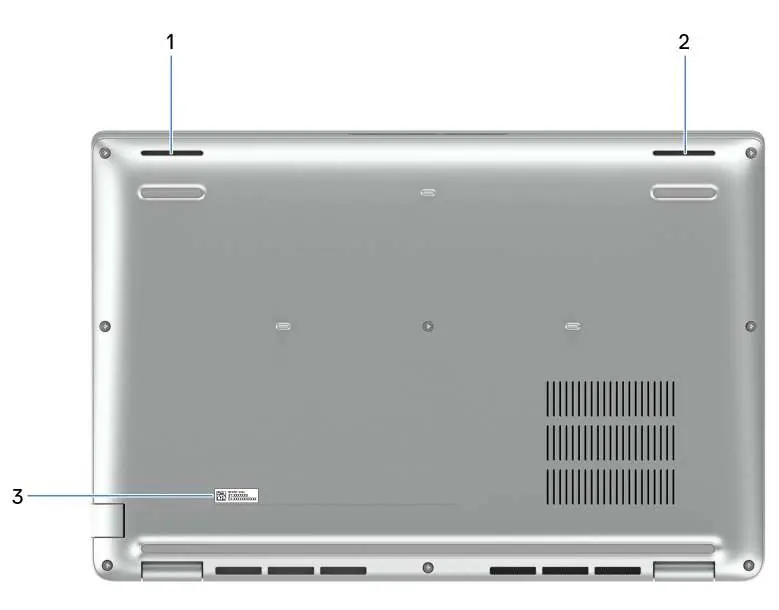
- Bottom: Houses the left and right speakers and the Service Tag label.
Technical specifications
The Precision 3480 supports 13th Generation Intel Core i5/i7 processors. Memory configurations include two SODIMM slots supporting DDR4 or DDR5 memory up to 64 GB. Storage is handled via an M.2 2230 solid-state drive with up to 2 TB capacity. The device supports various operating systems, including Windows 11 and Ubuntu 22.04 LTS.
Working inside the computer
Before working inside the computer, ensure you follow safety instructions, including electrostatic discharge (ESD) protection. The manual provides detailed procedures for removing and installing Customer Replaceable Units (CRUs) such as the SIM card tray, base cover, memory modules, solid-state drives, wireless cards, and fans. Field Replaceable Units (FRUs) like the battery, coin-cell battery, heat sink, and system board are also covered.
BIOS and software
The BIOS setup program allows for system configuration, including updating the BIOS, managing system passwords, and clearing CMOS settings. Dell provides software tools like SupportAssist, Dell Update, and Dell Digital Delivery to help maintain system health and manage drivers.
Troubleshooting
If you encounter issues, the manual provides guidance on handling swollen batteries, locating the Service Tag, running the SupportAssist Pre-boot System Performance Check, and using built-in self-tests (BIST) for the LCD and system. You can also perform a hard reset by draining residual flea power if the system is unresponsive.
Manufacturer information
Dell Inc.
Practical help
Common problems
Battery not charging
Ensure the power adapter is connected. If the computer is off or in hibernate, the PowerShare port requires the adapter to be connected. Check BIOS settings to ensure the feature is enabled.
System unresponsive
Perform a hard reset by draining residual flea power. Press and hold the power button for 10 seconds to force a shut-down.
Wi-Fi connectivity issues
Perform a Wi-Fi power cycle as described in the troubleshooting section.
Before use
- Connect the power adapter to the computer.
- Press the power button to turn on the system.
- Follow on-screen instructions to complete the OS setup.
- Connect to a network for Windows updates.
- Sign in or create a Microsoft account if connected to the internet.
Images and diagrams
- Right side ports: Audio jack, USB 3.2 Gen 1, HDMI, Security-cable slot.
- Left side ports: Network port, USB 3.2 Gen 1, Thunderbolt 4 ports, nano-SIM slot, Smart-card reader.
- Top view: Touchpad, Power button, NFC reader.
- Bottom view: Speakers and Service Tag location.
Model compatibility
- Supports Windows 11 and Ubuntu 22.04 LTS.
- WWAN module availability depends on specific configuration.
- Fingerprint reader is optional and integrated into the power button.

Manual page author
Emily Carter
User documentation editor
Prepares concise manual descriptions and highlights the most useful setup, operation, and maintenance information for readers.