Computers / Laptops
User Manual for Dell XPS 15 9530 Laptop
Quick guide for the Dell XPS 15 9530 laptop. Includes setup instructions, port layout, keyboard shortcuts, and detailed technical specifications.
Table of contents
Manual images
Click an image to enlargeQuick setup guide
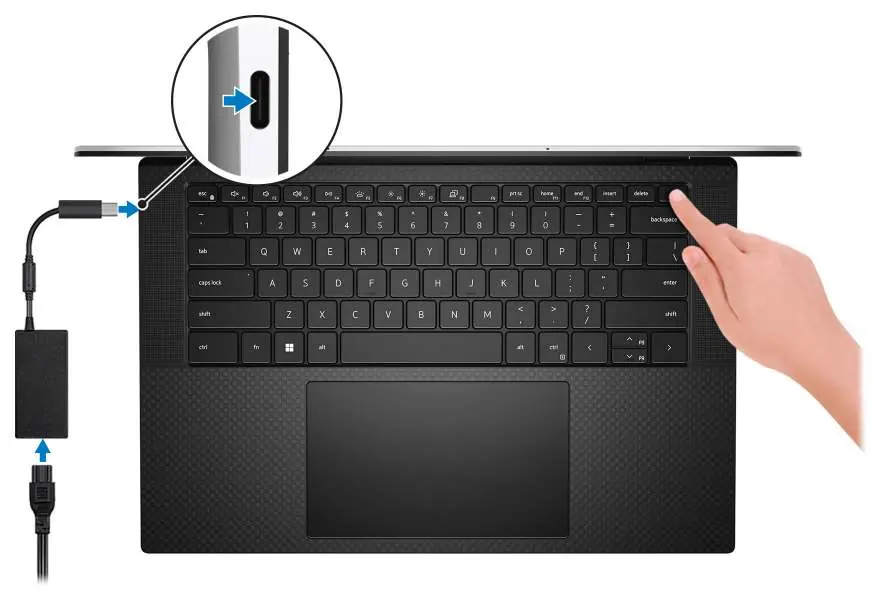
To set up your Dell XPS 15 9530, connect the power adapter to one of the Thunderbolt 4 (USB4) Type-C ports or the USB 3.2 Gen 2 Type-C port. Press the power button to turn on the computer. Follow the on-screen instructions to complete the Windows setup. It is recommended to locate and use Dell applications from the Windows Start menu, such as My Dell and SupportAssist, to manage your system, check warranty status, and receive software updates.
Device views and ports
The laptop features various ports and components for connectivity and interaction:
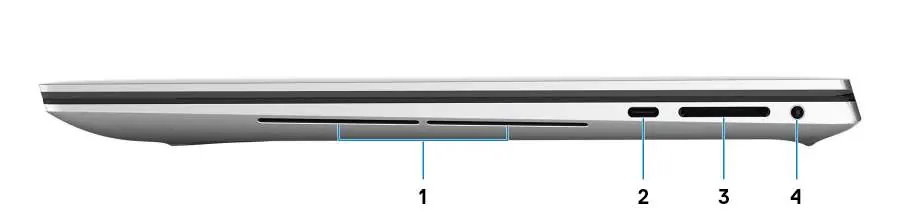
- Right side: Includes a right woofer, a USB 3.2 Gen 2 (Type-C) port with DisplayPort and Power Delivery, an SD-card slot, and a universal audio jack.
- Left side: Features a wedge-shaped security-cable slot and two Thunderbolt 4 (USB4) Type-C ports with Power Delivery.
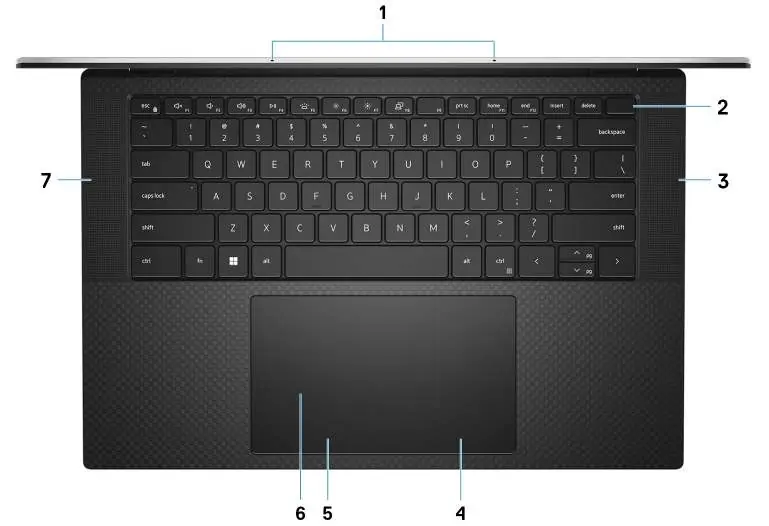
- Top: Contains microphones, a power button with an integrated fingerprint reader, speakers, and a touchpad.
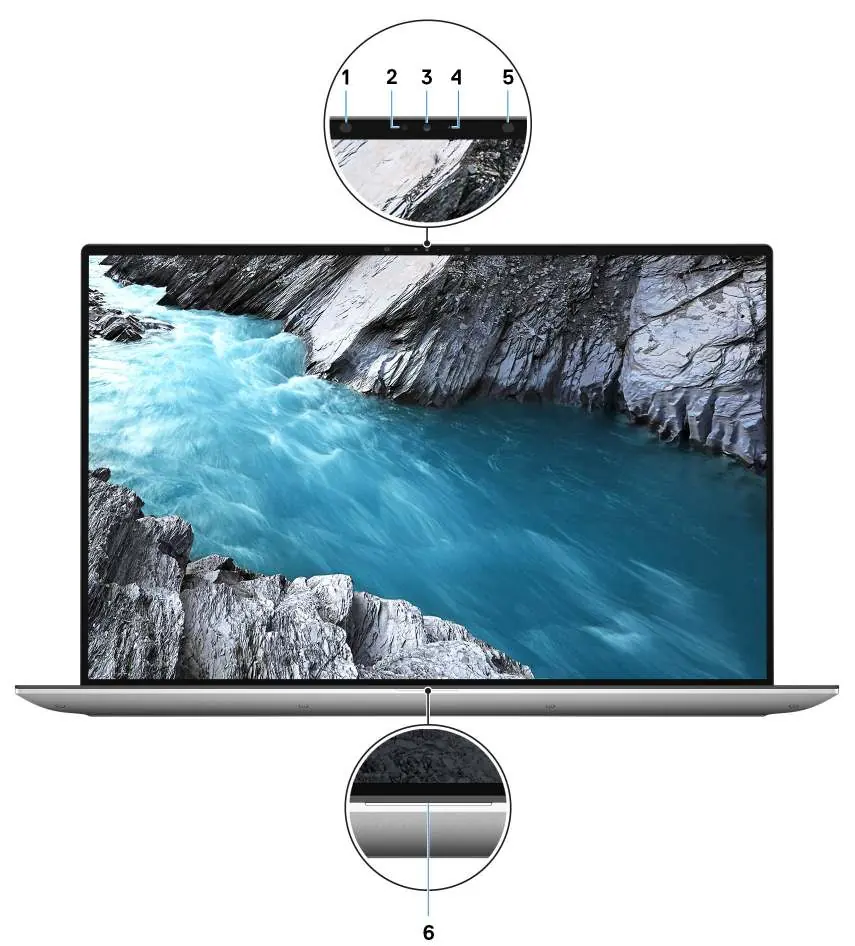
- Display: Equipped with an RGB-infrared camera, infrared emitters, an ambient-light sensor, and a camera-status light.
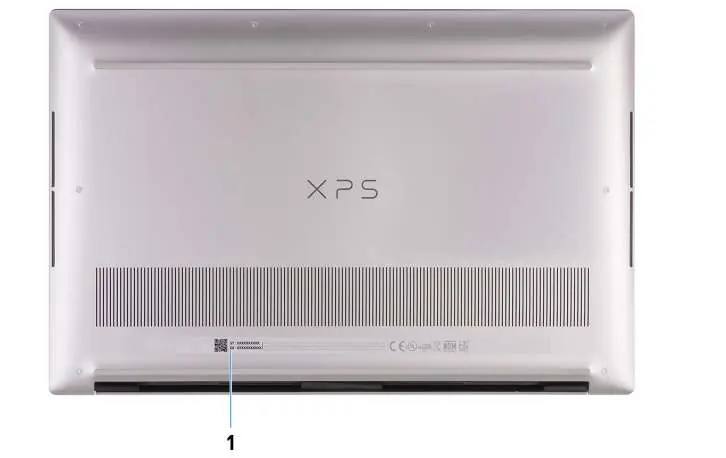
- Bottom: Features the Service Tag label, which is a unique identifier for support and warranty information.
Technical specifications
The XPS 15 9530 supports various configurations:
- Processor: 13th Gen Intel Core i5, i7, or i9 processors.
- Memory: Two SODIMM slots supporting DDR5 memory (4800 MT/s or 5600 MT/s), with configurations up to 64 GB.
- Storage: Supports M.2 2280 and M.2 2230 solid-state drives (PCIe Gen4 x4 NVMe).
- Display: Options include Full High Definition (FHD+) or OLED 3.5K Touch displays with Wide Viewing Angle (WVA) and Eyesafe technology.
- Battery: 6-cell "smart" lithium-ion battery (86 Wh or 90 Wh options).
- Wireless: Intel AX211 module supporting Wi-Fi 6 and Bluetooth 5.3.
Keyboard shortcuts
The keyboard includes function keys (F1-F12) that can be used for multimedia control. Press the function key to invoke the task represented by the icon. To disable multimedia functionality for specific software applications, press Fn + esc. You can also define the primary behavior of function keys in the BIOS setup program.
Display and eye comfort
The laptop includes ComfortView technology to minimize blue light emission. To reduce eye strain, it is recommended to maintain a viewing distance of 20 to 28 inches (50 cm to 70 cm), blink frequently, take a 20-minute break every two hours, and look at a distant object for at least 20 seconds during breaks.
Getting help
For assistance, use the My Dell app or SupportAssist. You can also access Dell knowledge base articles at www.dell.com/support. Your computer is identified by a Service Tag or Express Service Code, which can be found on the bottom of the device.
Official resources from the manual
Manufacturer information
Dell Inc.
Practical help
Common problems
Battery not charging
Ensure the power adapter is connected to the primary Thunderbolt 4 port.
Cannot connect DisplayPort device
A USB Type-C to DisplayPort adapter (sold separately) is required.
Laptop won't turn on
Ensure the power adapter is connected; the battery may be in power-saving mode during shipment.
Slow data transfer on USB-C
Non-Thunderbolt USB-C devices connected to the Thunderbolt 4 port may be limited to USB 3.2 Gen 2x1 speeds (10 Gbps).
Before use
- Connect the power adapter to a Thunderbolt 4 or USB 3.2 Gen 2 Type-C port.
- Press the power button to turn on the computer.
- Follow on-screen instructions to complete Windows setup.
- Locate Dell apps in the Windows Start menu.
- Ensure the battery is charged before first use.
Specs in practice
- Thunderbolt 4
- Supports data transfer up to 40 Gbps, two 4K displays or one 8K display, and two-way power delivery.
- Express Charge
- Battery charging mode that can charge the battery in approximately 2 hours when the computer is off.
Images and diagrams
- The right side features a woofer, USB 3.2 Gen 2 Type-C port, SD-card slot, and universal audio jack.
- The left side features a security-cable slot and two Thunderbolt 4 Type-C ports.
- The top view shows microphones, power button with fingerprint reader, speakers, and touchpad.
- The display assembly includes infrared emitters, ambient-light sensor, and RGB-infrared camera.
Model compatibility
- Supports Windows 11 Home and Pro (64-bit).
- Memory modules with 5600 MT/s speed will work at a maximum of 4800 MT/s due to processor limitations.
- A 40 Gbps-certified cable is required to achieve maximum Thunderbolt 4 performance.

Manual page author
David Miller
Documentation analyst
Organizes user manual content into clear summaries, with attention to model details, product context, and everyday usability.