Computers / Storage
Remote Battery Update Guide for EG4 18KPV
Step-by-step instructions for performing a remote firmware update on EG4 PowerPro batteries using the EG4 monitoring portal and 18KPV inverter.
Table of contents
Manual images
Click an image to enlargeQuick guide from the manual
This guide outlines the procedure for updating the firmware of EG4 PowerPro or EG4 LL V2 batteries remotely via the EG4 monitoring portal. Crucial Warning: Once the update process begins, do not cancel or power off the inverter or battery. Doing so may result in a soft-bricked BMS, which would require a manual RS485 update using a Windows computer to recover.
Preparation and Login
Before beginning the update, ensure you have access to the online portal and that your equipment is correctly configured:
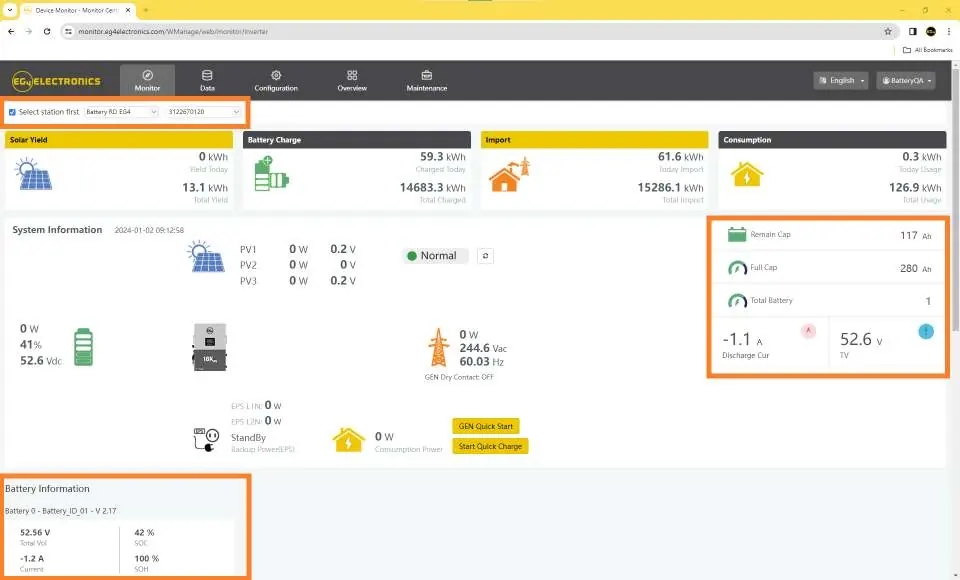
- Log in to www.monitor.eg4electronics.com.
- Confirm that the EG4 PowerPro 280ah or EG4 LL V2 100ah battery is visible in the online portal.
- Verify that you are connected to the correct inverter station.
Configuration
To prepare the system for a remote update, you must configure the Lithium Brand setting:
- Navigate to the Maintenance tab in the portal.
- Click Read to load current settings.
- Locate the Lithium Brand setting and set it to Lithium-1.
Performing the Firmware Update
Follow these steps to upload and initiate the firmware update:
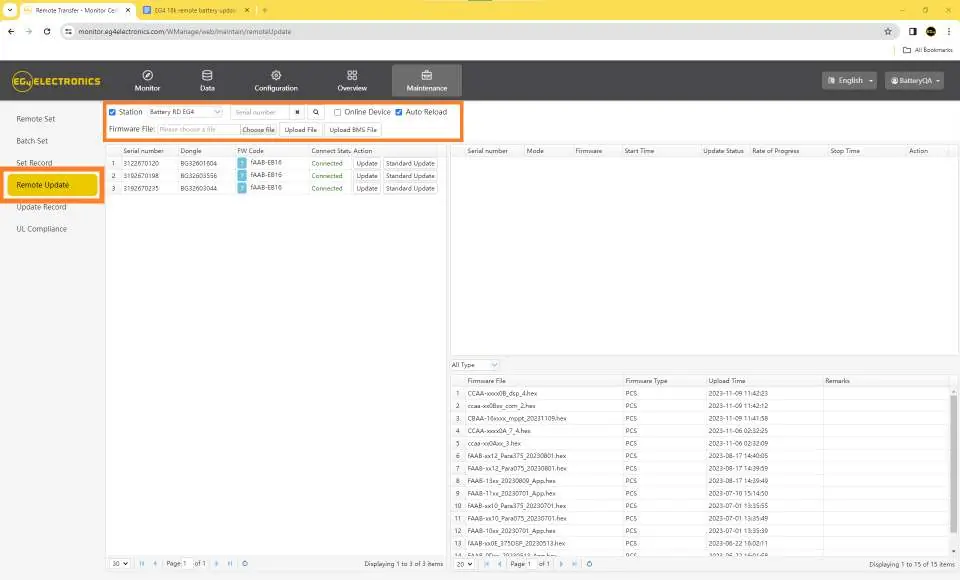
- Navigate to the Remote Update section under the Maintenance tab.
- Confirm you are on the correct station.
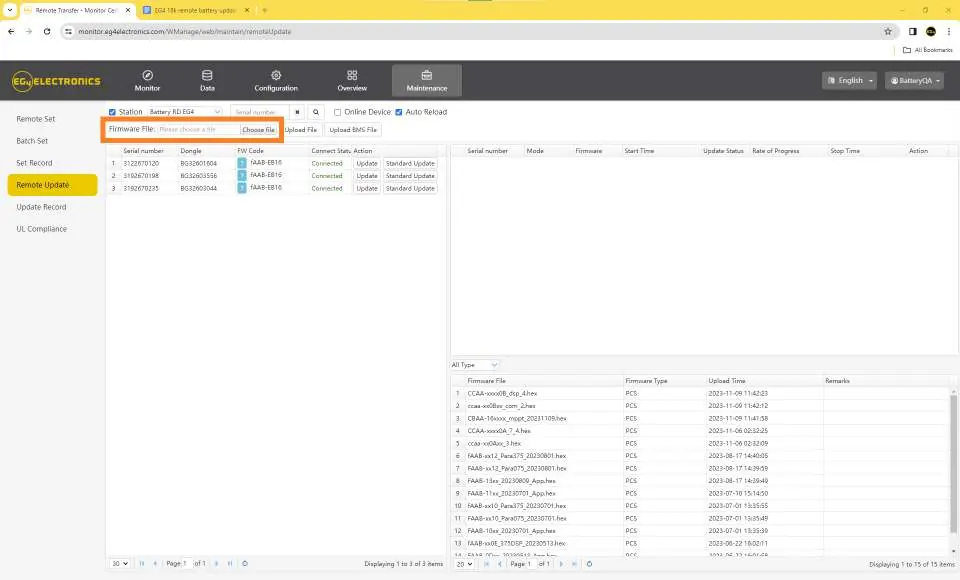
- Click Choose File next to the Firmware File field.
- In the navigation box, locate and select the correct .BIN file (e.g., "EG4 18k to PowerPro.bin").
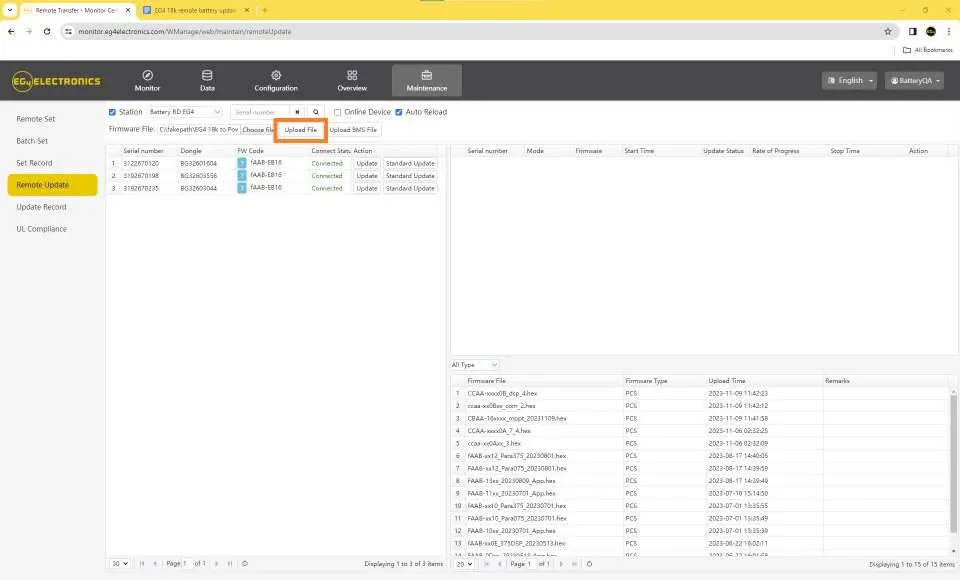
- Click Upload File to upload the firmware to the portal.
- Verify that the correct firmware has been uploaded.
- Click Update under the Action tab.
Monitoring the Update Process
Once you click Update, a progress bar will appear. Note the following stages:
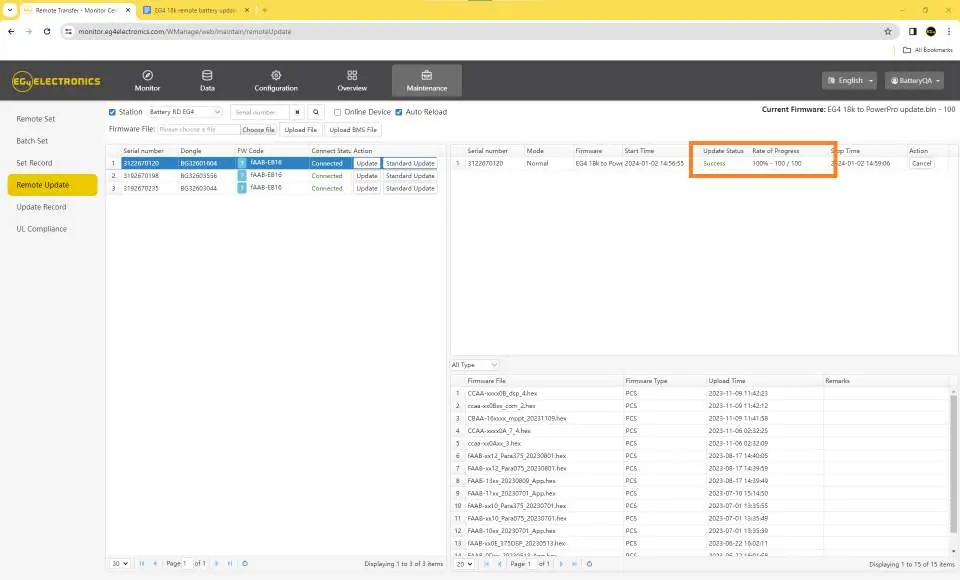
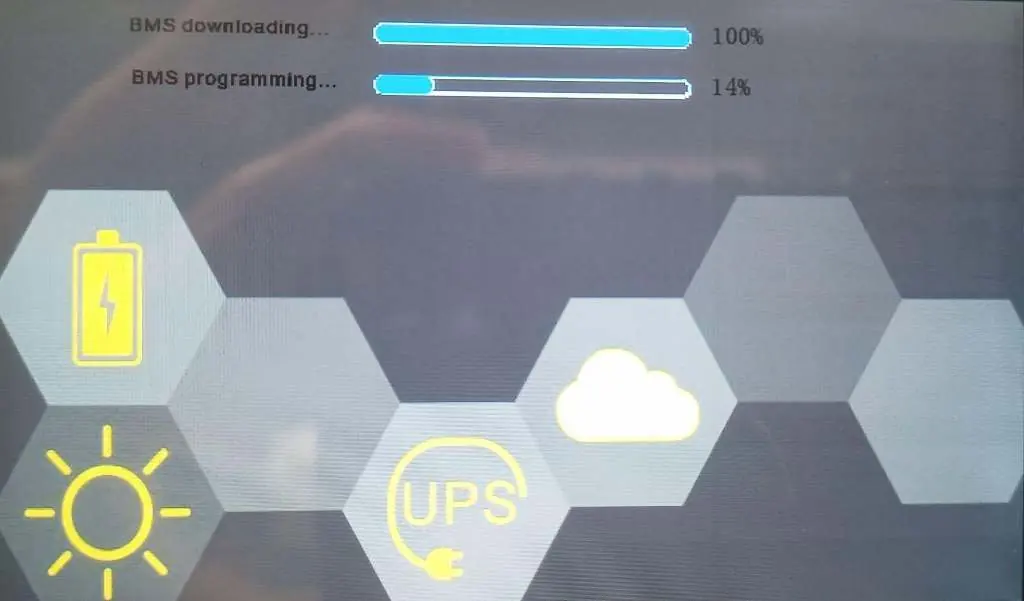
- Download Phase: The progress bar (0% to 100%) indicates the file is being downloaded to the EG4 18k Inverter. Reaching 100% here does not mean the battery update is complete.
- Programming Phase: After the download shows "Success," the actual battery programming begins. Do not power off the system during this time.
- Inverter Screen: You can monitor the process on the EG4 18k inverter screen, which will display "BMS downloading" and "BMS programming" status bars. The battery will automatically restart once the update is finished.
Official resources from the manual
Manufacturer information
EG4 Electronics
Practical help
Common problems
Incorrect firmware file uploaded
This will result in a soft-bricked BMS. You must perform a manual RS485 update using a Windows computer to unbrick the BMS.
Update status bar reaches 100% but update is not finished
The 100% status only indicates the file has downloaded to the inverter. The actual battery programming happens afterward. Do not power off the system.
Before use
- Ensure access to www.monitor.eg4electronics.com
- Confirm the battery is visible in the online portal
- Verify you are on the correct inverter station
- Ensure you have the correct .BIN firmware file downloaded locally
Images and diagrams
- The inverter screen displays 'BMS downloading' and 'BMS programming' progress bars to indicate the status of the update.
- The portal interface shows a 'Rate of Progress' bar during the file download phase.
Model compatibility
- Requires EG4 18k & EG4 PowerPro update or EG4 LL V2 update.

Manual page author
David Miller
Documentation analyst
Organizes user manual content into clear summaries, with attention to model details, product context, and everyday usability.