Electronics / Monitors
Firmware Update Guide for Elegoo Neptune 2, 2D, and 2S
A comprehensive guide on how to safely update the firmware for Elegoo Neptune 2, 2D, and 2S 3D printers, including main board identification, file preparation, and troubleshooting steps.
Quick answers from the manual
Quick answer
- To update the firmware, first identify your main board version (V1.2 or V1.3) via the printer settings or physical inspection. Download the corresponding firmware, copy 'elegoo.bin' and 'elegoo.txt' to a FAT32-formatted TF card, and restart the printer. p. 1, 2
Key actions
- Identify main board version p. 1
- Prepare TF card with firmware files p. 2
Problems and fixes
Update not starting
Reformat TF card to FAT32.
p. 2
Missing UI icons/fonts
Ensure 'elegoo_font' and 'elegoo_pic' folders are in the root directory.
p. 2Show 2 more answers Show less
Maintenance and reset
- Reset firmware settings after update if using extended functions like auto-leveling. p. 2
Where to find it in the PDF
- Main board identification p. 1
- Firmware loading procedure p. 2
Table of contents
Manual images
Click an image to enlargeImportant Information Before You Begin
Updating the firmware on your Elegoo Neptune 2, 2D, or 2S printer requires identifying the correct main board version installed in your machine. Loading the incorrect firmware can cause the printer to malfunction or permanently damage the main board. Always ensure you have the correct firmware package and password before proceeding.
Main Board Identification
You must identify whether your printer uses the ZNP Robin Nano V1.2 or ZNP Robin Nano V1.3 main board.
Method 1: Via Printer UI
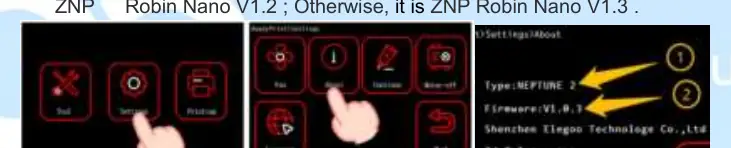
Navigate to the printer's settings menu on the screen. Check the firmware version displayed. If the firmware version is V1.X.X, it corresponds to the ZNP Robin Nano V1.2 board. Otherwise, it is the ZNP Robin Nano V1.3 board.
Method 2: Physical Inspection
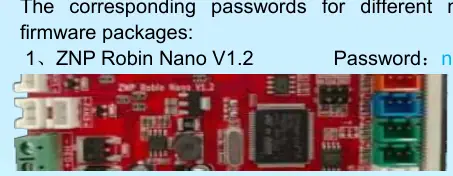
If you cannot verify via the UI, remove the bottom cover of the printer to physically inspect the main board label for the version number.
Firmware Update Procedure
Follow these steps to update your firmware:
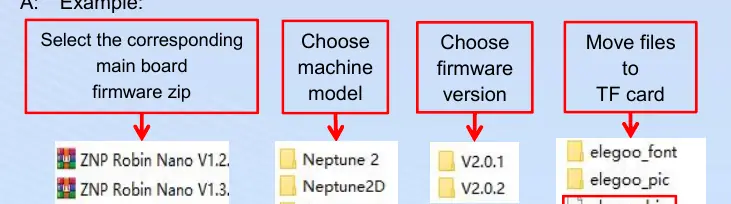
- Download and Extract: Obtain the correct firmware package for your main board version. You will need the password provided in the documentation (nanov12 for V1.2, nanov13 for V1.3).
- Prepare the TF Card: Ensure your TF card is formatted to FAT32.
- Copy Files: Copy the elegoo.bin and elegoo.txt files to the root directory of the TF card. Do not include the elegoo_font or elegoo_pic folders unless you are specifically troubleshooting UI issues, as these take longer to load.
- Update: Insert the TF card into the printer and restart the machine. The update process will take approximately one minute.
Troubleshooting
- Update does not start: Reformat the TF card to FAT32 and ensure only the required files are in the root directory.
- Missing UI icons or fonts: Ensure the elegoo_font and elegoo_pic folders are present in the root directory of the TF card and reboot. If issues persist, try using Windows to decompress the files, as Mac systems may corrupt the file structure.
- Screen color issues: Ensure the elegoo.txt file is present and has not been modified or deleted.
- Configuration loss: If you have extended functions like auto-leveling, you may need to reset the firmware settings after the update.
Official resources from the manual
Practical help
Common problems
Update process does not start after reboot
Reformat the TF card to FAT32 and ensure the files are in the root directory.
UI icons or fonts are missing after update
Ensure 'elegoo_font' and 'elegoo_pic' folders are in the root directory of the TF card. If using a Mac, try decompressing files on a Windows system.
Screen color is incorrect
Ensure the 'elegoo.txt' file is present in the root directory and has not been modified.
Before use
- Identify main board version (V1.2 or V1.3)
- Download the correct firmware package for your board
- Have the correct password ready (nanov12 or nanov13)
- Format TF card to FAT32
- Copy 'elegoo.bin' and 'elegoo.txt' to the root directory
Show more Show less
Specs in practice
- ZNP Robin Nano V1.2
- Main board version requiring firmware password 'nanov12'.
- ZNP Robin Nano V1.3
- Main board version requiring firmware password 'nanov13'.
Images and diagrams
- UI-based identification of the main board version
- Physical identification of the main board
- Flowchart for file preparation on the TF card
Model compatibility
- Neptune 2S can directly use the firmware for ZNP Robin Nano V1.3.
- Do not load firmware intended for a different main board version.

Manual page author
Emily Carter
User documentation editor