Electronics / Stream Controllers
User Guide for Elgato Stream Deck Mini
Quick start guide for the Elgato Stream Deck Mini. Learn how to install the software, connect the device, configure keys, create folders, and customize your setup.
Quick answers from the manual
Quick answer
- To set up the Stream Deck Mini, download the software from elgato.com/download, connect the device directly to a USB port on your computer, and use the app to drag and drop actions onto the keys. p. 3
Key actions
- Drag actions from the right panel and drop them onto your desired keys on the left. p. 4
- Right-click keys to copy, delete, or move them. p. 6
First start
- Download the app, connect the device directly to a USB port, and launch the app to configure. p. 3
Show 2 more answers Show less
Problems and fixes
Device connection issues
Connect directly to a USB port on your PC or Mac; do not use a USB hub.
p. 3Where to find it in the PDF
- Quick Start Guide p. 3, 4, 5, 6
Table of contents
Manual images
Click an image to enlargeQuick guide from the manual
This guide provides the essential steps to set up and configure your Elgato Stream Deck Mini. The process involves installing the dedicated software, connecting the hardware directly to your computer, and customizing the keys to suit your workflow.
Software installation
To begin using your device, you must first install the required software:
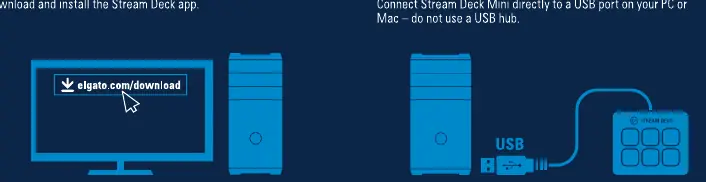
- Visit elgato.com/download to download the Stream Deck app.
- Follow the on-screen instructions to install the application on your PC or Mac.
Hardware connection
Proper connection is critical for device stability:
- Connect the Stream Deck Mini directly to a USB port on your computer.
- Important: Do not use a USB hub, as this may cause connectivity issues.
Configuration and customization
Once the software is installed and the device is connected, you can customize the keys:
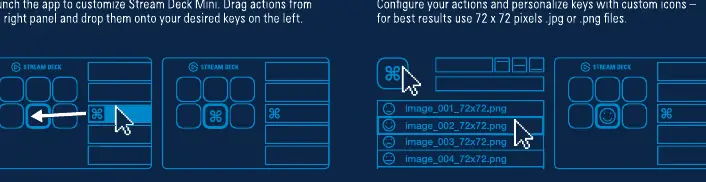
- Launch the Stream Deck app.
- Drag actions from the right-hand panel and drop them onto the desired keys on the left.
- To personalize keys with custom icons, use .jpg or .png files. For the best results, use images with a resolution of 72 x 72 pixels.
Folder management
You can organize your actions by creating folders:
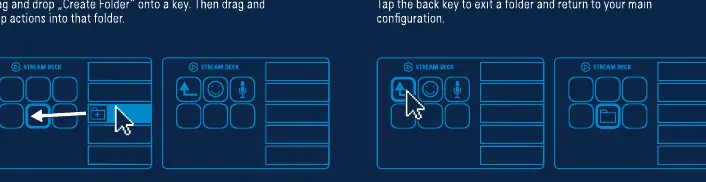
- Drag the "Create Folder" action onto a key.
- Drag and drop your desired actions into the newly created folder.
- To exit a folder and return to your main configuration, tap the back key.
Key management
You can manage your configured keys using the right-click menu:
- Right-click on any key to access options to copy, delete, or move the key.
Social media integration
To connect with your audience, you can link your social media accounts:
- Access the Preferences menu in the app.
- Navigate to the Accounts tab.
- Enter your social media account details to integrate them with your Stream Deck.
Official resources from the manual
Manufacturer information
Elgato
Practical help
Common problems
Device not recognized or unstable
Ensure the device is connected directly to a USB port on your PC or Mac. Do not use a USB hub.
Before use
- Download the Stream Deck app from elgato.com/download
- Ensure a direct USB port is available on your computer
- Prepare custom icons in .jpg or .png format (72x72 pixels)
Show more Show less
Images and diagrams
- The guide illustrates dragging actions from the software panel to the device keys.
- Visual cues show how to create folders and navigate back to the main menu.
- Right-click functionality is demonstrated for key management.
Model compatibility
- Compatible with PC and Mac.
- Requires direct USB connection (no hubs).

Manual page author
Emily Carter
User documentation editor