Electronics / Stream Controllers
User Guide for Elgato Stream Deck + XLR
Quick start guide for the Elgato Stream Deck + XLR. Learn how to connect your microphone and headphones, install the Stream Deck and Wave Link software, and customize your interface with actions, folders, and icons.
Quick answers from the manual
Quick answer
- The Elgato Stream Deck + XLR is a customizable audio interface and controller. Connect it directly to your computer's USB port, plug in your XLR microphone and headphones, and use the Stream Deck and Wave Link software to configure your audio mixing and interface actions. p. 2, 3, 4
Key actions
- Connect device p. 2
- Install software p. 4
- Customize interface p. 5, 6
First start
- Connect hardware, download Stream Deck and Wave Link apps, install Wave Link plugin. p. 2, 3, 4
Show 3 more answers Show less
Problems and fixes
Device connectivity issues
Connect directly to a USB port on your PC or Mac; do not use a USB hub.
p. 2Technical specifications
| Parameter | Value | Meaning | Pages |
|---|---|---|---|
| Icon resolution | 144 x 144 pixels | Recommended resolution for custom icons | p. 6 |
Where to find it in the PDF
- Hardware Installation p. 2, 3
- Software Setup p. 4
- Customization p. 5, 6, 7
Table of contents
Manual images
Click an image to enlargeQuick Start Guide
The Elgato Stream Deck + XLR is a powerful audio interface and controller. This guide provides the essential steps to connect your hardware, install the necessary software, and begin customizing your setup.
Hardware Installation
Follow these steps to connect your device:
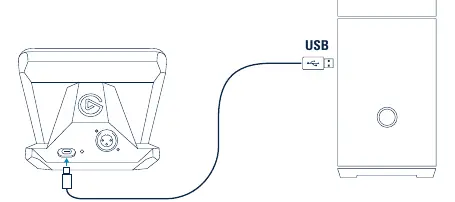
- USB Connection: Connect the device directly to a USB port on your PC or Mac. Do not use a USB hub.
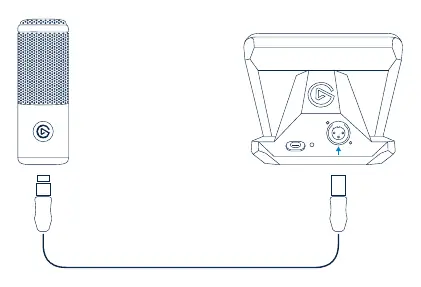
- Microphone: Connect your microphone using a standard XLR microphone cable.
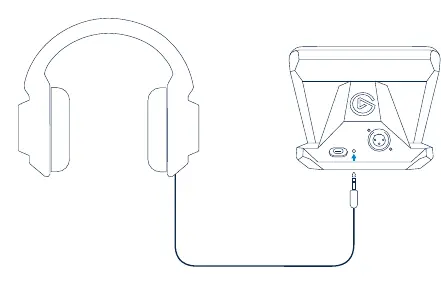
- Headphones: Connect your headphones to the 3.5 mm jack. Keep the volume at a moderate level to protect your ears.
Software Setup
To unlock the full functionality of your device, you must install the required software:
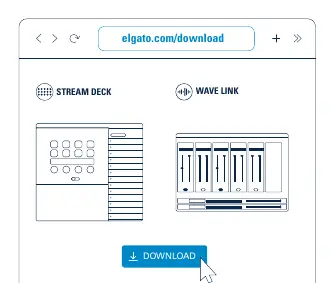
- Download and install the Stream Deck and Wave Link apps from elgato.com/download.
- Download and install the Wave Link Plugin from the Elgato Marketplace (marketplace.elgato.com).
- The Wave Link plugin allows you to configure a powerful audio mixer within the Stream Deck app, tailored to your needs.
Customizing Your Interface
Once the software is installed, you can personalize your Stream Deck + XLR:
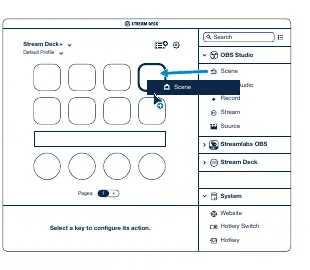
- Drag and Drop: In the Stream Deck app, drag actions and effects from the right panel onto your virtual Stream Deck + interface.
- Personalize Keys: You can assign single or multiple actions to keys, dials, and the touch screen.
- Custom Icons: Personalize your keys with custom icons. For best results, use 144 x 144 pixel images (JPEG or PNG).
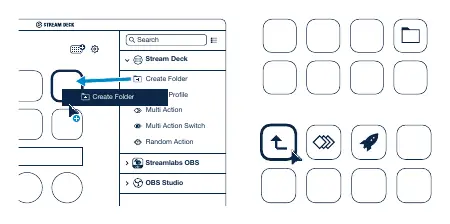
- Create Folders: Drag and drop the "Create Folder" action onto a key, then drag other actions into that folder. Tap the back key to exit a folder and return to your main page.
Interface Management
You can manage your interface layout easily:
- Right-click keys, dials, and the touch screen to copy, delete, or move them.
- Connect your social media accounts within the app preferences to interact with your audience.
Safety Information
Always maintain a moderate monitoring volume when using headphones to protect your hearing. Ensure the device is connected directly to your computer to avoid power or data issues associated with USB hubs.
Official resources from the manual
Manufacturer information
Elgato
Practical help
Common problems
Device not recognized or unstable
Connect the device directly to a USB port on your PC or Mac; do not use a USB hub.
Audio monitoring too loud
Keep the volume at a moderate level to protect your ears.
Before use
- Connect device directly to PC/Mac USB port
- Connect XLR microphone
- Connect headphones to 3.5mm jack
- Download Stream Deck and Wave Link apps
- Install Wave Link plugin
Show more Show less
Specs in practice
- Icon resolution
- 144 x 144 pixels (JPEG or PNG) recommended for best results
Images and diagrams
- USB connection diagram
- XLR microphone connection
- Headphone connection
Model compatibility
- Requires PC or Mac
- Do not use USB hubs

Manual page author
David Miller
Documentation analyst