Electronics / Microphones
User Manual for Elgato Wave XLR
Quick start guide for the Elgato Wave XLR audio interface. Learn how to connect your microphone, adjust phantom power, configure headphone monitoring, and use the Wave Link software.
Table of contents
Manual images
Click an image to enlargeQuick guide from the manual
To get started with your Elgato Wave XLR, download the Wave Link app from elgato.com/download. Connect the device to your computer using the supplied USB-C cable. Connect your XLR microphone and headphones, then configure the phantom power settings based on your microphone type.
Device Overview
The Wave XLR features a multi-function control dial and a capacitive mute sensor.
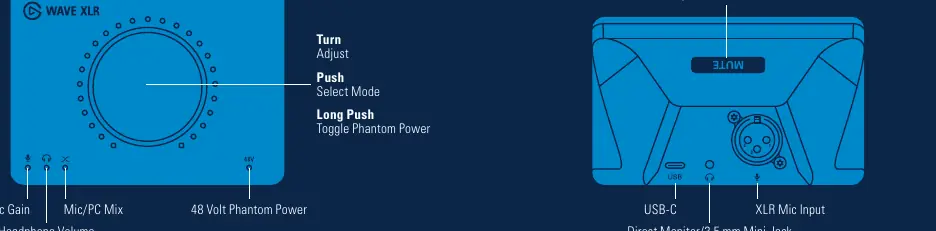

- Control Dial: Turn to adjust levels, push to select mode (Mic Gain, Headphone Volume, Mic/PC Mix), and long push (2 seconds) to toggle 48V Phantom Power.
- Capacitive Sensor: Located on the back of the unit; tap to mute or unmute the microphone.
Setup and Connection
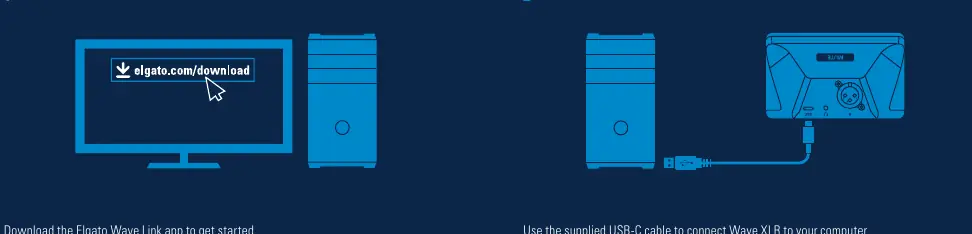
- Software: Download and install the Elgato Wave Link app.
- USB Connection: Use the provided USB-C cable to connect the Wave XLR to your computer.
- Microphone Connection: Connect your microphone using a standard XLR cable.
- Headphones: Connect your headphones to the 3.5 mm jack on the device.
Microphone Configuration
The Wave XLR supports both condenser and dynamic microphones. You must configure the 48V Phantom Power correctly:
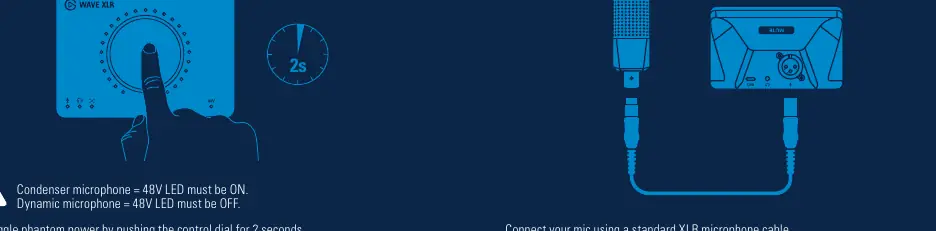
- Condenser Microphone: 48V LED must be ON.
- Dynamic Microphone: 48V LED must be OFF.
- To Toggle: Push and hold the control dial for 2 seconds.
Monitoring and Operation
Use the control dial to manage your audio levels. Push the dial to cycle through the following modes:
- Mic Gain: Adjust the input sensitivity of your microphone.
- Headphone Volume: Adjust the monitoring volume. Keep this moderate to protect your hearing.
- Mic/PC Mix: Adjust the balance between your microphone input and computer audio.
Customization
The faceplate of the Wave XLR can be easily swapped out to personalize your setup.
Official resources from the manual
Manufacturer information
Elgato
Practical help
Common problems
Microphone is not producing sound
Check if the 48V Phantom Power setting matches your microphone type (ON for condenser, OFF for dynamic).
Microphone is muted
Tap the capacitive sensor on the back of the unit to toggle mute status.
Audio levels are incorrect
Press the control dial to cycle through Mic Gain, Headphone Volume, and Mic/PC Mix modes to adjust the correct parameter.
Before use
- Download the Elgato Wave Link app from elgato.com/download
- Ensure you have a standard XLR microphone cable
- Connect the device via the supplied USB-C cable
- Connect headphones to the 3.5 mm jack
- Verify if your microphone requires 48V phantom power
Specs in practice
- 48V Phantom Power
- Required for condenser microphones; toggle by holding the control dial for 2 seconds.
- Capacitive Sensor
- Touch-sensitive area on the back for quick muting.
Images and diagrams
- The control dial is the primary interface for adjusting gain, volume, and phantom power.
- The rear panel contains the USB-C port, 3.5mm headphone jack, and XLR microphone input.
- The capacitive mute sensor is located on the back of the unit.
Model compatibility
- Requires Elgato Wave Link software for full functionality.
- Compatible with standard XLR microphones.

Manual page author
Emily Carter
User documentation editor
Prepares concise manual descriptions and highlights the most useful setup, operation, and maintenance information for readers.