Electronics / Microphones
User Guide for Elgato Stream Deck
Quick start guide for the Elgato Stream Deck. Learn how to connect the device, install the software, customize keys, create folders, and adjust the stand for optimal use.
Table of contents
Manual images
Click an image to enlargeQuick guide from the manual
To get started with your Elgato Stream Deck, follow these essential steps:
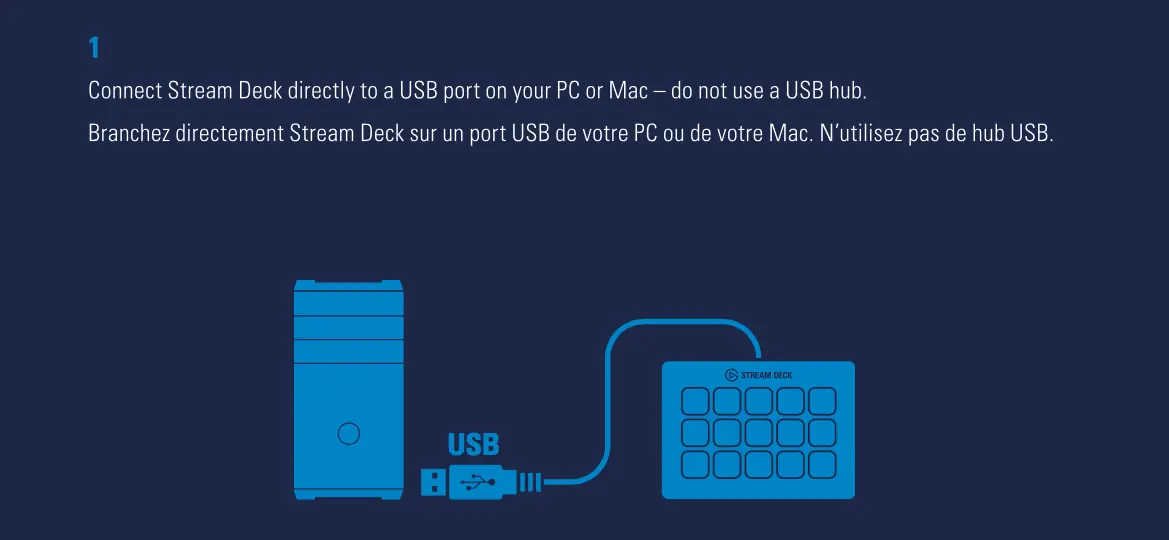
- Connect: Plug the device directly into a USB port on your PC or Mac. Do not use a USB hub.
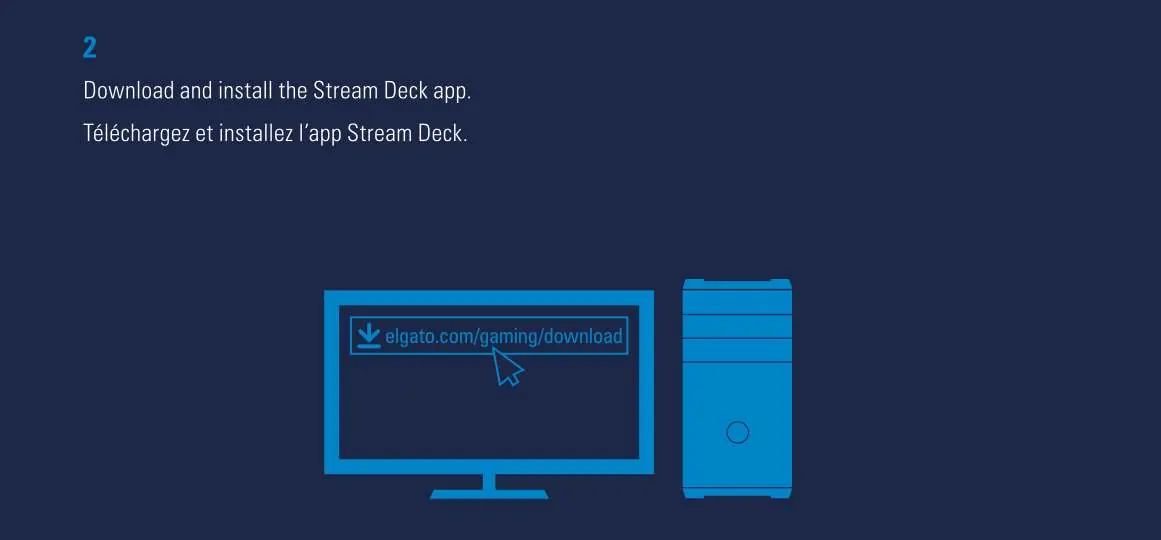
- Install: Download and install the Stream Deck app from the official website.
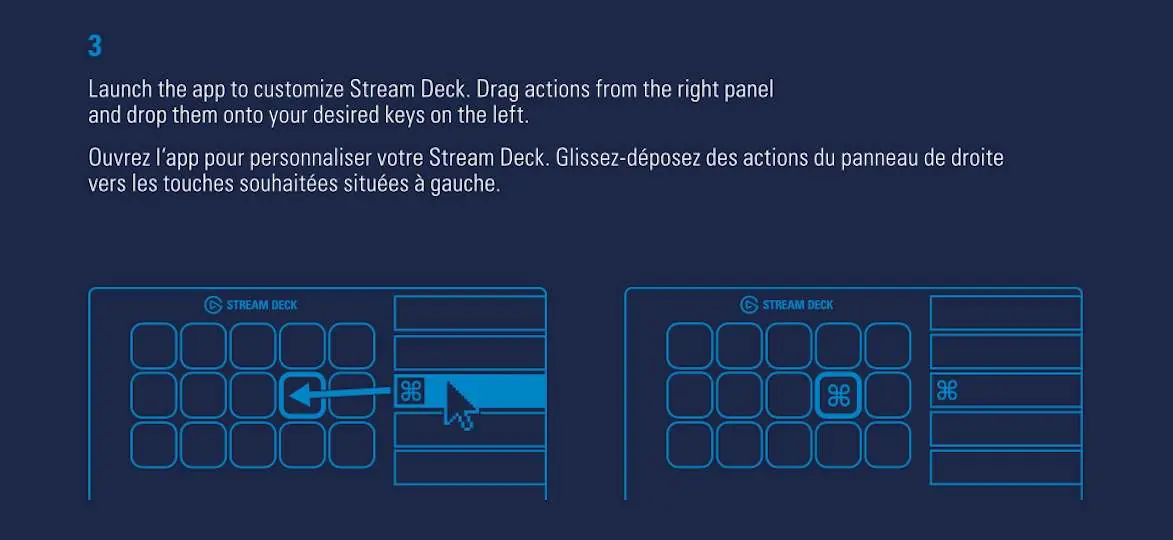
- Customize: Launch the app and drag actions from the right panel onto the keys on the left.
- Personalize: Use 72 x 72 pixel .jpg or .png files for custom icons.
Setup and Connection
The Stream Deck requires a direct connection to your computer to function correctly. Avoid using USB hubs, as they may cause connectivity issues or insufficient power delivery.
Software and Customization
The Stream Deck app is the central hub for configuring your device. Once installed, you can customize the keys to perform various actions.
Customizing Keys
To assign functions to your keys, open the Stream Deck app. You will see a panel on the right containing various actions. Simply drag an action and drop it onto the desired key on the left side of the interface.
Using Custom Icons
You can personalize your keys with custom images. For the best results, ensure your image files are in .jpg or .png format and sized to 72 x 72 pixels.
Advanced Features
Creating Folders
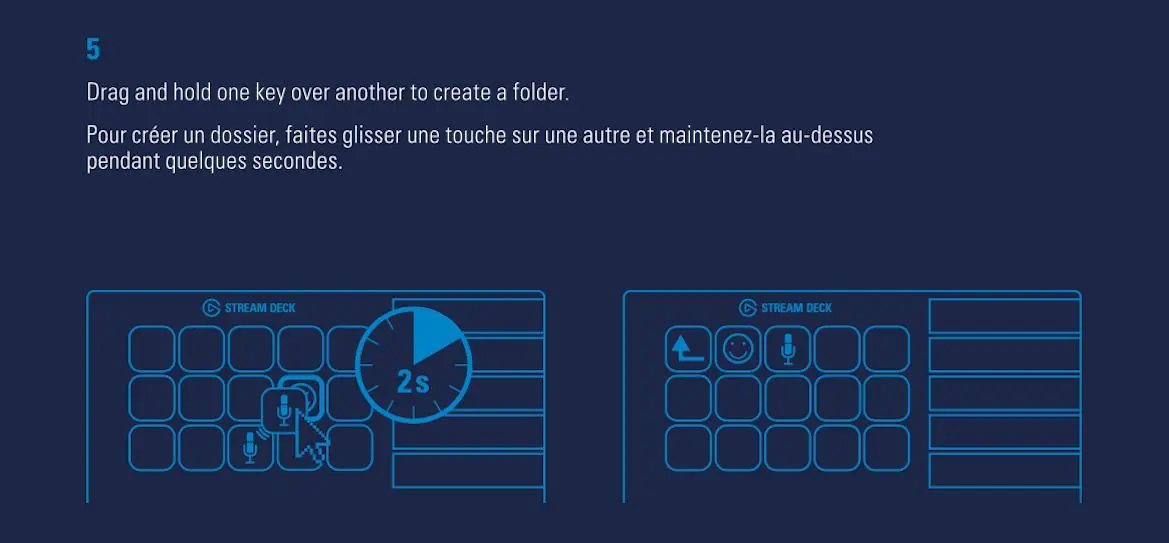
You can organize your actions by creating folders. To do this, drag and hold one key over another for a few seconds. This will create a folder containing both actions. To exit a folder and return to your main configuration, tap the back key.
Modifying Keys
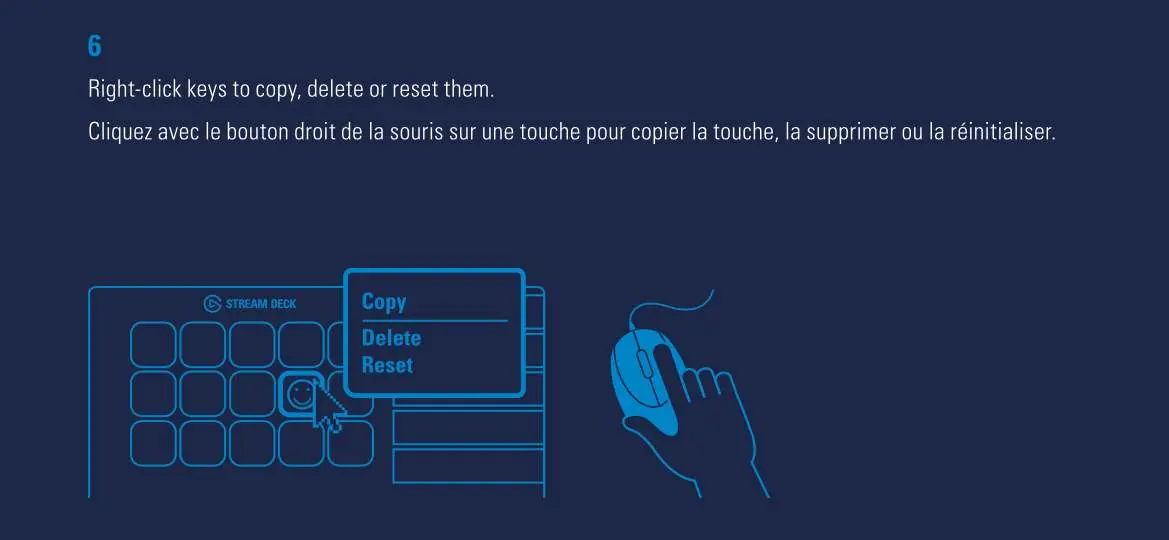
You can manage your keys by right-clicking on them within the app. This opens a menu allowing you to Copy, Delete, or Reset the key.
Hardware Adjustment
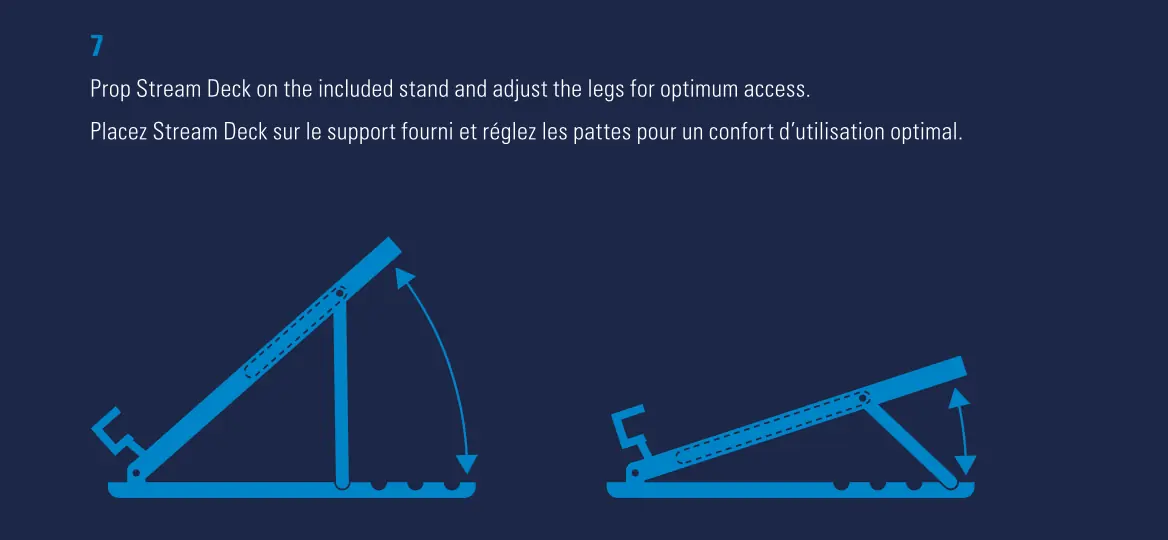
The Stream Deck comes with an included stand to improve ergonomics. You can prop the device on the stand and adjust the legs to achieve the optimum viewing angle and access.
Manufacturer information
Elgato
Practical help
Common problems
Device not recognized or unstable connection
Ensure the Stream Deck is connected directly to a USB port on your PC or Mac. Do not use a USB hub.
Before use
- Connect the device directly to a computer USB port
- Download the Stream Deck app from the official website
- Prepare 72x72 pixel images for custom icons
- Ensure you have .jpg or .png files ready for personalization
Specs in practice
- Custom Icon Size
- 72 x 72 pixels for best results
- File Formats
- .jpg or .png files are supported for custom icons
Images and diagrams
- The stand has adjustable legs to change the viewing angle
- Drag and drop actions from the right panel to the keys on the left
- Drag one key over another to create a folder
Model compatibility
- Requires PC or Mac
- Do not use USB hubs

Manual page author
Emily Carter
User documentation editor
Prepares concise manual descriptions and highlights the most useful setup, operation, and maintenance information for readers.