Electronics / Microphones
User Guide for Elgato 4K60 S+ Capture Card
Quick start guide for the Elgato 4K60 S+ capture card. Learn how to set up PC recording, standalone SD card recording, understand LED status codes, and manage power requirements.
Table of contents
Manual images
Click an image to enlargeQuick Start Guide
The Elgato 4K60 S+ is a high-performance capture card capable of both PC-based recording and standalone SD card recording. This guide provides the essential steps to configure your device for both modes.
PC Recording
To record gameplay directly to your computer, follow these steps:
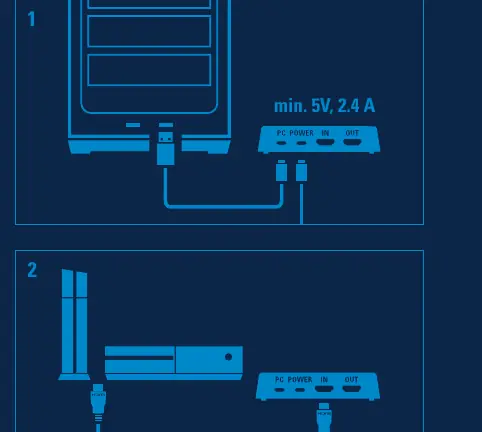
- Connect the 4K60 S+ to your PC using the provided USB cable.
- Connect the power supply to the device. Note: Both USB and Power must be connected for PC recording.
- Connect your HDMI input and output sources.
- Download and install the Elgato 4K Capture Utility from elgato.com/gaming/download to begin recording.
SD Card Recording
For standalone recording without a PC, follow these steps:
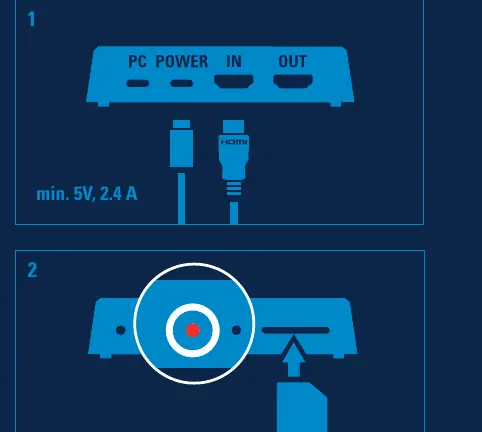
- Connect the power supply to the device. Note: Do not connect the USB cable to your PC when using SD card mode.
- Insert a compatible SD card (UHS Class 3 / V30 recommended).
- Connect your HDMI input and output sources.
- Press the record button on the device to start recording.
- Press the record button again to stop recording.
LED Status Indicators
The LED on the device provides feedback on the current status:
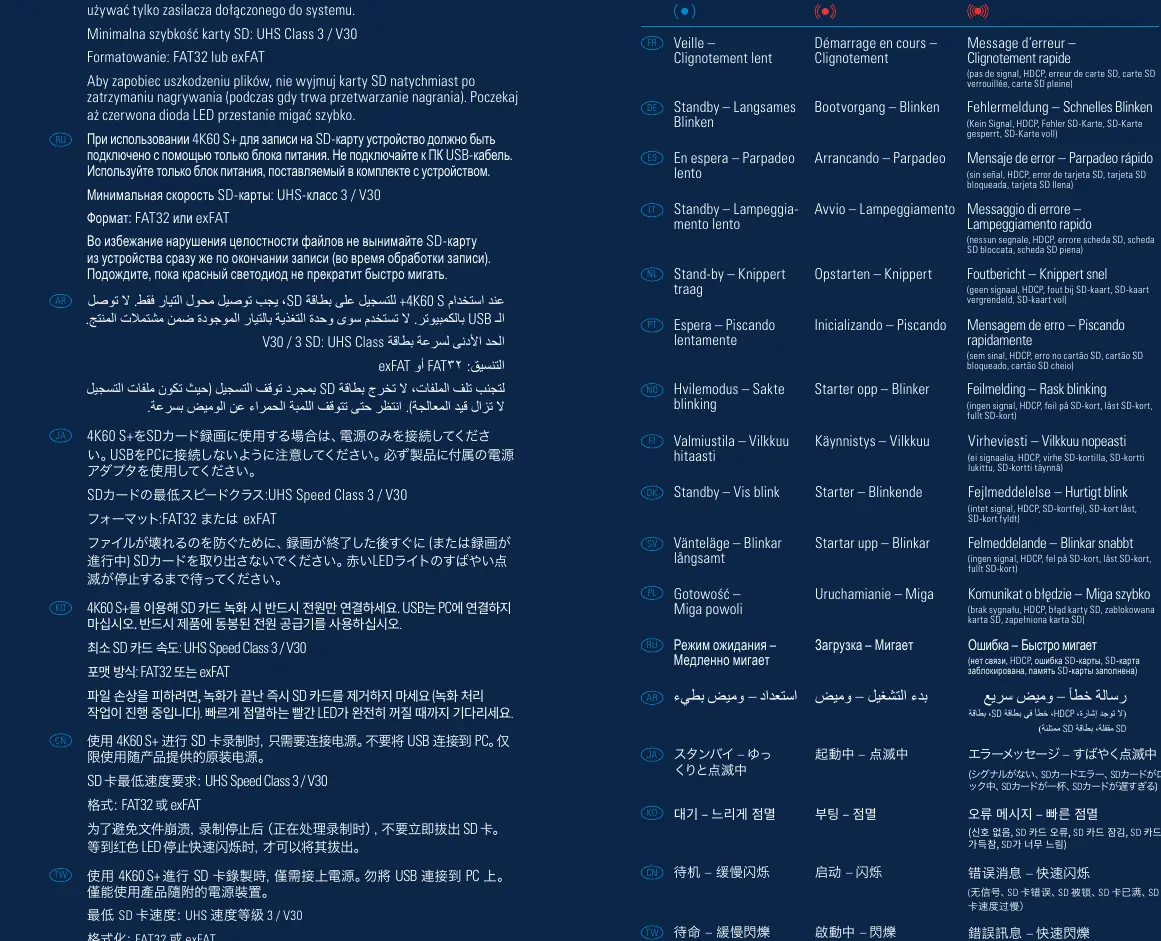
- Slow Flashing: Device is in Standby or Recording mode (depending on the specific pattern).
- Flashing: Device is booting up.
- Rapid Flashing: Indicates an error (e.g., no signal, HDCP issue, SD card error, SD card locked, SD card full, or SD card too slow).
Important Usage Notes
- Power Supply: Always use the power supply shipped with your product. The device requires a minimum of 5V, 2.4A.
- SD Card Safety: To avoid file corruption, do not remove the SD card immediately after stopping recording. Wait until the red LED stops flashing rapidly, indicating that the processing is complete.
- SD Card Formatting: Ensure your SD card is formatted to FAT32 or exFAT.
Official resources from the manual
Manufacturer information
Elgato
Practical help
Common problems
Rapid flashing red LED
Indicates an error such as no signal, HDCP issue, SD card error, SD card locked, SD card full, or SD card too slow.
File corruption on SD card
Do not remove the SD card immediately after stopping recording. Wait until the red LED stops flashing rapidly, as the device is still processing the file.
Before use
- Ensure you are using the power supply shipped with the product (5V, min 2.4A).
- For PC recording, ensure both USB and Power are connected.
- For SD card recording, ensure only Power is connected (no USB).
- Verify SD card meets UHS Class 3 / V30 speed requirements.
- Format SD card to FAT32 or exFAT.
Specs in practice
- Power Requirement
- 5V, min 2.4A. Must use the supplied power adapter.
- SD Card Speed
- UHS Class 3 / V30 is required for reliable recording.
Images and diagrams
- PC Recording diagram shows connections for USB, Power, and HDMI.
- SD Card Recording diagram shows connections for Power and HDMI only.
Model compatibility
- PC recording requires Elgato 4K Capture Utility software.
- SD card recording requires FAT32 or exFAT formatting.

Manual page author
Emily Carter
User documentation editor
Prepares concise manual descriptions and highlights the most useful setup, operation, and maintenance information for readers.