Industrial / Kitchen Display Systems
Epson KDS Menu Routing Configuration
Learn how to configure KDS Menu Routing for your Epson True Order Kitchen Display System. This guide covers site-wide settings, menu item filtering, and display layout configuration to ensure orders are routed to the correct kitchen...
Table of contents
Manual images
Click an image to enlargeQuick guide from the manual
This document provides instructions for configuring KDS Menu Routing in an Epson True Order Kitchen Display System. It assumes that a 2-station KDS system is already set up as described in the Epson KDS Multi-Station Quick Start Guide.
Overview
KDS Menu Routing allows print jobs from the POS to be sent to a single Master Device. The system then routes specific items to the appropriate displays based on configuration (e.g., grill items to the grill station, fry items to the fry station).
Configuring Site Wide Settings
To enable menu routing, you must configure the site-wide settings:
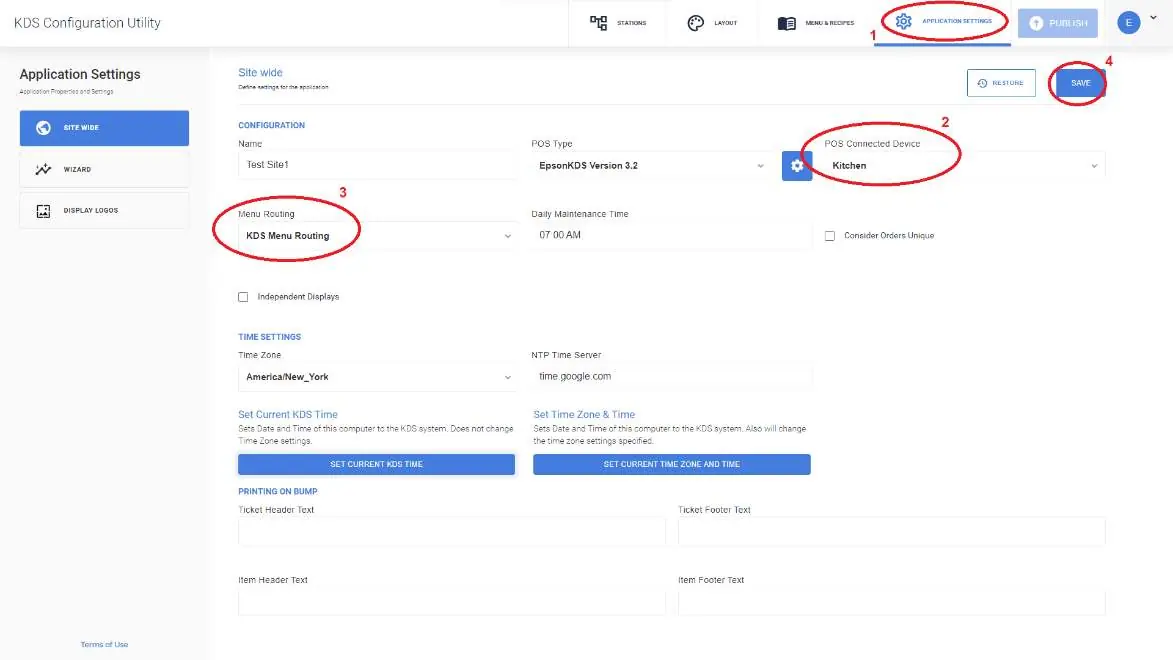
- Open Application Settings.
- Select POS Connected Device.
- Choose KDS Menu Routing from the drop-down menu.
- Click Save.
Configuring Menu Items and Groups
Before configuring routing, ensure your menu items and groups are defined. Please consult the KDS Menu and Recipes Quick User Manual for detailed instructions on setting up your menu structure.
Configuring Menu Items for Displays
To route specific menu items to specific displays:
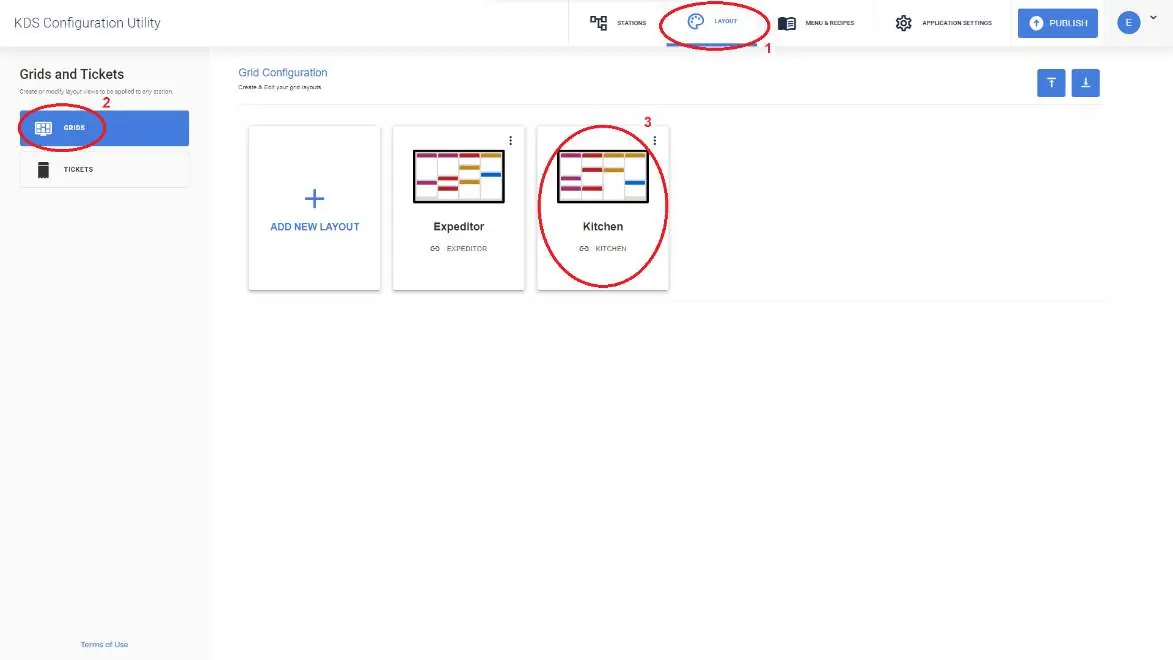
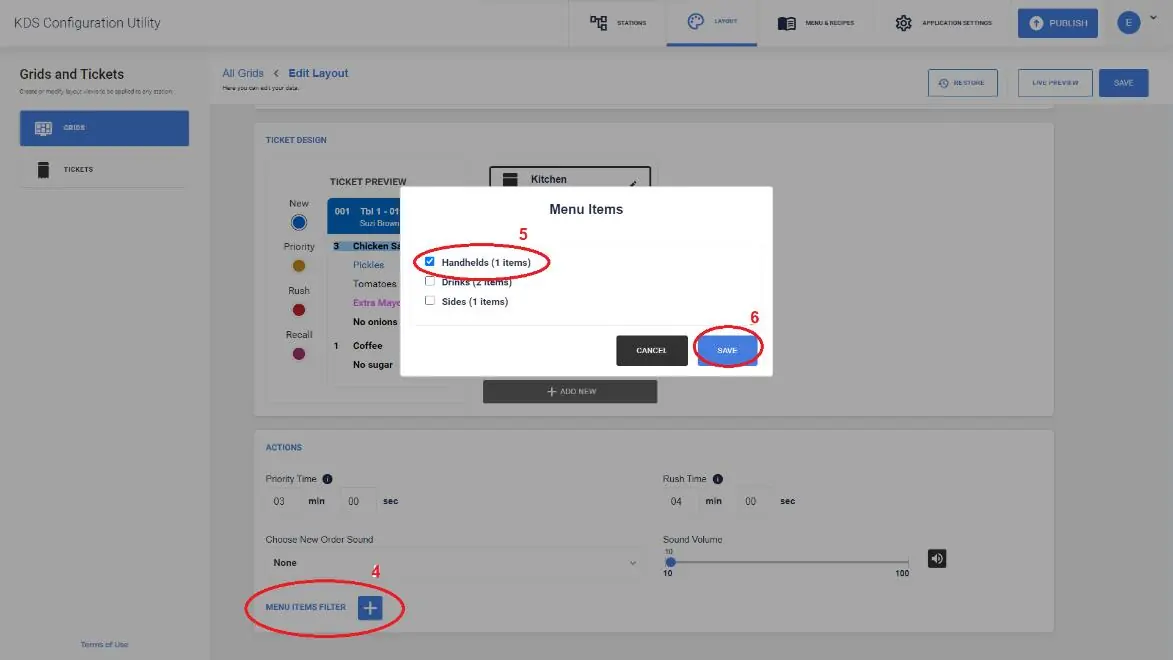
- Click Layout.
- Select Grids.
- Select the layout you want to configure (e.g., Kitchen).
- Enable the Menu Items Filter.
- Select the specific menu items you want shown on that display.
- Click Save.
- Select any additional menu items to display if necessary.
- Click Save again.
- Click Publish to apply the changes to the system.
Manufacturer information
Epson
Practical help
Common problems
Orders are not routing to the correct station
Verify that the Master Device is correctly configured in the Site Wide Settings and that the Menu Items Filter is properly set for the target display.
Menu items are missing from a specific display
Ensure the Menu Items Filter is enabled for that specific layout and that the desired items are selected in the configuration utility.
Before use
- Ensure you have a 2-station KDS system already set up.
- Verify you have access to the KDS Configuration Utility.
- Consult the KDS Menu and Recipes Quick User Manual to ensure menu items and groups are defined.
Images and diagrams
- The overview diagram illustrates how print jobs from the POS are sent to a Master Device, which then routes specific items (e.g., grill items vs. fry items) to the appropriate kitchen stations.
Model compatibility
- Requires an existing 2-station KDS system setup.

Manual page author
Emily Carter
User documentation editor
Prepares concise manual descriptions and highlights the most useful setup, operation, and maintenance information for readers.