Electronics / Projectors
User Manual for Epson PowerLite Home Cinema 3100/3700 Projector
Quick guide for the Epson PowerLite Home Cinema 3100 and 3700 projectors. Learn about setup, network configuration, 3D viewing, maintenance, and troubleshooting.
Table of contents
Manual images
Click an image to enlargeQuick guide from the manual
This guide provides essential information for setting up and operating your Epson PowerLite Home Cinema 3100 or 3700 projector. For detailed technical specifications and advanced configurations, please refer to the full manual.
Projector Setup and Placement
For optimal performance, place the projector on a sturdy, level surface or use a compatible ceiling mount. Ensure there is adequate ventilation around the unit. Connect your video source (HDMI, VGA, or MHL) and plug the power cord into a grounded outlet. Remove the lens cap before turning on the projector.
Network Configuration
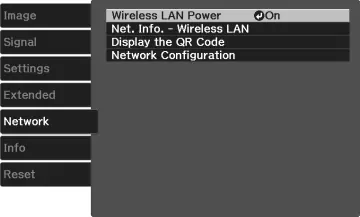
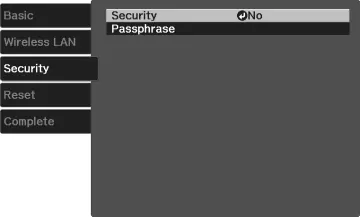
To use network features, install the optional wireless LAN module into the USB Type A port. Access the Network menu to configure settings such as Wireless LAN Power, Projector Name, and Security (WPA/WPA2). You can also display a QR code to quickly connect mobile devices using the Epson iProjection app.
Basic Operation and Adjustments
- Turning On/Off: Use the power button on the projector or the remote control.
- 3D Viewing: Connect a 3D-compatible device, set the 3D Display to Auto or 3D, and use compatible RF active shutter glasses.
- Image Adjustments: Use the lens shift dials for positioning, the zoom ring for size, and the focus ring for clarity. Use the Keystone or Quick Corner settings to correct image shape.
- Color Modes: Select from various color modes (e.g., Dynamic, Natural, Cinema) to optimize image quality for your environment.
Maintenance
Regularly clean the lens with lens-cleaning paper and the projector case with a soft, dry cloth. Clean the air filter periodically to prevent overheating. If the projected image deteriorates or the lamp light flashes, replace the lamp and reset the lamp timer in the Reset menu.
Troubleshooting
If you encounter issues, check the projector's status lights. A flashing orange light often indicates a temperature or lamp issue. If no image appears, verify cable connections, ensure the lens cap is removed, and check the input source settings.
EasyMP Multi PC Projection Software
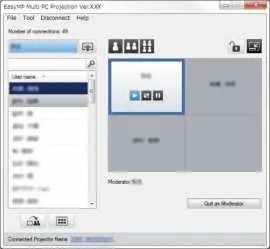
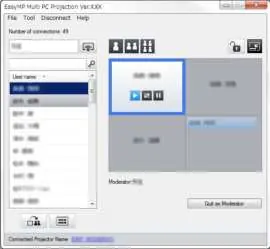
This software allows for interactive meetings over a network. Install the software from the included CD or the Epson website. Use the Search function to find projectors on the network, and use the Projection Control Screen to manage presenters, panels, and moderator functions.
Manufacturer information
Epson
Practical help
Common problems
No image appears
Ensure the lens cap is removed, the projector is powered on, and all cables are securely connected. Check the input source settings.
No Signal message
Verify the video source is on and playing. Check cable connections and ensure the correct input source is selected on the projector.
3D image not displaying correctly
Ensure 3D mode is activated, the 3D format is set correctly, and the 3D glasses are paired, charged, and within range.
Projector overheating
Check that vents and the air filter are not clogged with dust. Clean or replace the air filter if necessary.
Before use
- Remove the lens cap.
- Connect the power cord to a grounded outlet.
- Connect your video source (HDMI, VGA, or MHL).
- Install batteries in the remote control.
- Ensure the projector is placed on a sturdy, level surface.
Specs in practice
- Projection Distance
- Determines image size; use the throw distance tables in the manual for specific screen sizes.
Images and diagrams
- Front/Top: Shows lens, zoom/focus rings, and lens shift dials.
- Rear: Shows HDMI, VGA, USB, and Audio Out ports.
- Remote Control: Illustrates buttons for source selection, 3D format, and menu navigation.
- Lens Shift: Demonstrates how to adjust image position without using keystone correction.
Model compatibility
- Supports HDMI, Optical HDMI, MHL, and VGA connections.
- Wireless network projection requires an optional Epson wireless LAN module.
- 3D projection requires optional RF active shutter glasses.

Manual page author
David Miller
Documentation analyst
Organizes user manual content into clear summaries, with attention to model details, product context, and everyday usability.