Industrial / Kitchen Display Systems
Network Settings Guide for Epson TrueOrder Kitchen Display System
Quick guide for configuring network settings on the Epson TrueOrder Kitchen Display System. Learn how to switch between DHCP and static IP addresses using the KDS Configuration Utility.
Table of contents
Manual images
Click an image to enlargeQuick Guide: Network Configuration
This guide provides instructions for managing network settings on the TrueOrder Kitchen Display System (KDS). By default, devices are configured for DHCP. If your network requires a static IP address, you can configure it using the KDS Configuration Utility.
Overview
TrueOrder KDS devices are DHCP enabled by default, allowing them to be automatically discovered on the local network. To view the current network status, including the IP address, MAC address, and software version, you can access the splash screen:
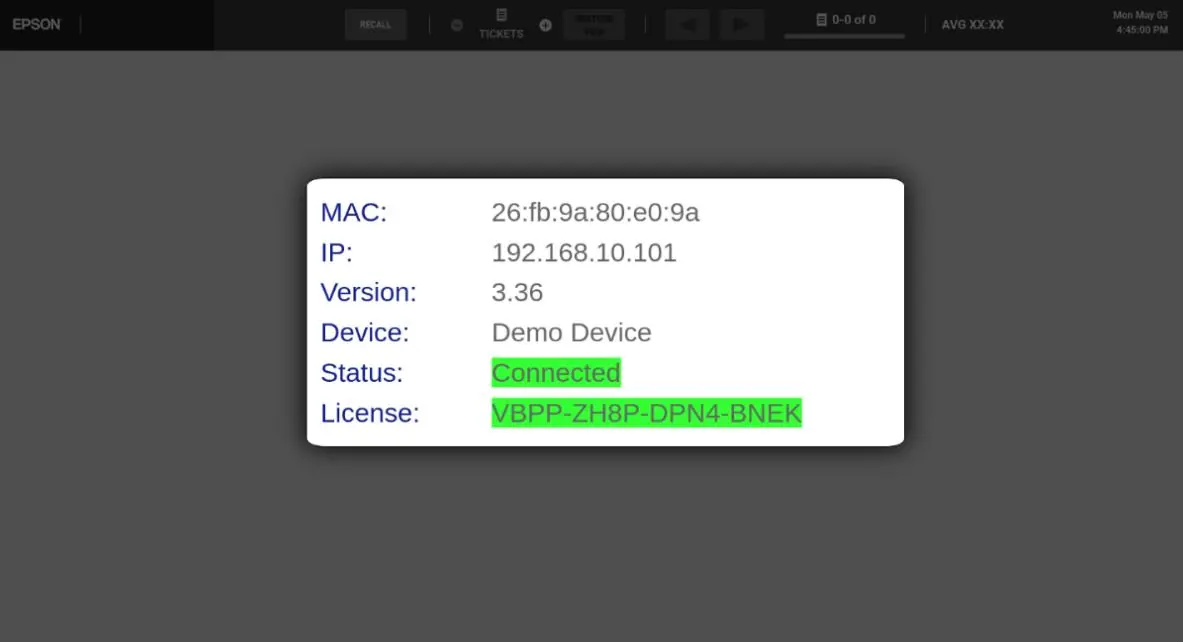
- During power-up: The screen displays automatically.
- Touch screen: Press the logo on the header bar.
- Bump bar: Press the Summary key 3 times.
How to Configure IP Settings
To change the network settings for a specific device, follow these steps within the KDS Configuration Utility:
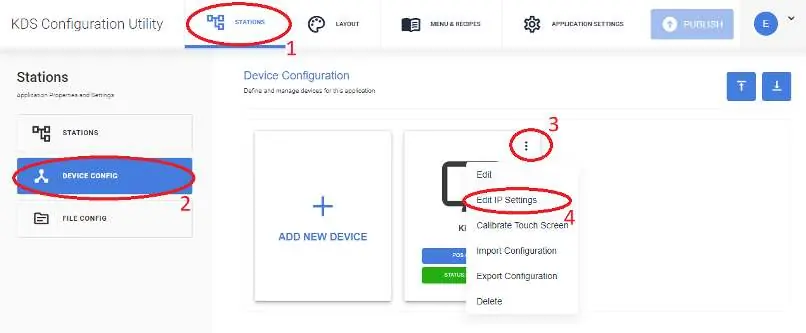
- Open the KDS Configuration Utility.
- Click on the STATIONS tab.
- Select DEVICE CONFIG.
- Locate the device you wish to configure and click the three-dot menu icon.
- Select Edit IP Settings.
Setting a Static IP
Once the IP Settings window is open, perform the following steps to assign a static IP:
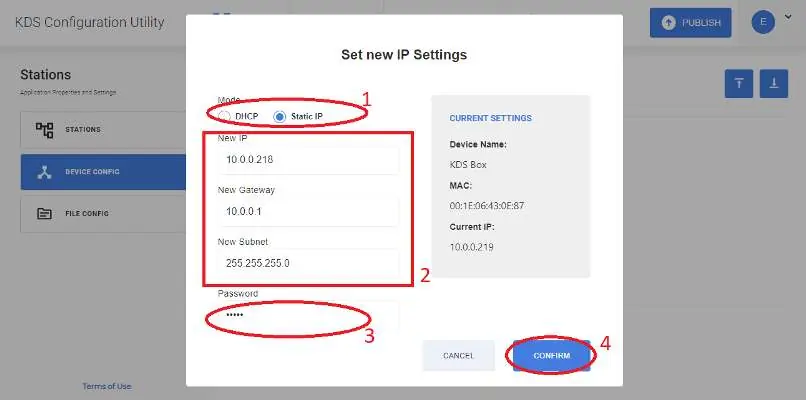
- Select the Static IP mode.
- Enter the required IP, Gateway, and Subnet details.
- Enter the password epson when prompted.
- Click CONFIRM to apply the changes.
After confirming, the device will apply the new settings. You can verify the new IP address by accessing the splash screen as described in the Overview section.
Manufacturer information
Epson
Practical help
Common problems
Device not found on network
Ensure the device is powered on and check the splash screen to verify the current IP address.
Unable to change IP settings
Ensure you are using the correct password ('epson') and that you have selected the 'Static IP' mode before entering network details.
Before use
- Ensure the system is set up as a Single or Multi-Station system
- Have access to the KDS Configuration Utility
- Obtain the required static IP, Gateway, and Subnet details from your network administrator
Images and diagrams
- The splash screen displays the current MAC address, IP address, software version, and license status.
- The KDS Configuration Utility interface allows for device management under the 'Stations' tab.
Model compatibility
- Requires TrueOrder KDS system setup.
- Configuration password is 'epson'.

Manual page author
Emily Carter
User documentation editor
Prepares concise manual descriptions and highlights the most useful setup, operation, and maintenance information for readers.