Power / Batteries & Chargers
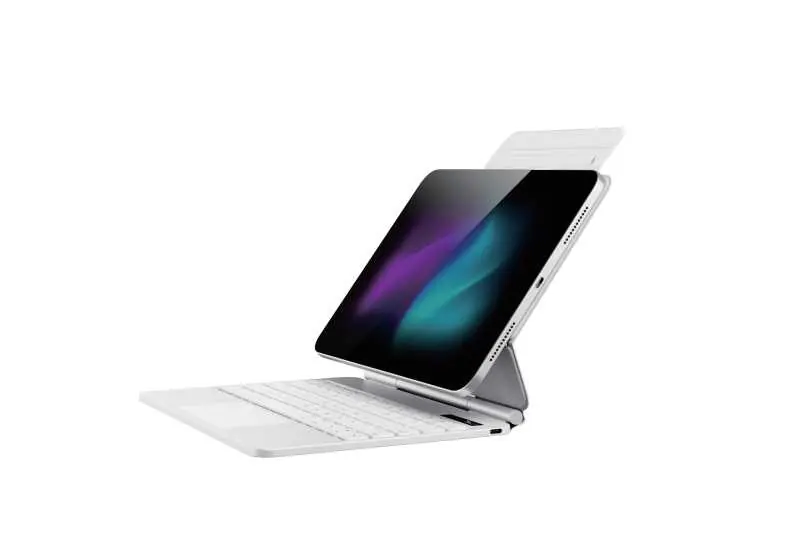
ESR Rebound Magnetic Keyboard Case
Quick guide for the ESR Rebound Magnetic Keyboard Case (Model 68011). Learn how to power on, pair via Bluetooth, adjust backlight, and troubleshoot connection issues.
Table of contents
Quick guide from the manual
This document provides essential operating instructions for the ESR Rebound Magnetic Keyboard Case. It covers basic power management, Bluetooth pairing, charging status, and troubleshooting steps to ensure optimal performance.
Power and Bluetooth Pairing
To operate the keyboard, follow these steps:
- Power On/Off: Double-click the power button to turn the keyboard on or off.
- Bluetooth Pairing: Press and hold the power button for 3 seconds to enter pairing mode. The indicator light will flash when ready to pair.
- Auto Reconnect: The keyboard will automatically attempt to reconnect to the last paired device when turned on.
Charging and Battery
The keyboard features an LED indicator to show the battery status:
- Charging: The LED indicator will be red while charging.
- Fully Charged: The LED indicator will turn green when the battery is full.
- Standby Mode: The keyboard automatically enters standby mode after 1 minute of inactivity to conserve battery life.
Backlight and Settings
You can adjust the keyboard backlight brightness by pressing the Fn key combined with the light icon key.
Troubleshooting
If you encounter issues with your keyboard, try the following steps:
- Connection Issues: If the keyboard fails to connect, delete the "ESR Keyboard" from your iPad's Bluetooth settings, then restart the pairing process.
- Unresponsive Keyboard: Ensure the keyboard is charged. If it remains unresponsive, try resetting the connection.
- General Reminder: If the keyboard is not used for a long period, charge it periodically to maintain battery health.
Manufacturer information
ESR
Practical help
Common problems
Keyboard fails to connect to iPad
Delete 'ESR Keyboard' from your iPad's Bluetooth settings list and perform the pairing process again.
Keyboard is unresponsive
Check if the battery is depleted and charge the device using the provided port.
Before use
- Charge the keyboard fully before the first use
- Ensure the iPad Bluetooth is enabled
- Verify the keyboard is powered on (double-click power button)
- Ensure the keyboard is in pairing mode (flashing light)
Specs in practice
- Standby Mode
- Automatically activates after 1 minute of inactivity to save power.
Images and diagrams
- The LED indicator is located on the keyboard to signal charging status and pairing mode.
- The Fn key is used in combination with the light icon to adjust backlight brightness.
Model compatibility
- Designed for iPad 10.9-inch models.

Manual page author
Emily Carter
User documentation editor
Prepares concise manual descriptions and highlights the most useful setup, operation, and maintenance information for readers.