Electronics / USB Hubs & Docking
StarTech.com USB-C Multiport Adapter DKT30CHVSDPD User Manual
Quick guide for the StarTech.com DKT30CHVSDPD USB-C Multiport Adapter. Learn how to connect displays, use power delivery, and understand port functions and LED indicators.
Table of contents
Quick guide from the manual
The StarTech.com DKT30CHVSDPD is a USB-C multiport adapter designed to expand your laptop's connectivity. It supports HDMI and VGA video output, USB-A data and charging, SD/microSD card reading, Gigabit Ethernet, and USB Power Delivery (PD) 3.0. Ensure your host computer supports DP Alt Mode and USB Power Delivery for full functionality.
Product Overview
The adapter features the following ports:
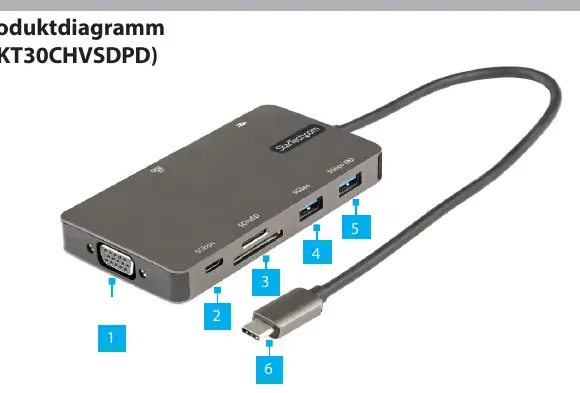
- VGA Port: Supports resolutions up to 1920x1080 60Hz.
- USB-C Data Port: USB 3.2 Gen 1 (5Gbps).
- SD/MicroSD Slot: Supports SD v3.0 UHS-I cards.
- USB-A Ports: Two ports for data (5Gbps). One port supports fast charging (up to 5V 1.5A, 7.5W).
- USB-C Host Port: Connects the adapter to your laptop. Supports DP 1.2 Alt Mode and PD 3.0.
- USB-C PD Port: Pass-through charging port for connecting your laptop's power adapter (up to 100W).
- RJ45 Port: Gigabit Ethernet (10/100/1000 Mbps).
- HDMI Port: Supports resolutions up to 4K 30Hz.
Requirements
To use this adapter, your host computer must have a USB-C port that supports:
- DP Alt Mode (DisplayPort Alternate Mode) for video output.
- USB Power Delivery (PD) support.
Power Delivery 3.0
The adapter supports Fast Role Swap. This feature prevents USB data interruption when switching power sources (e.g., from bus power to a power adapter). Your host laptop must also support Power Delivery 3.0 for this feature to function.
Operation
Connecting Displays: The adapter supports a single display via HDMI or VGA. If multiple displays are connected, only the HDMI output will function.
Powering the Adapter: The adapter can be powered by the host laptop (USB Bus Power). For charging the laptop or powering high-draw devices, use the USB-C Power Delivery Pass-Through mode:
- Connect the adapter to the host computer via the USB-C Host cable.
- Connect your laptop's original USB-C power adapter to the USB-C Power Delivery Passthrough port (Port 7).
RJ45 LED Indicators
The Ethernet port features LED indicators to show connection status:
- Orange (Solid): Connection established (10/100/1000 Mbps).
- Orange (Flashing): Network activity detected.
- White (Off): No activity or no connection.
Official resources from the manual
Practical help
Common problems
Multiple displays connected but only one works
The adapter supports only one display at a time. If both HDMI and VGA are connected, only the HDMI output will function.
Laptop not charging
Ensure you are using the USB-C Power Delivery Passthrough port (Port 7) and that your laptop's power adapter is connected to it. Verify that your laptop supports USB Power Delivery.
No network connection
Check the RJ45 LED indicators. If the light is off, no connection is established. Ensure the network cable is securely connected.
Before use
- Verify host computer has a USB-C port.
- Confirm host computer supports DP Alt Mode.
- Confirm host computer supports USB Power Delivery.
- Ensure you have the correct cables (HDMI/VGA/Ethernet) for your peripherals.
Specs in practice
- USB-A Charging
- One port supports up to 7.5W (5V/1.5A) for charging peripherals.
Images and diagrams
- Port 1: VGA output
- Port 2: USB-C data
- Port 3: SD/MicroSD card reader
- Port 4: USB-A data
- Port 5: USB-A charging port
Model compatibility
- Requires host support for DP Alt Mode for video.
- Requires host support for Power Delivery for charging.
- Only one display output is supported at a time.

Manual page author
Emily Carter
User documentation editor
Prepares concise manual descriptions and highlights the most useful setup, operation, and maintenance information for readers.