Electronics / Audio
User Manual for Vention 11-in-1 USB-C DisplayLink Docking Station VWS-H78
Quick guide for the Vention 11-in-1 USB-C DisplayLink Docking Station (VWS-H78). Learn how to set up display modes, install drivers, and troubleshoot connectivity issues.
Table of contents
Manual images
Click an image to enlargeQuick guide from the manual
The Vention 11-in-1 USB-C DisplayLink Docking Station (VWS-H78) is designed to expand your laptop's connectivity. To ensure proper functionality, you must install the DisplayLink drivers from the official website. The device supports up to 4K@60Hz resolution and requires a USB-C port on your laptop that supports data transfer and DisplayPort (DP) Alt Mode. For full 100W Power Delivery (PD), ensure you use a compatible 100W or higher USB-C wall charger.
Product Overview
The docking station features 11 ports to connect various peripherals:
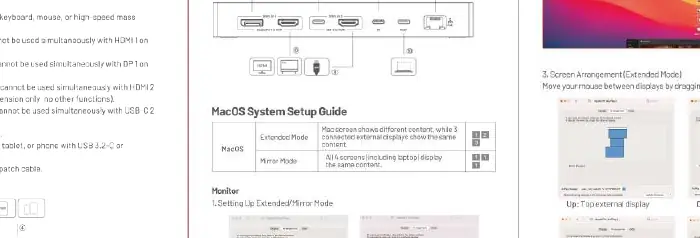
- Video Output: HDMI and DisplayPort (DP) for external monitors.
- Data: USB 3.2 Gen 2 ports for high-speed data transfer.
- Storage: SD and TF card slots for memory cards.
- Network: RJ45 Ethernet port for wired internet.
- Power: USB-C PD port for laptop charging.
- Audio: 3.5mm audio jack.
Driver Installation
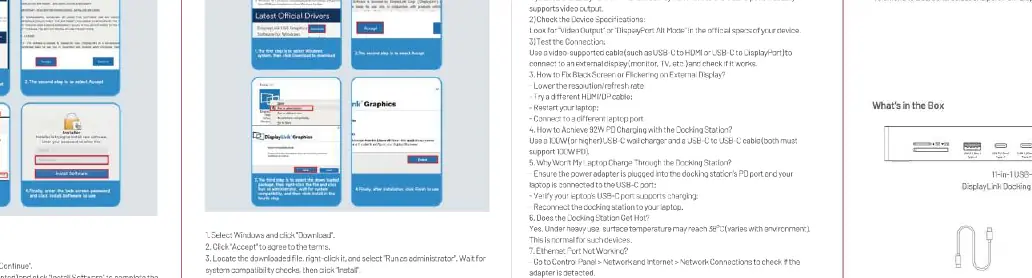
DisplayLink technology requires specific software to function correctly. Visit the official website provided in the manual to download the latest drivers for your operating system (Windows or macOS). Follow the on-screen instructions to complete the installation and restart your computer if prompted.
Display Configuration
Once connected and drivers are installed, you can configure your displays via your computer's system settings:
- Extended Mode: Allows you to extend your desktop across multiple monitors, providing different content on each screen.
- Mirror Mode: Displays the same content on all connected screens.
- Arrangement: You can drag and drop the display icons in your system settings to match the physical layout of your monitors.
Troubleshooting
If you encounter issues, check the following:
- No Display: Ensure the USB-C port on your laptop supports DP Alt Mode. Verify that the DisplayLink driver is installed and running.
- Flickering: Try using a different HDMI or DP cable. Ensure the cable is securely connected.
- Power Issues: If the laptop is not charging, ensure you are using a high-wattage USB-C charger (100W recommended) connected to the PD port.
- General: Restart your computer and reconnect the docking station.
Manufacturer information
Vention
Practical help
Common problems
No video output on external monitors
Ensure your laptop's USB-C port supports DP Alt Mode and that the latest DisplayLink drivers are installed.
Screen flickering or connection drops
Check the HDMI/DP cable connections or try a different cable. Ensure the docking station is connected directly to the laptop, not through another hub.
Laptop not charging
Ensure you are using a 100W or higher USB-C wall charger connected to the PD port of the docking station.
Before use
- Verify your laptop's USB-C port supports data transfer and DP Alt Mode.
- Download and install the latest DisplayLink drivers from the official Vention website.
- Use a 100W (or higher) USB-C wall charger for full Power Delivery support.
- Ensure you have the necessary HDMI or DisplayPort cables for your monitors.
Images and diagrams
- The port layout diagram identifies the location of HDMI, DP, USB-A, USB-C, SD/TF, RJ45, and PD ports.
- Display settings diagrams show how to arrange monitors in Extended or Mirror modes within Windows and macOS settings.
Model compatibility
- Requires a USB-C port with data and DP Alt Mode support.
- DisplayLink drivers are mandatory for video output functionality.

Manual page author
Michael Turner
Technical manual editor
Reviews PDF manuals for structure, safety notes, and practical product details so readers can find the right information quickly.