Electronics / USB Hubs & Docking
StarTech.com 117B-USBC-MULTIPORT USB-C Multiport Adapter User Guide
Quick start guide for the StarTech.com 117B-USBC-MULTIPORT USB-C Multiport Adapter. Includes installation steps, port functions, and technical requirements for multi-monitor setups.
Table of contents
Quick Guide
This guide provides instructions for setting up the StarTech.com 117B-USBC-MULTIPORT adapter. Ensure your host computer's USB-C port supports DisplayPort Alt Mode and MST (Multi-Stream Transport) to utilize video output and multi-monitor features.
Product Overview
The adapter features the following ports:
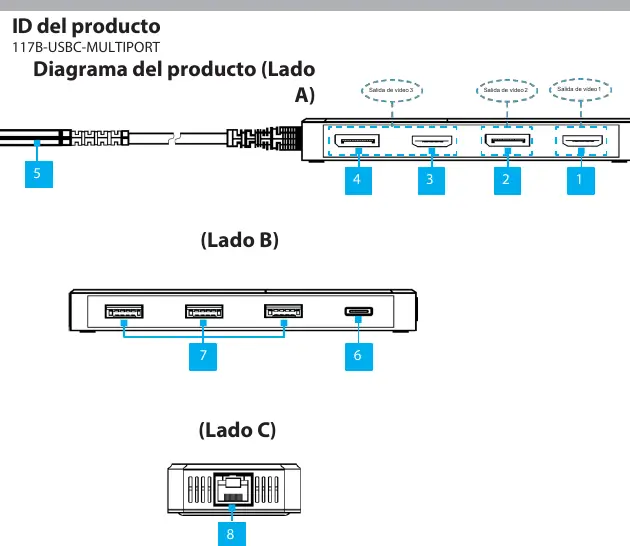
- Video Output Ports (1-4): HDMI and DisplayPort outputs for connecting external displays.
- Host Cable (5): Integrated USB-C cable for connecting to the computer.
- Power Delivery Port (6): USB-C port for connecting a power adapter to charge the host device.
- USB-A Ports (7): Data ports for peripherals.
- Gigabit Ethernet (8): RJ-45 port for wired network connectivity.
Installation
- Connect the integrated USB-C host cable to a USB-C port on your host computer that supports DP Alt Mode. The computer will automatically detect and install the adapter.
- Connect your HDMI or DisplayPort displays to the corresponding video output ports on the adapter.
- Connect USB peripherals to the USB-A data ports.
- Connect a USB-C power adapter to the Power Delivery port to charge your host computer.
- Connect a network cable to the Gigabit Ethernet port if wired internet is required.
Important Notes
- Only one display can be connected to the video output options labeled '3'.
- Video performance (resolution and refresh rate) depends on the host computer's video controller.
- The host computer must support USB-C Power Delivery to be charged through the adapter.
Official resources from the manual
Practical help
Common problems
Video output not working
Ensure the host computer's USB-C port supports DisplayPort Alt Mode.
Multiple monitors not extending
Verify the host computer supports MST (Multi-Stream Transport).
Laptop not charging
Ensure the host computer supports USB-C Power Delivery and the power adapter is connected to the adapter's PD port.
Before use
- Verify host computer USB-C port supports DP Alt Mode
- Verify host computer supports MST for multi-monitor setups
- Have necessary HDMI/DisplayPort cables
- Have a compatible USB-C power adapter for charging
Specs in practice
- USB-C Power Delivery
- Allows charging the host laptop through the adapter (up to 85W available).
Images and diagrams
- Ports 1-4: Video output ports (HDMI/DisplayPort)
- Port 5: Integrated USB-C host cable
- Port 6: USB-C Power Delivery input
- Port 7: USB-A data ports
- Port 8: Gigabit Ethernet port
Model compatibility
- Requires USB-C port with DP Alt Mode
- Requires MST support for multi-monitor output
- Charging requires host support for USB-C Power Delivery

Manual page author
Emily Carter
User documentation editor
Prepares concise manual descriptions and highlights the most useful setup, operation, and maintenance information for readers.