Electronics / Networking
QuickStart Guide for FortiExtender 201E/211E/202E/212E
A comprehensive quick start guide for the FortiExtender 201E, 211E, 202E, and 212E series. Includes instructions for hardware assembly, SIM card installation, network connections, mounting, and initial IP configuration.
Quick answers from the manual
Quick answer
- The FortiExtender 201E/211E/202E/212E is a cellular extender. Setup involves inserting a MicroSIM card, connecting via Ethernet/PoE, and configuring the device via the web GUI at 192.168.1.2. p. 1, 10, 11, 12
Key actions
- Insert SIM card p. 11, 13
- Connect to network p. 10
First start
- Access web GUI p. 12
Problems and fixes
System error
Amber steady Power LED indicates a system error.
p. 9Maintenance and reset
- Reset/Reboot p. 7
- Factory Reset p. 7
Technical specifications
| Parameter | Value | Meaning | Pages |
|---|---|---|---|
| Console Baud Rate | 115200 | Required for console access | p. 6 |
Where to find it in the PDF
- Packing List p. 4
- Ports and LEDs p. 6, 7, 8, 9
- Installation p. 13, 14, 15
Table of contents
Quick guide from the manual
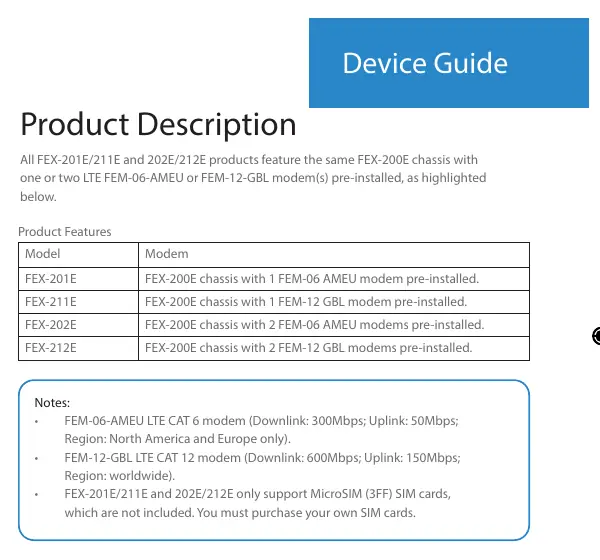
This guide provides the essential steps to set up and install your FortiExtender 201E, 211E, 202E, or 212E. The device is designed for placement near a window to optimize 3G/4G signal strength. Ensure you have a MicroSIM (3FF) card ready, as it is not included.
Packing list
- FortiExtender unit
- LTE/GPS Antennas
- Mounting Kit (Anchors and Screws)
- Rubber Feet
- Drill Template Sticker
- QuickStart Guide
Device overview
The device features multiple ports and indicators:
- Ports: GE WAN/LAN (1-4), USB 2.0, Console Port, 12V/2A Power Input.
- LEDs: Network status, Bluetooth, LTE signal levels, Power, Management, and FortiGuard Cloud status.
- Buttons: Reset/Default button and Bluetooth button.
Basic connections
- Insert one end of an Ethernet cable into the LAN/PoE port on the device.
- Connect the other end to the PoE LAN port on your FortiGate appliance. Ensure both devices are on the same subnet.
- Alternatively, use a 12V/2A power adapter if not using PoE.
Warning: Use only IEEE 802.3af/at compliant PoE injectors to avoid damaging the device.
Assembly
- Remove the dust cover protecting the SIM sockets.
- Insert your MicroSIM (3FF) card(s). If using one card, either socket works. If using two, use SIM1 as primary.
- Ensure the card is facing down with the cut corner on the left.
- Replace the cover and attach the antennas.
Installation
The device can be placed on a desk or mounted on a wall.
- Desk: Attach rubber feet to the bottom corners and secure with a Kensington lock.
- Wall: Use the provided drill template sticker to mark and drill pilot holes. Insert anchors and screws, then slide the device onto the screws using the mounting slots.
IP configuration
The device attempts to obtain an IP via DHCP. To configure a static IP:
- Connect a computer to a LAN port.
- Set the computer IP to 192.168.1.1 and netmask to 255.255.255.0.
- Access the web GUI at http://192.168.1.2.
- Log in with username admin and password admin.
- Navigate to Network Configuration, select Static, and enter your IP details.
Manufacturer information
Fortinet, Inc.
Practical help
Common problems
Device not booting or system error
Check power connection (12V/2A or PoE). An amber steady Power LED indicates a system error.
Cannot access web GUI
Ensure your computer is on the same subnet (192.168.1.1) and use the default address http://192.168.1.2.
SIM card not recognized
Ensure the MicroSIM (3FF) card is inserted correctly with the cut corner on the left.
Before use
- Verify all items from the packing list are present
- Obtain a MicroSIM (3FF) card
- Ensure PoE injector is IEEE 802.3af/at compliant
- Provide adequate grounding for the PoE injector
Specs in practice
- Console Baud Rate
- Must be set to 115200 for console access.
- PoE Compatibility
- Supports IEEE 802.3af/at standard.
Images and diagrams
- The device features LTE/GPS antenna ports, LAN/PoE ports, and a console port.
- SIM sockets are located under a protective cover on the bottom of the unit.
- Wall mounting requires using the drill template sticker and appropriate anchors.
Model compatibility
- Supports MicroSIM (3FF) cards only.
- PoE injector must be IEEE 802.3af/at compliant.

Manual page author
Michael Turner
Technical manual editor
Reviews PDF manuals for structure, safety notes, and practical product details so readers can find the right information quickly.