Industrial / Signaling Devices
User Manual for Genius 200BT USB Soundbar
Quick guide for the Genius 200BT USB Soundbar. Learn how to connect via Bluetooth or Line-in, control volume, manage RGB lighting, and understand power requirements.
Quick answers from the manual
Quick answer
- The Genius 200BT is a USB-powered soundbar that supports Bluetooth 5.1 and 3.5mm Line-in. It requires a 5V 1.2A power source and features in-line controls for playback, volume, and RGB lighting. p. 3, 4
Key actions
- Pairing Bluetooth p. 5
- Adjusting RGB Lighting p. 7
First start
- Plug in the USB power cable. The device defaults to Line-in mode (red LED). p. 5
Show 2 more answers Show less
Technical specifications
| Parameter | Value | Meaning | Pages |
|---|---|---|---|
| Power Input | DC 5V 1.2A | Required power source | p. 4 |
Where to find it in the PDF
- In-line Control Diagram p. 4
- Button Functions Table p. 6, 7
Table of contents
Manual images
Click an image to enlargeQuick guide from the manual
The Genius 200BT is a USB-powered soundbar designed for use with desktops, laptops, tablets, smartphones, and smart TVs. It supports both Bluetooth 5.1 wireless connectivity and a 3.5mm wired Line-in connection. The device is powered via USB and requires a stable 5V 1.2A power source.
Connection and Power
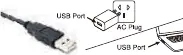
To set up the soundbar, plug the USB power cable into a USB port. The device is plug-and-play. By default, it enters the Line-in mode upon power-up, indicated by a red LED. You can connect an audio cable to your audio device to play music.
Bluetooth Pairing
To switch to Bluetooth mode, short press the Bluetooth button on the in-line remote. The blue LED will flash, indicating the device is ready for pairing. Once paired, the blue LED will remain on. To re-enter pairing mode, long press the Bluetooth button for 3 seconds until a notification sound is heard.
In-line Control Functions
The in-line remote control allows you to manage playback and settings:
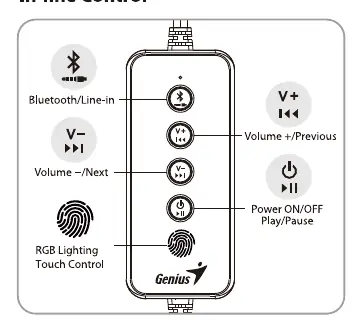
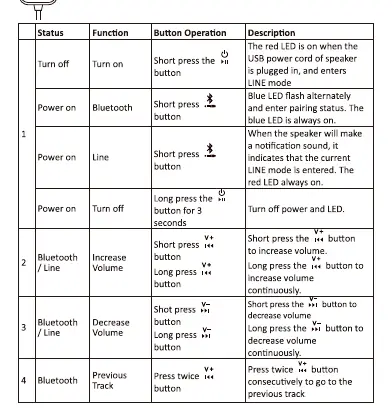
- Power/Play/Pause: Short press to play or pause music. Long press for 3 seconds to turn the power on or off.
- Volume/Track Control: Short press the volume buttons to adjust volume. Long press to adjust volume continuously. Press twice consecutively to skip to the previous or next track.
- RGB Lighting: Touch the RGB lighting button to cycle through ten different lighting modes.
Technical Specifications and Requirements
The device requires a power source of DC 5V 1.2A. It operates in a frequency band of 2400 MHz - 2483.5 MHz. The operating temperature range is 0-40°C, and storage conditions should be between -20°C and 50°C with 5% to 85% humidity.
Manufacturer information
Genius
Practical help
Common problems
Speaker does not turn on
Ensure the USB power cable is connected to a power source providing at least DC 5V 1.2A.
Bluetooth pairing fails
Long press the Bluetooth button on the remote for 3 seconds to force the device into pairing mode.
Volume resets after restart
The device does not remember the last volume level; it will automatically return to the middle value upon restarting.
Before use
- Connect the USB power cable to a suitable power source.
- Ensure the power source provides DC 5V 1.2A.
- Select the desired input mode (Bluetooth or Line-in) using the remote.
- If using Line-in, connect the 3.5mm audio cable to your audio device.
Show more Show less
Specs in practice
- Bluetooth 5.1
- The wireless standard used for connecting to mobile devices and computers.
Images and diagrams
- The in-line remote features five main controls: Bluetooth/Line-in toggle, Volume Up/Previous, Volume Down/Next, Power/Play/Pause, and RGB Lighting touch control.
Model compatibility
- Compatible with devices featuring a 3.5mm audio jack or Bluetooth connectivity.
- Suitable for Desktop, Laptop, Tablet, Smartphone, and Smart TV.

Manual page author
David Miller
Documentation analyst