Power / Power Banks
Hama 00037182 20000mAh Power Pack User Manual
User manual for the Hama 00037182 20000mAh Power Pack. Includes charging instructions, safety notes, technical specifications, and maintenance guidelines.
Quick answers from the manual
Quick answer
- The Hama 00037182 is a 20000mAh power bank. Charge it via Micro-USB or USB-C (5V/2A). Charge your devices via USB-A or USB-C (5V/3A). p. 3
Key actions
- Charge the power pack fully before first use. p. 3
- Check capacity by pressing the button. p. 3
First start
- Connect the included Micro-USB cable to the power pack's Micro-USB port (IN 5V/2A) and to a suitable USB charger. p. 3
Problems and fixes
Charging current reduced
Do not use USB and USB-C outputs simultaneously.
p. 3Technical specifications
| Parameter | Value | Meaning | Pages |
|---|---|---|---|
| Capacity | 20000mAh | Total battery capacity | p. 5 |
| Max Output | 3000mA | Maximum total output current | p. 3, 5 |
Where to find it in the PDF
- Safety Notes p. 2
- Operation p. 3
- Technical Data p. 5
Table of contents
Quick guide from the manual
The Hama 20000mAh Power Pack is designed to charge mobile devices. Before first use, ensure the power pack is fully charged. Use the provided Micro-USB cable or a USB-C cable to charge the power pack. To charge your devices, connect them to the USB-A or USB-C output ports. Do not charge the power pack and your devices simultaneously.
Safety Notes
- The product is intended for private, non-commercial use only.
- Keep the product away from children.
- Do not drop the product or expose it to major shocks.
- Do not open the device or attempt to repair it yourself.
- Protect the product from dirt, moisture, and overheating.
- Do not use the product in areas where electronic devices are not permitted.
- Do not throw the battery or the product into fire.
Charging the Power Pack
Begin charging by connecting the included Micro-USB cable to the power pack's Micro-USB port (IN 5V/2A) and to a suitable USB charger. Alternatively, you can charge via the USB-C input (IN 5V/2A) using a USB-C adapter. Charging begins and ends automatically.
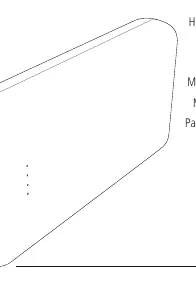
Capacity Indicators
- Each status LED corresponds to 25% of the capacity.
- When an LED is permanently illuminated, that capacity level has been reached.
- If three LEDs are illuminated and the fourth is flashing, the power pack is charged to at least 75%.
- If all four status LEDs light up, the full capacity is available.
- Press the button on the power pack to check the current capacity.
- To switch off, press the button twice until the status LEDs go out.
Charging Terminal Devices
Before connecting a device, ensure the total power consumption does not exceed 3000mA. Connect your device using the appropriate cable (Micro-USB or USB-C) to the output ports (OUT 5V/3A). Charging begins automatically. Do not use the USB and USB-C outputs simultaneously, as this significantly reduces the charging current and may overload the power pack.
Care and Maintenance
Clean this product only with a slightly damp, lint-free cloth. Do not use aggressive cleaning agents.
Technical Data
- USB-C Input: 5V/2A
- Micro-USB Input: 5V/2A
- USB-A Output 1: 5V/3A
- USB-A Output 2: 5V/3A
- USB-C Output: 5V/3A
- Output Total: 5V/3A (max.)
- Battery Type: 3.7V / Li-Po (High Density)
- Capacity: 20000mAh / 74Wh
Manufacturer information
Hama GmbH & Co KG
Practical help
Common problems
Power pack not charging
Ensure the USB charger used provides 5V/2A. Try a different cable or charger.
Device charging slowly
Ensure you are not using both USB and USB-C outputs simultaneously, as this reduces charging current.
Power pack won't turn on
Press the button once to check capacity. If no LEDs light up, the battery may be completely discharged and needs charging.
Before use
- Charge the power pack fully before first use.
- Check that your device's power requirements do not exceed 3000mA.
- Ensure you have the correct cable (Micro-USB or USB-C).
Images and diagrams
- LEDs indicate capacity: 1 LED = 25%, 2 LEDs = 50%, 3 LEDs = 75%, 4 LEDs = 100%.
Model compatibility
- Compatible with most smartphones and devices charged via USB.
- Not suitable for high-power devices requiring more than 3000mA.

Manual page author
Emily Carter
User documentation editor
Prepares concise manual descriptions and highlights the most useful setup, operation, and maintenance information for readers.