Electronics / Remote Controls
User Manual for Hama 1in1 Universal Remote Control
Quick guide for the Hama 1in1 Universal Remote Control. Learn how to set up your remote using brand codes, manual search, or auto search, and how to reset the device.
Quick answers from the manual
Quick answer
- To set up the Hama 1in1 remote, you can use a brand code, manual search, or auto search. Insert 2 AAA batteries, then follow the specific setup procedure for your device. p. 2, 3, 4
Key actions
- Setup by Brand Code p. 3, 4
- Manual Search p. 3, 4
- Auto Search p. 3, 4
First start
- Insert 2 AAA batteries, ensuring correct polarity. p. 2, 3
Problems and fixes
Device not responding
Try a different code for the same brand or use manual search.
p. 3, 4Maintenance and reset
- Use the Reset function to erase all set up data. p. 3, 4
Where to find it in the PDF
- Function Keys p. 2
- Setup Instructions p. 3, 4
Table of contents
Manual images
Click an image to enlargeQuick guide from the manual
The Hama 1in1 Universal Remote Control is designed to operate most TVs on the market. It features an extensive code library and four operation modes: Setup, Manual Search, Auto Search, and Display Mode. Before using the remote, ensure you have two AAA batteries (not included).
Getting started
To prepare the remote for use, insert two AAA batteries into the compartment on the back, ensuring the correct polarity (+/-) as indicated inside the battery bay.
Setup methods
Setup by brand code
- Find the 3-digit code for your device brand in the provided code list.
- Press and hold the [SET] key, then press the device key (e.g., [TV]).
- The LED will light up. Release both keys.
- Enter the 3-digit device code.
- If the code is correct, the LED will turn off automatically. If the LED blinks twice, the code is incorrect; repeat the process.
Manual search
- Turn on the device you wish to control.
- Press and hold [SET], then press the device key (e.g., [TV]).
- The LED will light up. Release the keys.
- Point the remote at the device and press the [POWER] key. The remote enters manual search mode, and the LED will flash.
- If the device reacts, press the device key to save the code. If not, repeat the [POWER] press every second.
Auto search
- Turn on the device you wish to control.
- Press and hold [SET] and the device key (e.g., [TV]) for more than 3 seconds.
- The remote will enter auto search mode, and the LED will flash while transmitting the power signal every 2 seconds.
- When the device reacts, press any key (except [SET]) to stop the search.
Resetting the remote
To erase all programmed data and reset the remote, press and hold [SET], then press and hold [0] for more than 3 seconds. The LED will blink twice and turn off.
Function keys
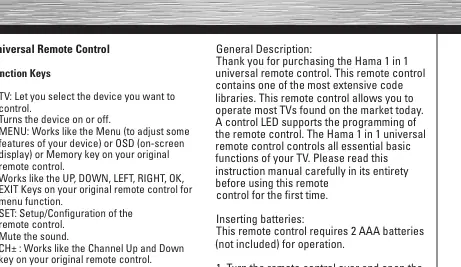
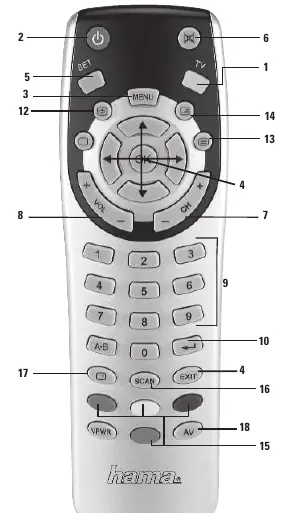
The remote includes standard keys such as [POWER], [MENU], [SET], [CH+/-], [VOL+/-], and numeric keys [0-9]. The [SET] key is primarily used for configuration and setup. The LED indicator provides feedback during programming and transmission.
Manufacturer information
Hama GmbH & Co KG
Practical help
Common problems
Remote does not control the device.
Try a different code for the same brand or use the manual/auto search methods.
Device does not react during search.
Ensure the remote is pointed directly at the device and that the device is turned on.
Setup mode won't exit.
Press the device key or wait 10 seconds for the remote to exit setup mode automatically.
Before use
- Insert 2 AAA batteries (not included).
- Check battery polarity (+/-) in the compartment.
- Identify your device brand code from the list.
Images and diagrams
- The remote features a numeric keypad, volume/channel controls, and specific function keys like MENU, SET, and POWER.
Model compatibility
- Designed for most TVs on the market.

Manual page author
David Miller
Documentation analyst
Organizes user manual content into clear summaries, with attention to model details, product context, and everyday usability.